Initial operation and registration - LSM 3.6 SP1 Business + Prof.
Registering LSM.AX2Go does not include registering LSM itself. See Register LSM on registering LSM. The required LSM.AX2Go client is automatically installed with LSM 3.6 and above.
- Locking system database (lsmdb.add) has been created (see Create folder structure).
- LSM is registered (see Register LSM).
- Locking system has been created (see Add locking system).
- Open the LSM.AX2Go client (either in the Windows start menu or via Programming and ).
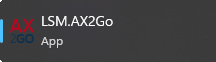
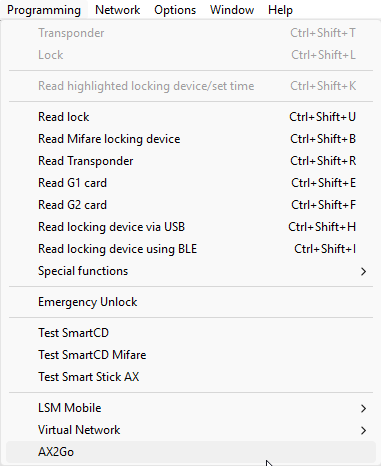
- The LSM.AX2Go Client window will open and ask for login credentials.
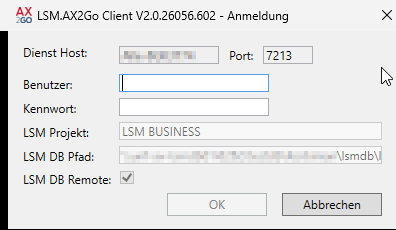
- Enter a user and a password which the LSM service can use to log on to the database.
NOTE

“TB” prerequisite; administrator user group recommended
The same restrictions/authorisations apply to the user you use for the LSM.AX2Go client as to other users in LSM. The user for the LSM.AX2Go client must therefore have the “TB” role (Edit transponders and groups). With the “TB” role, the transponder groups/locking systems where AX2Go keys are to be used must be authorised.
If you also want to change the settings/configuration, you must log on as a user who belongs to the Administrator user group; otherwise, you will not see the and Admin tabs.
- Log on as a user with the roles “A” and “TB” for the LSM.AX2Go client.
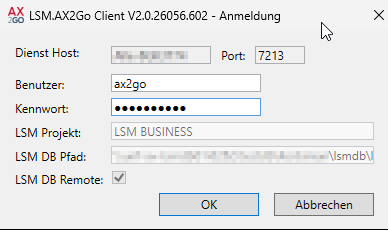
- The connection data to the database is already entered. If not (or incorrect), delete the instance and create it again (see Correcting errors).
- Click on the OK button.
- A connection is established to the database.

- Error message is displayed: Not registered yet.
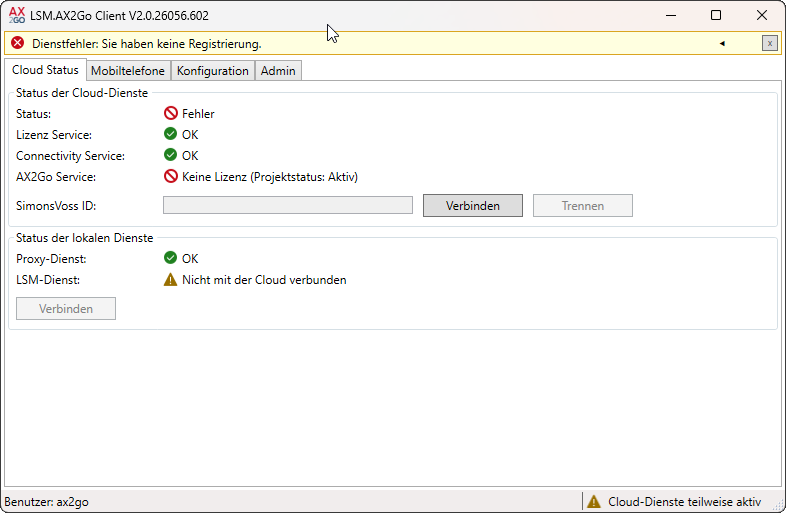
- Click the button.
- Your browser opens with a login screen for the required SimonsVoss ID.
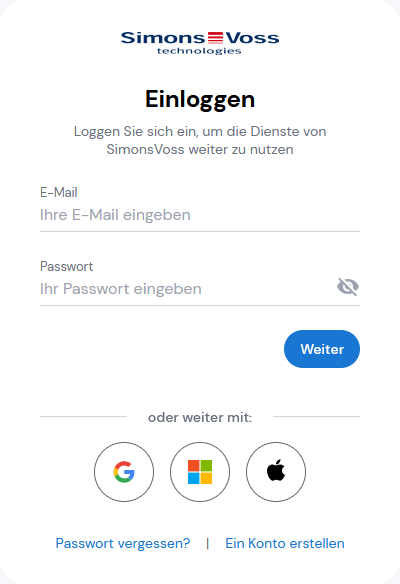
- Log on with your SimonsVoss ID or create a SimonsVoss ID.
NOTE
SimonsVoss ID cannot be used simultaneously for AXM and LSM.
A SimonsVoss ID can only be used for one of the two programs.
- If necessary, create a new SimonsVoss ID.
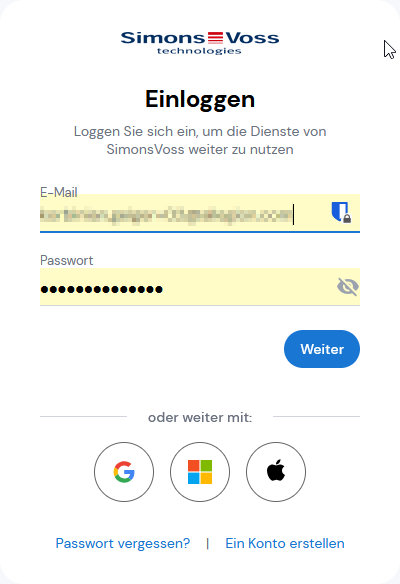
- Authorisation dialogue appears.
- Allow the connection.
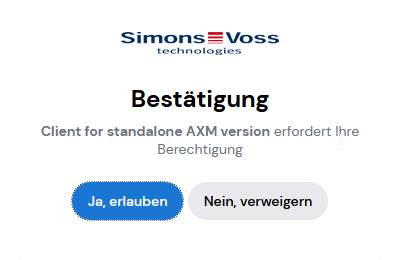
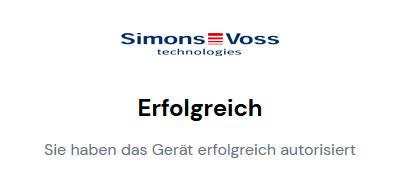
- Authorisation successful.
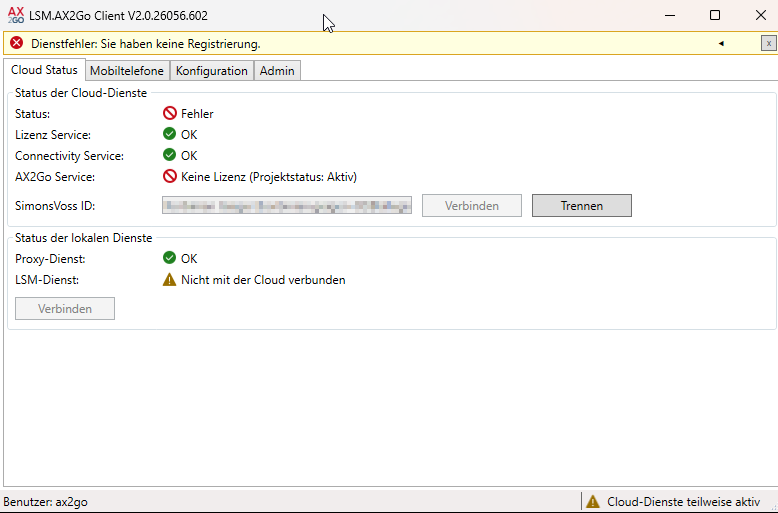
- The connected ID is now visible in your LSM.AX2Go client.
- Change to the - tab.
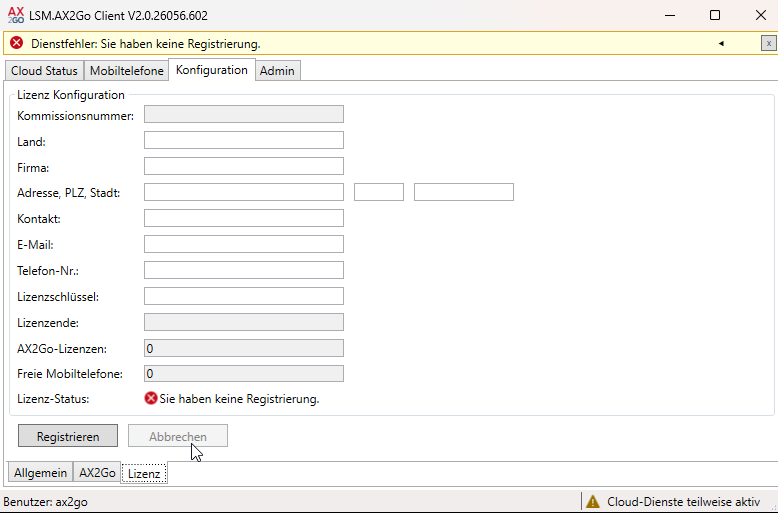
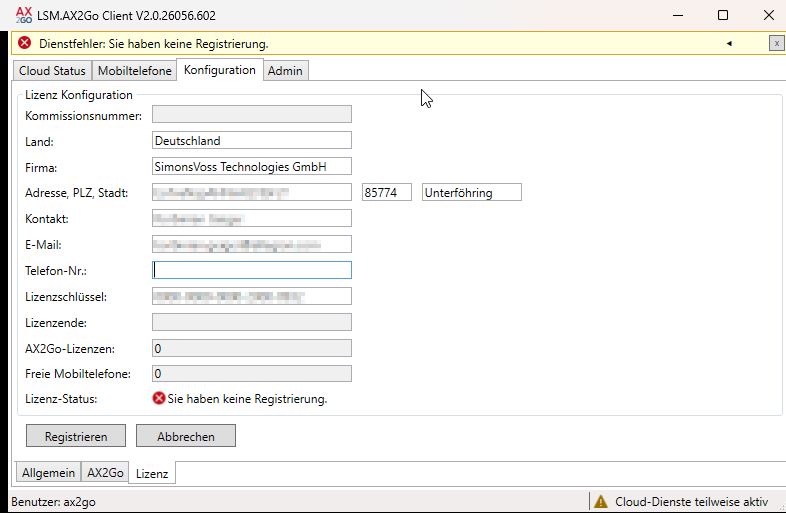
- Complete the registration form.
NOTE
Grey fields filled in automatically
Greyed-out fields (e.g. consignment number) are filled in automatically. You cannot enter any information here.
- Click the button.
- LSM.AX2Go is automatically registered via the SimonsVoss ID and the cloud.
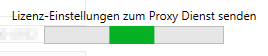
- Registration was successful.
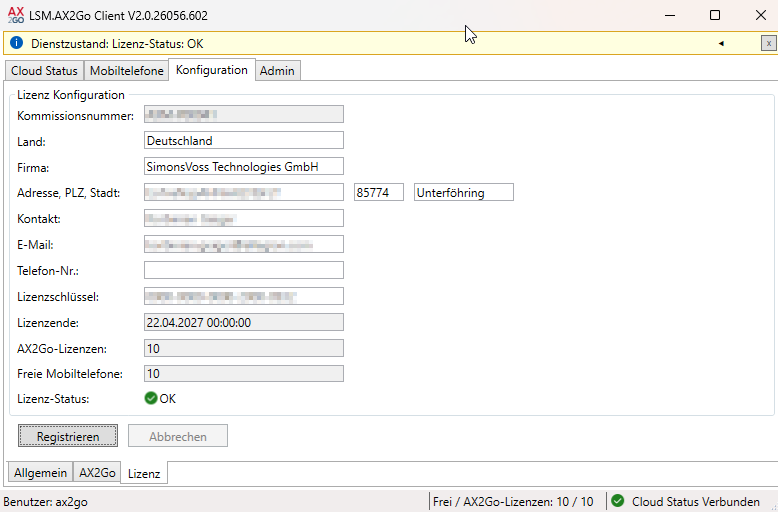
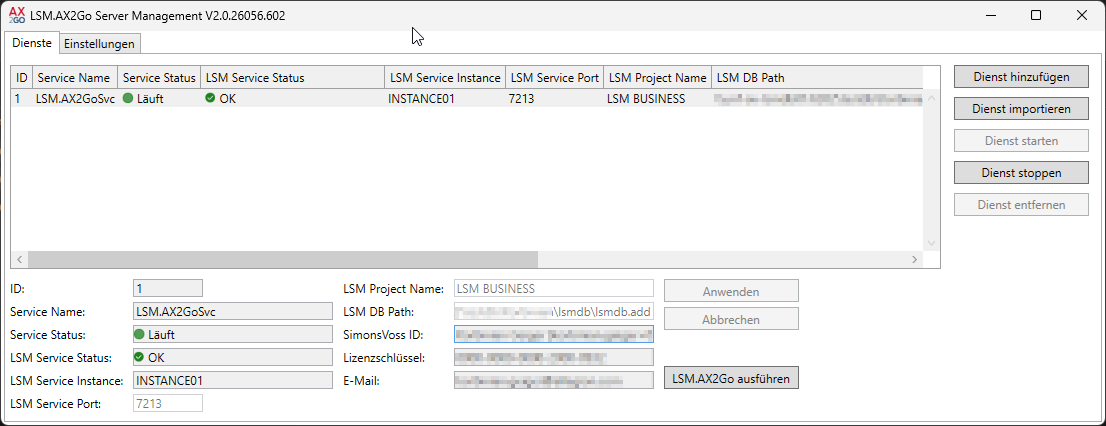
Your LSM.AX2Go is now ready for use. An OK status message should now also be visible in the Server Management system (see Server administration), which is optionally installed separately.
Then make sure that your backup also covers the separate LSM.AX2Go database (see Extend backup for LSM.AX2Go).