Creating a response - LSM 3.6 SP1 Business + Prof.
First create a response. This response can be selected at a later stage when a specific scenario occurs.
- Use Network to select the input.
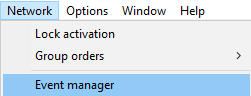
- The Network event manager window will open.
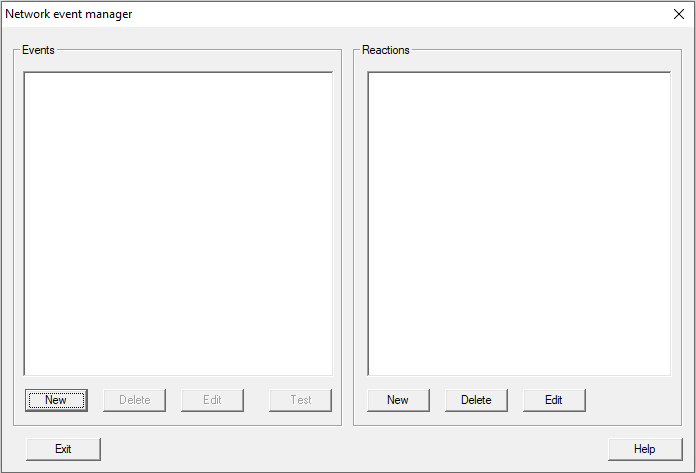
- Click the New button in the Reactions section.
- The New reaction window will open.
- Enter a name and optionally a description for the response.
- From the drop-down menu , select what the response should be (example: E-Mail).
See Possible responses for more information about possible responses. 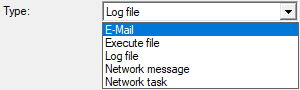
- Click the Configure reaction button.
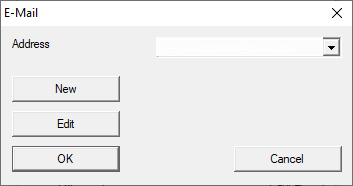
- The E-Mail window will open.
NOTE

Different configuration settings for responses
Depending on what you have selected in , you will see a different configuration dialogue.
- Select an existing email from the drop-down list or use the New button to create a new email.
- The Configure E-Mail address window will open.
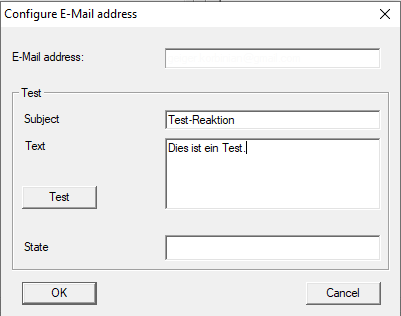
- When creating a new email, enter the recipient’s email address, a subject and a message text.
- Click the Test button to send a test email.
- Close the dialogue box by clicking on the OK button three times.
- The newly created response is now listed.
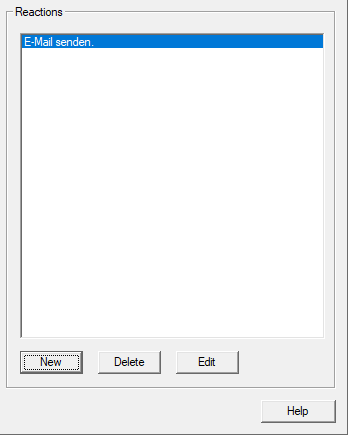
- Click on the Exit button.
- Your LSM offers you the option of notifying the communication node of the changed settings immediately.
You can also forward the settings manually at a later stage. See Setting up the gateway and VN host server for an example of a description. 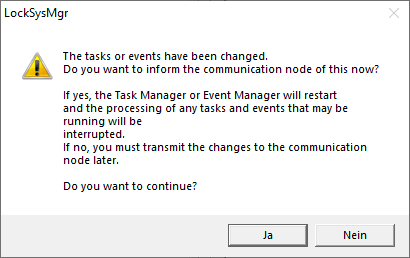
- Click on the Yes button.
- Your LSM interrupts ongoing task and event manager activities if needed and transfers the changed settings.
- Network event manager window closes.
You can trigger the newly created response by an event (see Creating an event).