Move instance (e.g. server relocation) - LSM 3.6 SP1 Business + Prof.
There are situations where one or more instances must be moved — for instance, when server hardware needs to be replaced. It is a combination of:
- Stop service so that the instance can be removed.
- Remove the instance (zip file automatically created).
- LSM.AX2Go Server Management installed on the new server.
- Restore the instance on the new server.
- LSM.AX2Go Server Management installed on the old and new server (see Server administration).
- Open LSM.AX2Go Server Management in the start menu with admin rights.
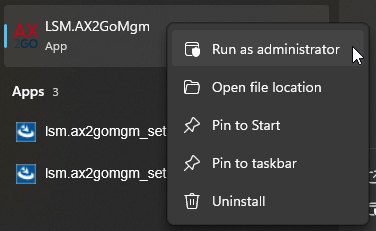
- LSM.AX2Go Server Management opens.
- Select the instance to be moved.
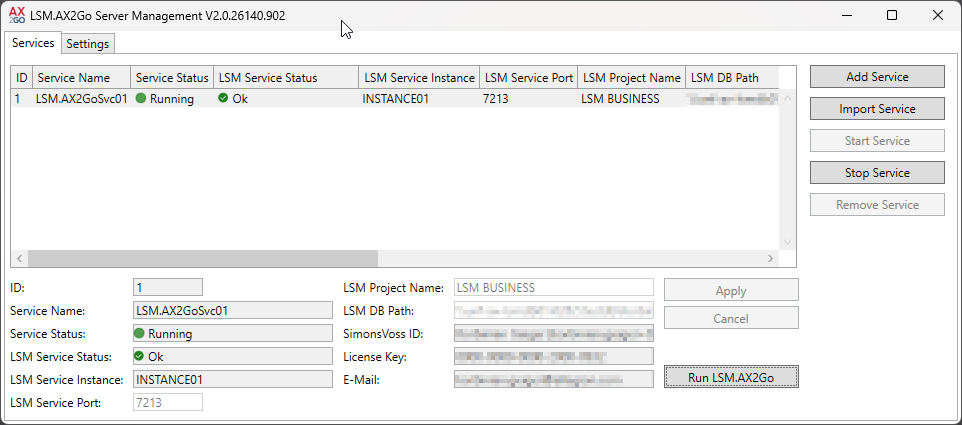
- Click the Stop Service button.
- The instance’s service is stopped and can now be removed.
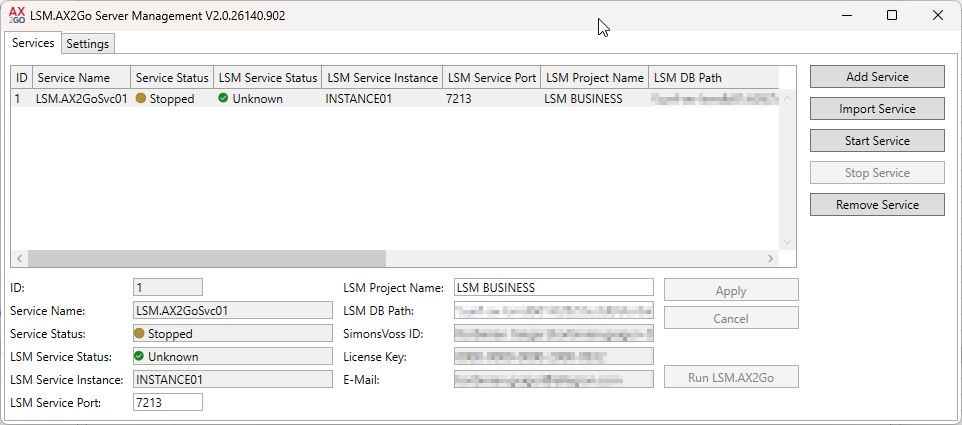
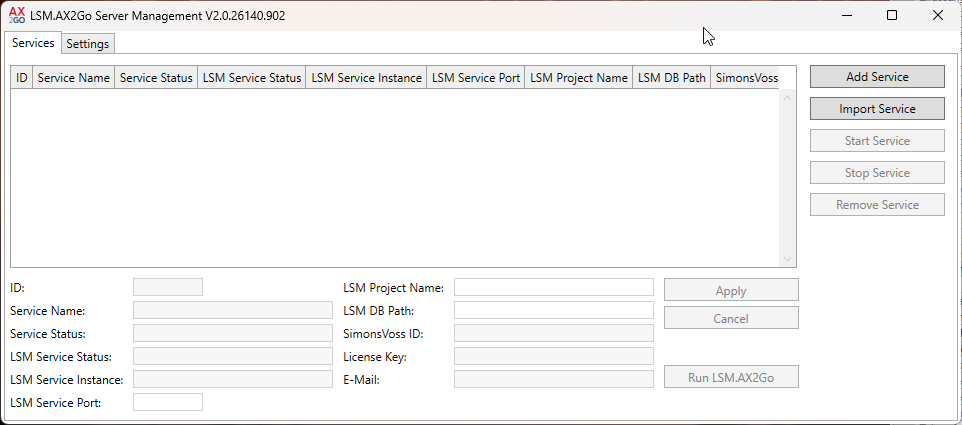
- Click the Remove Service button.
- A message window for removing the service appears.
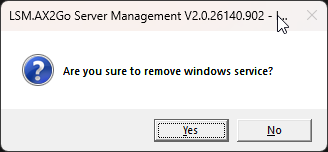
- Confirm the settings with the button.
- Instance is no longer displayed in the Server Management system.
- Zip file was created in the backup folder (C:\ProgramData\SimonsVoss\LSMAX2Go\backup).
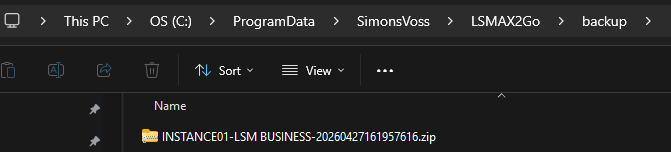
- Copy the zip file to the new server.
- Open LSM.AX2Go Server Management with admin rights on the new server.
- LSM.AX2Go Server Management opens.
- Click the Import Service button.
- Windows Explorer opens.
- Select the zip file previously copied.
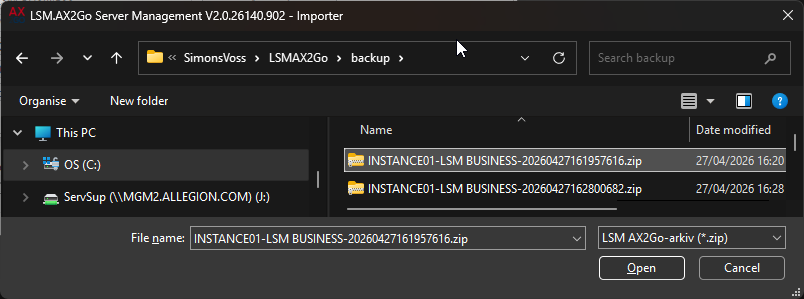
- Click the Open button.
- The instance is restored.
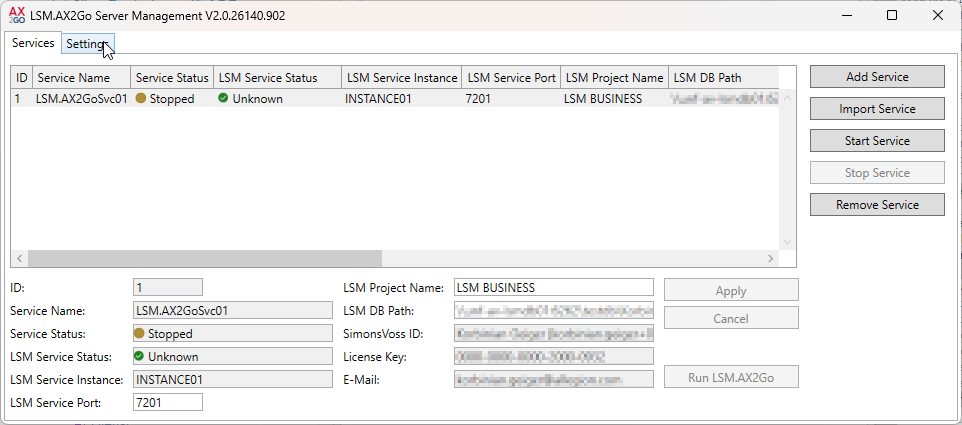
- Click the Start Service button.
- The service is restarted.
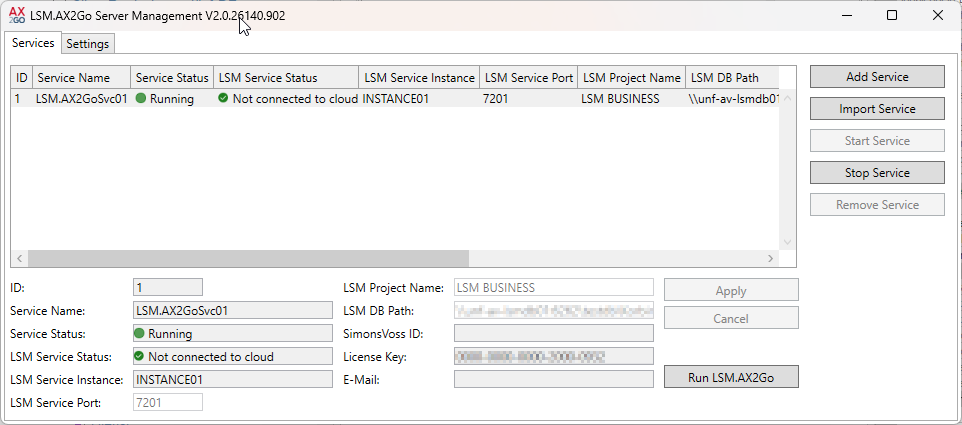
- The instance has been restored to the new server and is running. However, you may need to reconnect the client (see Initial operation and registration). One reason for this could be a change to the database path.