TLSConnector.cfg.json for own certificate from certificate store - LSM 3.6 SP1 Business + Prof.
Download example: TLSConnector.cfg.json_store_sample.json
TLSConnector.cfg.json_store_sample.json - LSM 3.6 SP1 Business + Prof.
{
"Certificates": {
"Store": {
"ClientStoreLocation": "CurrentUser",
"ClientStore": "My",
"ClientThumbprint": "xxxxxxxxxxxxxxxxxxxxxxxxxxxxxxxxxxxxxxxx",
"RootStoreLocation": "CurrentUser",
"RootCAStore": "My",
"RootCAThumbprint": "xxxxxxxxxxxxxxxxxxxxxxxxxxxxxxxxxxxxxxxx"
}
}
}
Please also note the Readme file in the same directory. The configuration file cannot be applied 1:1. Adapt the parameters to your IT environment together with your IT administrator.
ClientStoreLocation and RootStoreLocation
ClientStoreLocation1and and RootStoreLocation specify who is authorised to access the certificate.
You were asked for this setting when importing the certificate.
Possible values are:
| X.509 certificate store of the currently logged-in user (default) |
| X.509 computer certificate store (admin rights required). All users can view the certificate. |
ClientStore and RootCAStore
ClientStore and RootCAStore indicate the certificate store in which you have installed the certificates.
You were asked for this setting when importing the certificate.
Possible values are:
| X.509 certificate store for other persons |
| X.509 Certificate store for third-party root CAs |
| X.509 Certificate store for intermediate certification authorities (CAs) |
| X.509 Untrusted certificate store |
| X.509 Certificate store for own certificates |
| X.509 Certificate store for trusted root certification authorities |
| X.509 Certificate store for trusted persons |
| X.509 Certificate store for trusted publishers |
ClientThumbprint
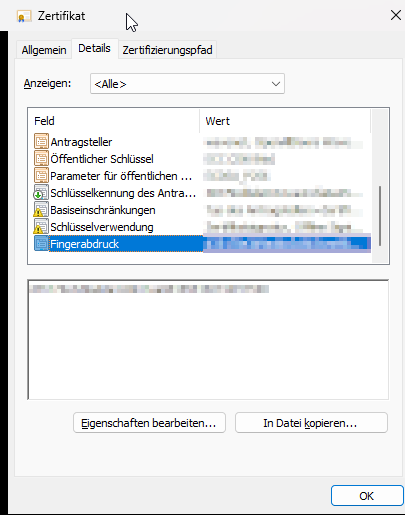
You can view the fingerprint of the client certificate by viewing the certificate details in the Windows Certificate Store. When copying, make sure that you do not copy any hidden characters.
RootCAThumbprint
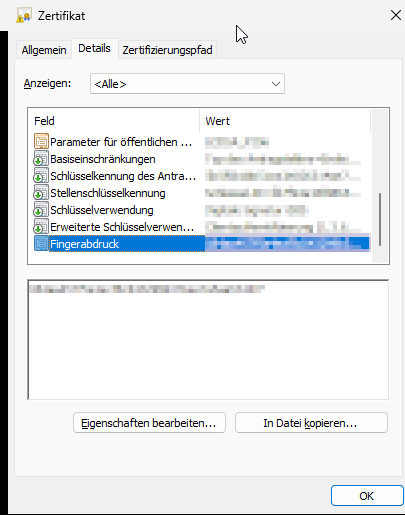
You can view the fingerprint of the RootCA certificate by viewing the certificate details in the Windows Certificate Store. When copying, make sure that you do not copy any hidden characters.