revoking an AX2Go key - LSM 3.6 SP1 Business + Prof.
Transponders can be deactivated in the event of loss or defect (see Block transponders). A similar option is also available for AX2Go keys. Note: if the mobile phone on which the AX2Go key is stored is no longer connected to the Internet, then the deactivation will not reach the AX2Go key. Therefore, you must set an expiry date (see Configuring AX2Go and Time budget in AX2Go).
- LSM.AX2Go client installed and registered with SimonsVoss ID (see Initial operation and registration).
- In the LSM matrix, right-click on the AX2Go key to be deactivated to open the context menu.
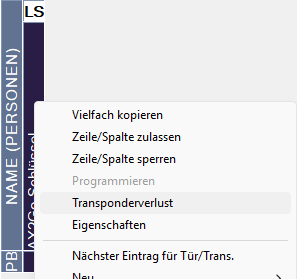
- Select the option.
- Lost transponder notification window will open.
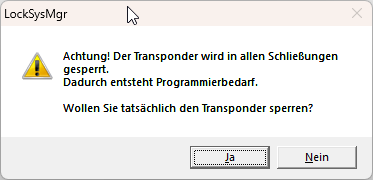
- Click the button twice to acknowledge the notification.
- The window to enter the reason will open.
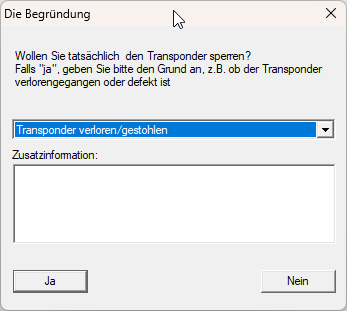
- Select a reason from the drop-down menu and enter additional information if you wish.
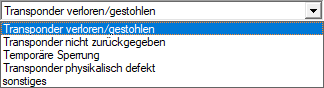
- Click on the Yes button.
- LSM will offer to create a replacement transponder directly.
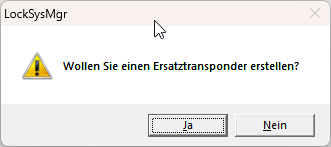
- Decide whether you want to create a replacement transponder directly.
A replacement transponder will receive the same authorisations and properties as the previous transponder.
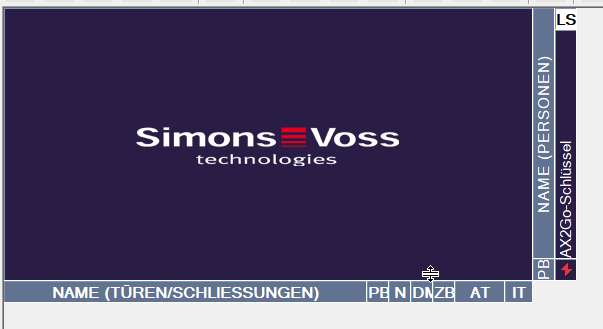
We do not create a replacement transponder in the example. - AX2Go key is displayed as deactivated in the matrix.
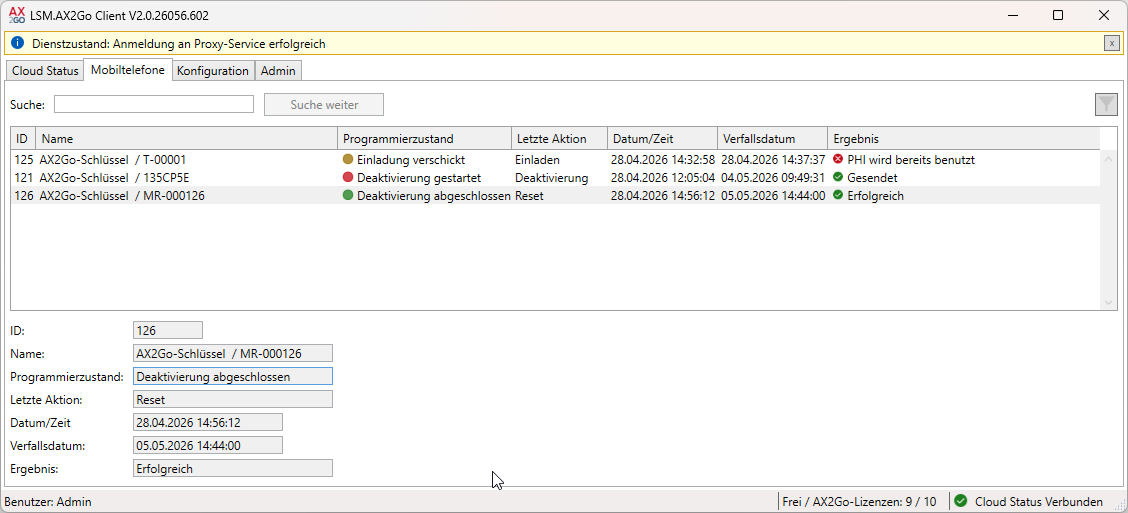
- LSM.AX2Go client shows that AX2Go key is currently being deactivated.
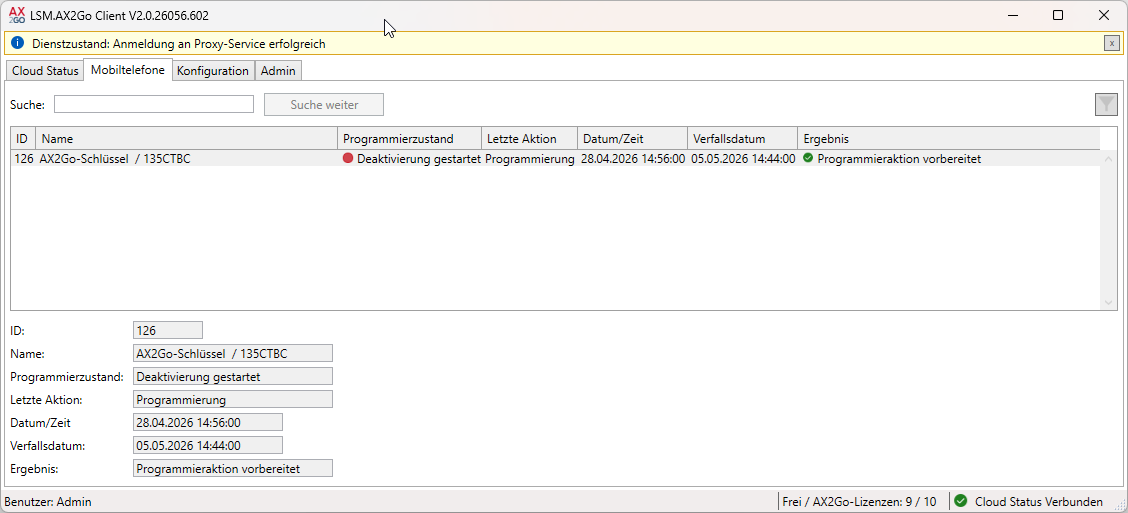
- AX2Go key is deactivated.
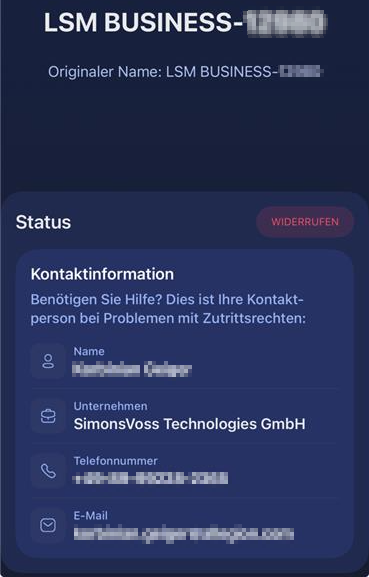
The AX2Go key is also displayed as Revoked on the mobile phone: