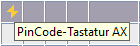
Create PinCode AX - LSM 3.6 SP1 Business + Prof.
- At least one programmed AX locking device is to be connected with the PIN code keypad AX (see also PinCode keypads and Add new locking device).
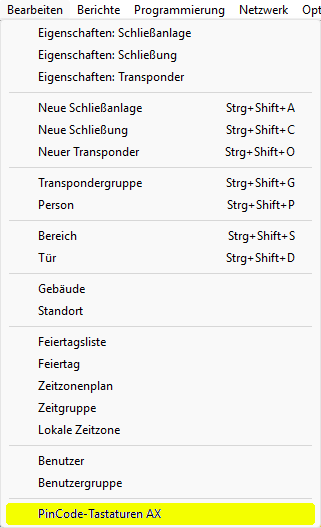
- Use to select the input.
- The window will open.
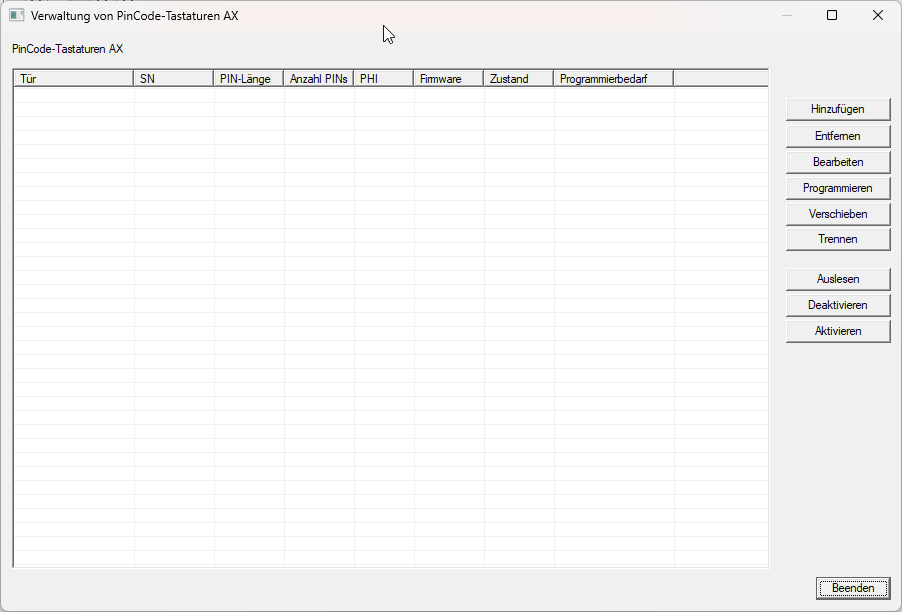
- Click the button.
- The window will open.
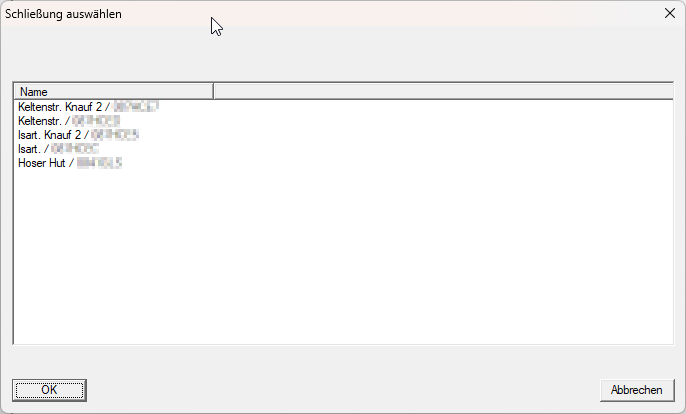
- Select the locking device that should be connected to the PIN code keypad AX.
NOTE

Only programmed AX locking devices from the database are visible
The PIN code keypad AX can only be connected to AX locking devices that have already been programmed. For this reason, the database will only display the AX locks that are pre-programmed for connection.
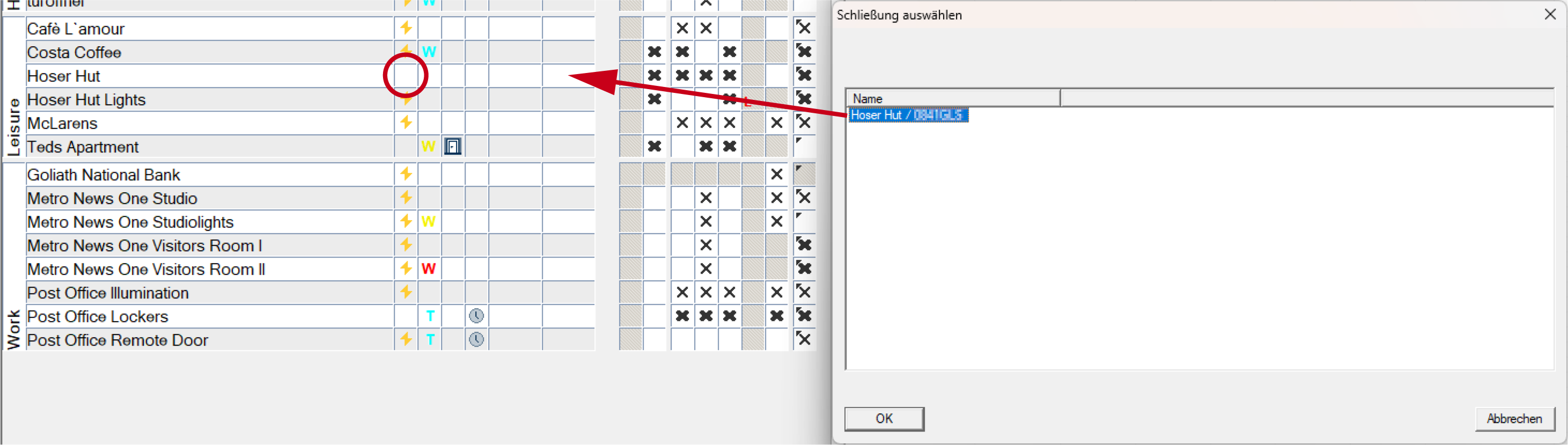
- Click on the OK button.
- Window closes.
- PIN code keypad AX displayed in window.
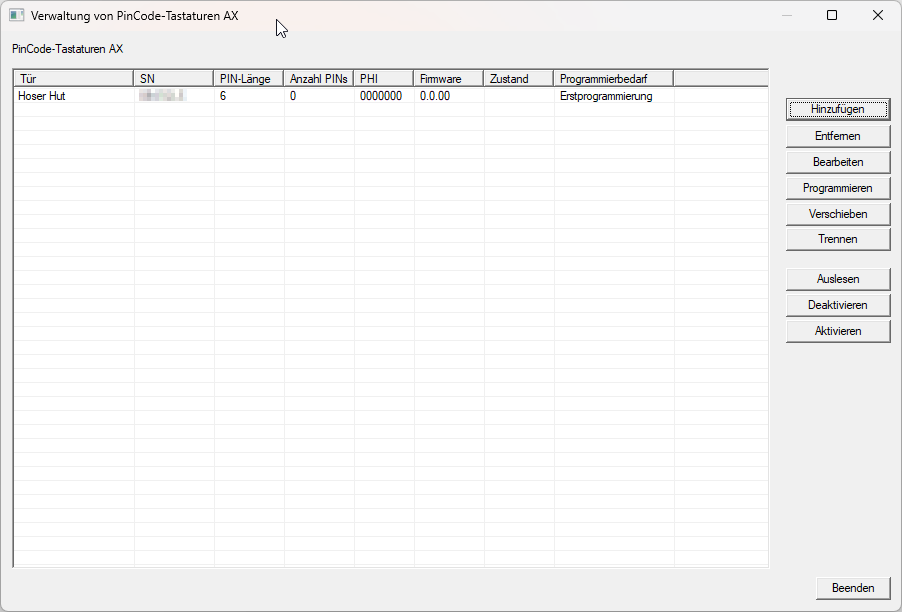
You can now configure the PIN code keypad AX and, for example, set the PIN length (see Change length of PINs in PinCode AX) and create PINs (see Creating PINs for PinCode AX). You must then programme both the PIN code keypad AX and the corresponding locking device (see Programme PinCode AX and Programme locking device).
The programming requirement displayed on the locking device will clear only when the associated PIN code keypad AX has also been programmed.