Preparing RouterNode for RingCast - LSM 3.6 SP1 Business + Prof.
NOTE

Firmware dependent availability of RingCast for RouterNodes
RingCast support is firmware dependent (see Firmware information).
- If necessary, update the firmware (see Updating firmware).
Prepare the RouterNodes for the RingCast:
- In the Wavenet radio network, at least two different RingCast-capable RouterNodes are configured and "online" (see Firmware information).
- At least one locking device is assigned to each RouterNode of the planned RingCast. Both locking devices are "online".
- Open the WaveNet Manager.
- Right-click on the first RouterNode 2.
- Window Administration opens.
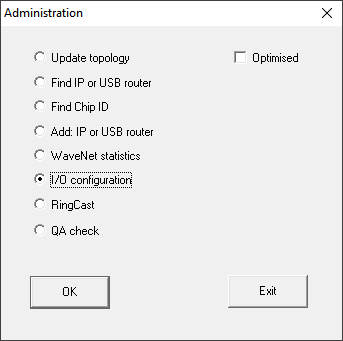
- Select the option
 I/O configuration.
 - Click on the button OK.
- Window Administration closes.
- Window I/O configuration opens.
- Optional: For example, for 1 Input receipt static, to be able to control a signal device during deactivation.
- In the drop-down menu select the desired entry of the corresponding response (see RouterNode: Digital input).
- In the drop-down menu select the entry RingCast.
- Click on the button Select LN.
- Check whether all required LockNodes are selected. (When the I/O configuration of the router is set up for the first time, all LockNodes are included.)
- Select your protocol generation from the drop-down menu
NOTE
Protocol generation in the LSM
The log generation is displayed in the LSM in the locking system properties on the tab page Name in the area Protocol generation.
- Enter the locking system password.
- Click on the OK button.
- Make the same settings on the other RouterNodes 2 as well.