Creating an AX2Go key - LSM 3.6 SP1 Business + Prof.
- LSM.AX2Go client installed and registered with SimonsVoss ID (see Initial operation and registration).
- Click button
 to create a new identification medium.
 - The New transponder window will open.
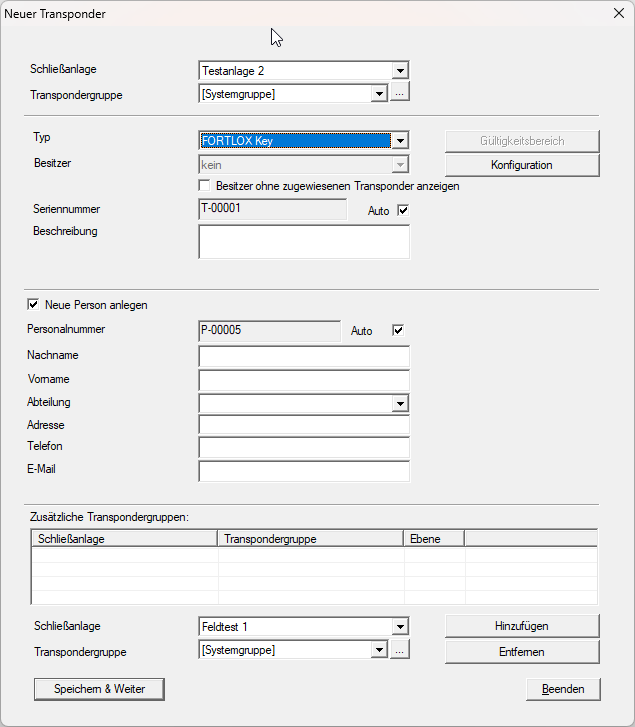
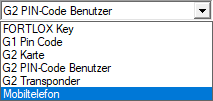
- Select item from the drop-down menu .
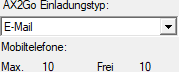
- Area for AX2Go is displayed.
NOTE

Displayed max./available mobile phones based on database
Here you can see how many AX2Go keys you may create under your licence and how many you have already created. However, it is the database that is licensed, not the locking system. If other locking systems also use AX2Go in your database, you cannot create the maximum possible number of AX2Go keys in this locking system.
Example: your licence includes ten AX2Go keys. If five AX2Go keys have already been created in locking system A, you can only create five AX2Go keys in locking system B.
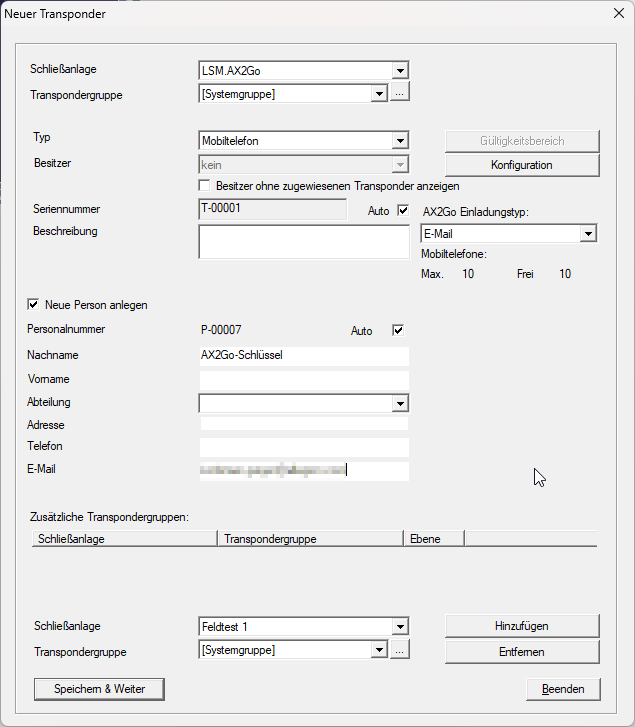
- Select the invitation type from the drop-down menu (example: ).
- Enter the other values.
NOTE
Required information, depending on the type of invitation
You need to enter a telephone number or an email address, depending on the invitation type (SMS or Email).
- Click the Save & next button.
- Click on the Exit button.
- The newly created key is displayed with a programming requirement in the matrix.
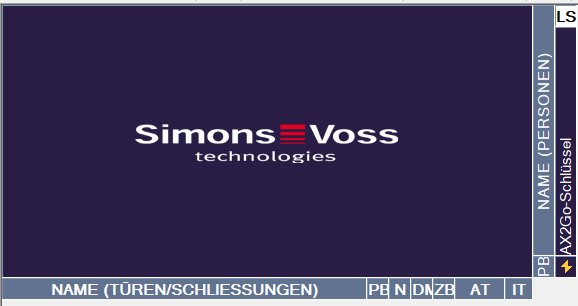
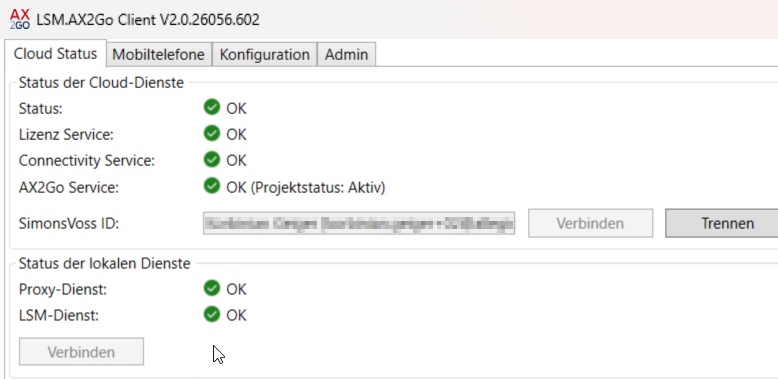
If the database has not been used for LSM.AX2Go yet, the AX2Go service now switches from “No activities” to “Active”. Reason: you have used the service for the first time to send the AX2Go invitation.
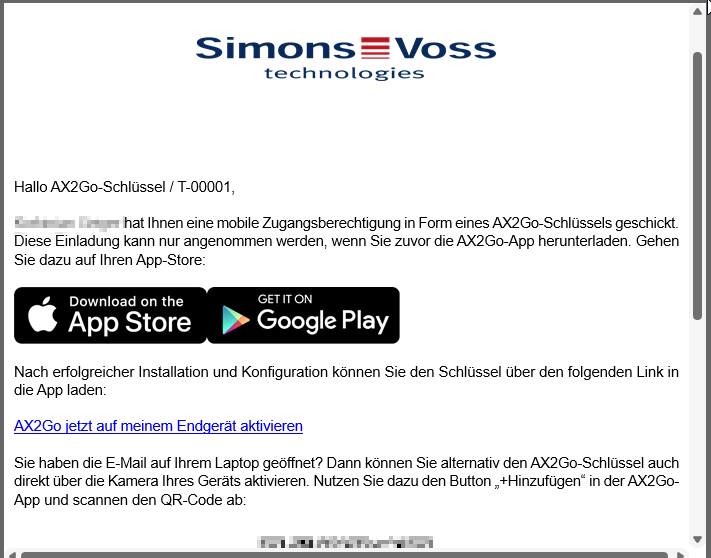
The invited person receives an e-mail with a temporary link (see Configuring AX2Go on how to set validity period):
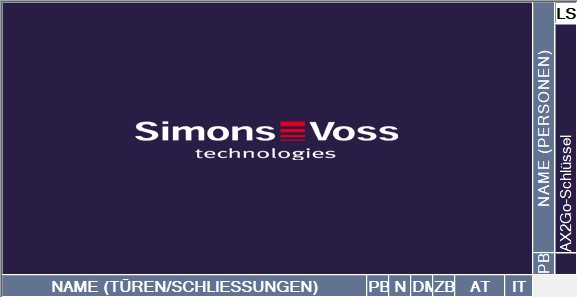
Once the invitation has been accepted, the programming requirement disappears from the matrix:
From now onwards, the AX2Go key is automatically reprogrammed via the cloud in the shortest possible time if there is an existing cloud connection.