Add control device AX - LSM 3.6 SP1 Business + Prof.
- At least one programmed AX locking device must be available for connection with the Control Device AX (see also Add new locking device).
- LSM open.
- Control Device AX connected to the power supply.
- SmartStick AX connected.
- Use to select the input.
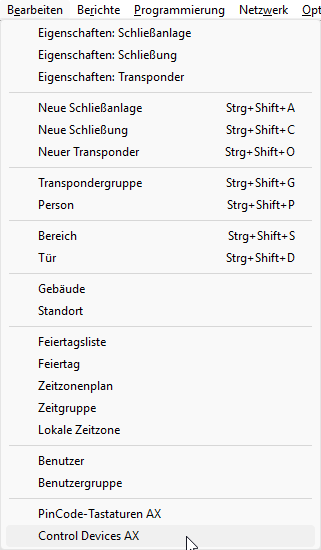
- The Management of Control Devices AX window will open.
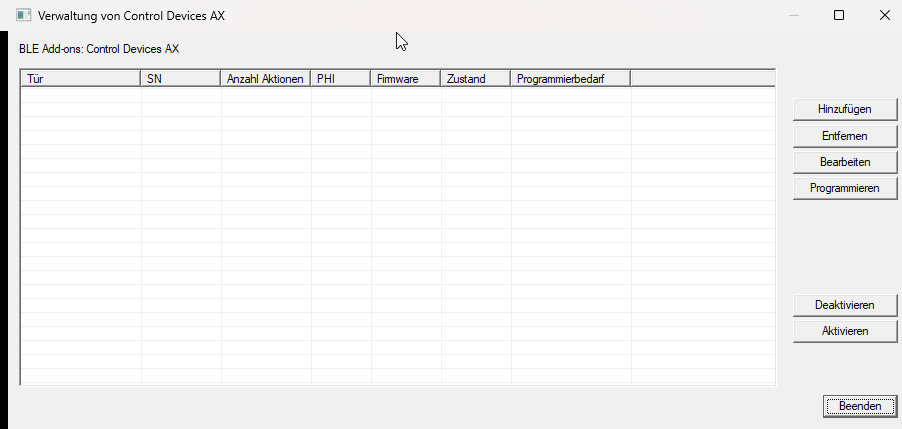
- Click the button.
- The Select lock window will open.
- Only AX locks that have already been programmed are displayed for selection.
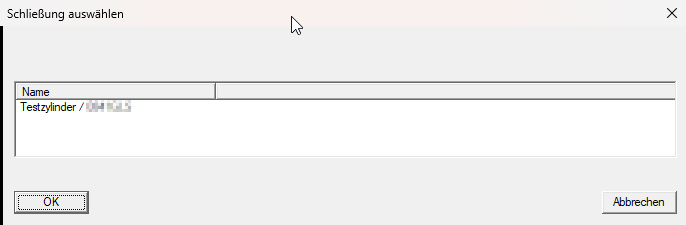
- Select the locking device for which you want to use the Control Device AX.
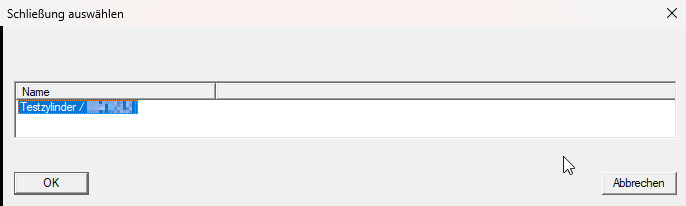
- Click on the OK button.
- Window Select lock closes.
- Control Device AX is created in the Management of Control Devices AX window.
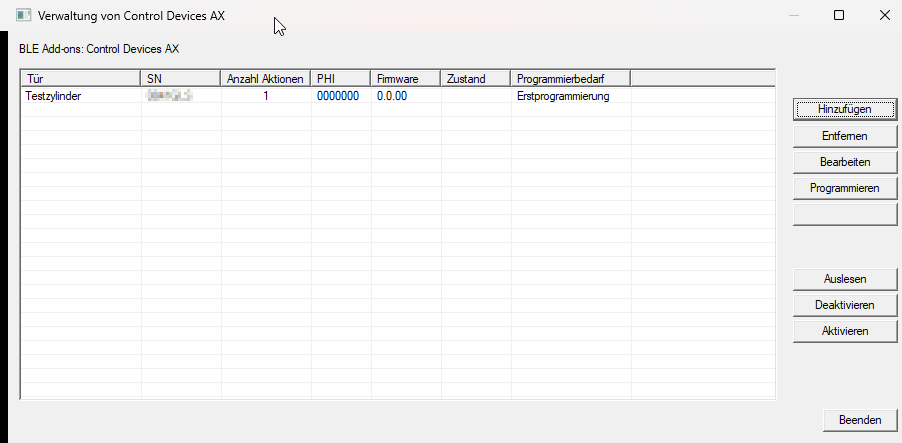
- Highlight the Control Device AX you just created.
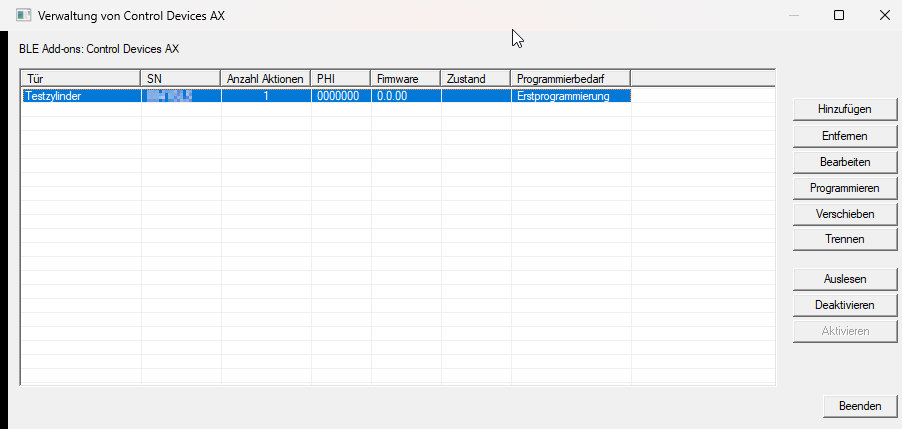
- Click on the Programming button.
- The Programming Control Device AX window will open.
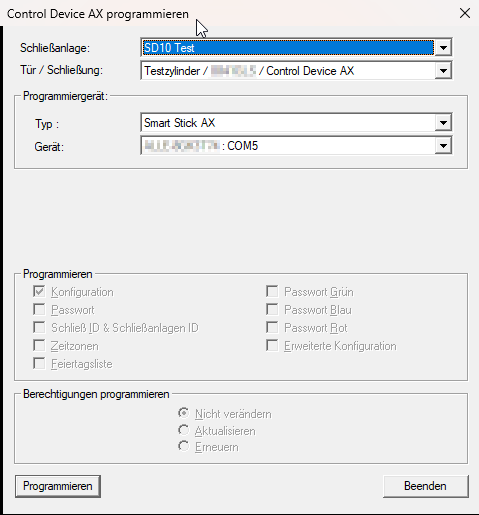
- Wake up the Control Device AX by activating one of the function inputs (for example, by connecting it to the reference potential).

NOTE

Activation via the function input executes a programmed action, where applicable
If you assign an action to a function input and wake up the Control Device AX via that function input, then that action will be executed when the Control Device AX is activated.
- Click on the Programming button.
- The window closes and the programming process begins.
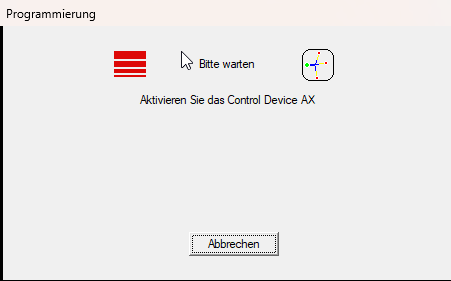
- Control Device AX is programmed and is displayed in the window Management of Control Devices AX without any programming required.
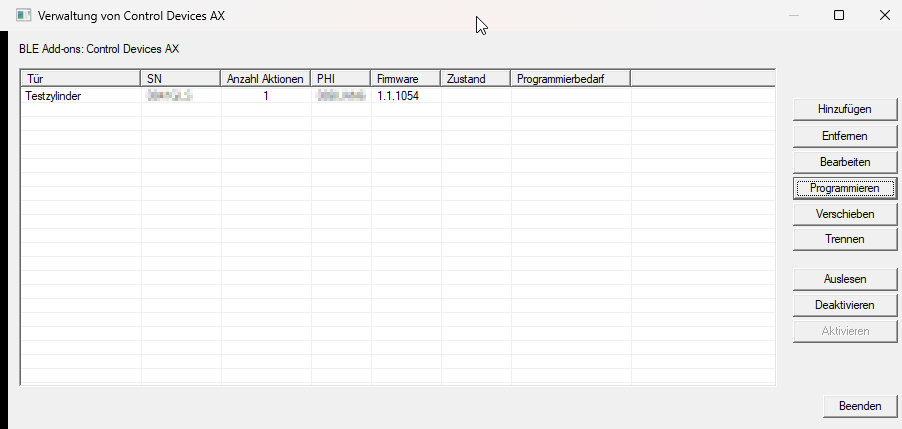
- Click on the Exit button.
- Matrix is displayed.
- The locking device connected to the Control Device AX requires programming.

- Re-programme the locking device (see Programme locking device).
- Control Device AX is connected to locking device.
The tab now appears in the locking device's properties
For example, assign further actions to the function inputs of Control Device AX (see Add an action).