Blocking a lost/stolen PIN code keypad permanently - AXM Classic
- AXM Classic open.
- List with PIN code keypads or matrix open.
- Suitable programming device connected to replace PIN code keypad.
- Use
 to sort/filter the displayed entries if required (see Sorting and filtering).
 - Select a PIN associated with the lost PIN code keypad.
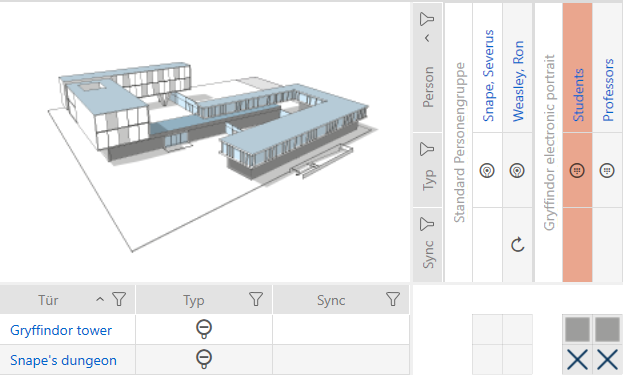
- Click the
 button in the section.
 - Wizard to help with a lost PIN code keypad will open.
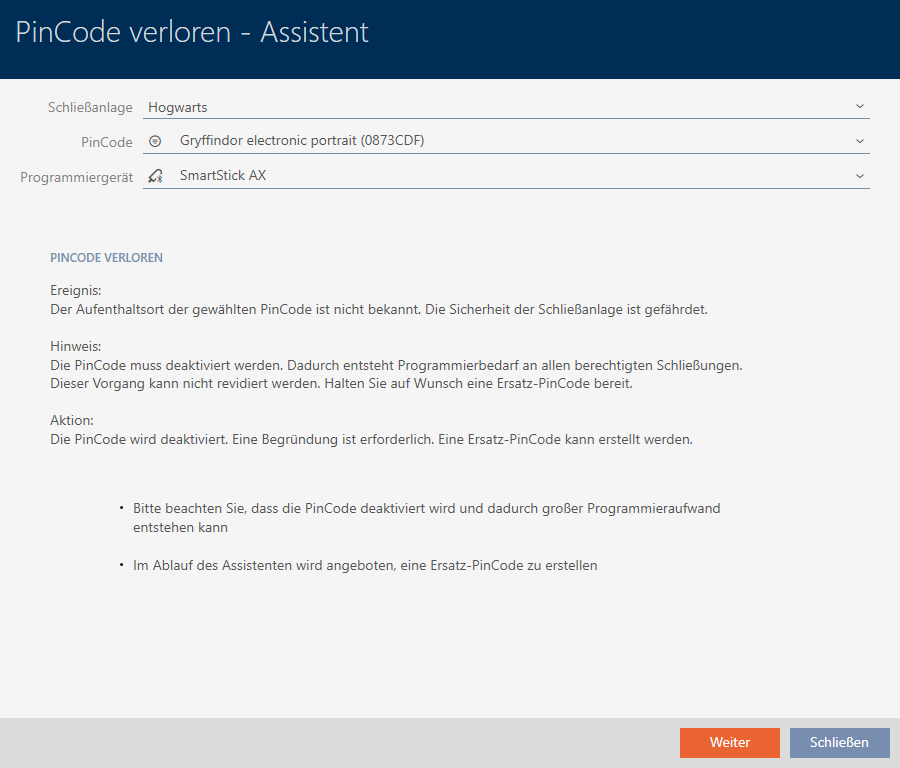
- Click on the button.
- The confirmation window will open.
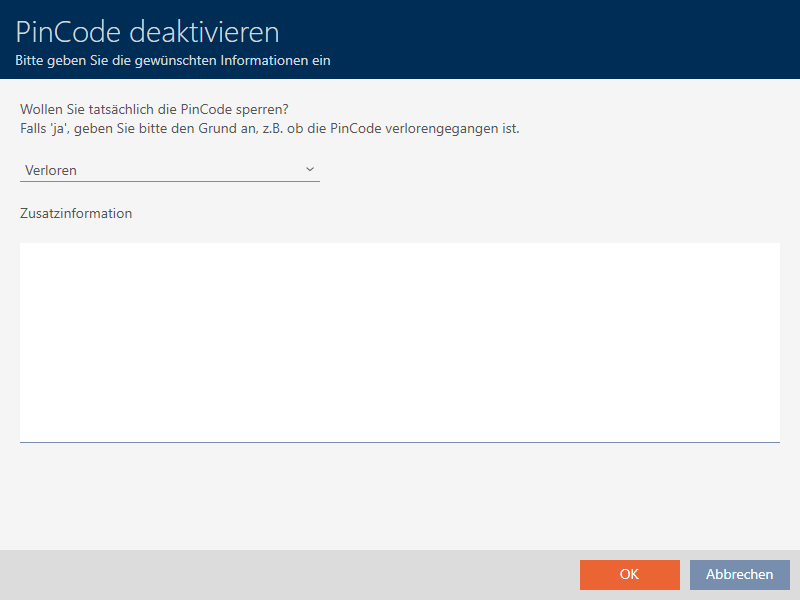
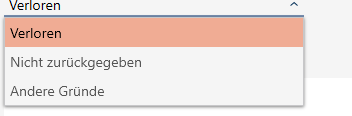
- If applicable, select a reason other than from the drop-down menu.
- Enter any additional information in the field.
- Click on the button.
- Confirmation window closes.
- AXM Classic offers to create a replacement PIN code keypad.
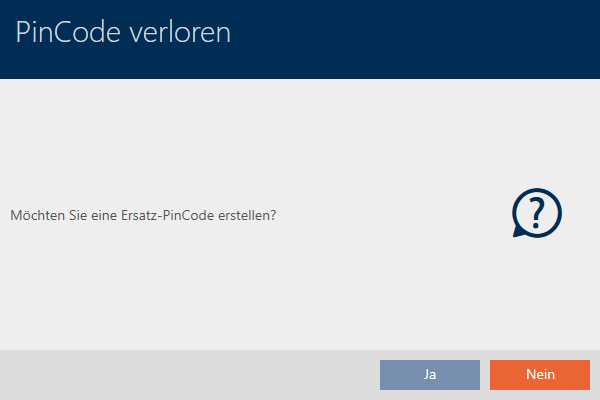
- If you need a replacement, click the button; otherwise, click the button.
(Example: Yes) - AXM Classic creates a replacement PIN code keypad in the background.
- AXM Classic offers to synchronise the replacement PIN code keypad immediately.
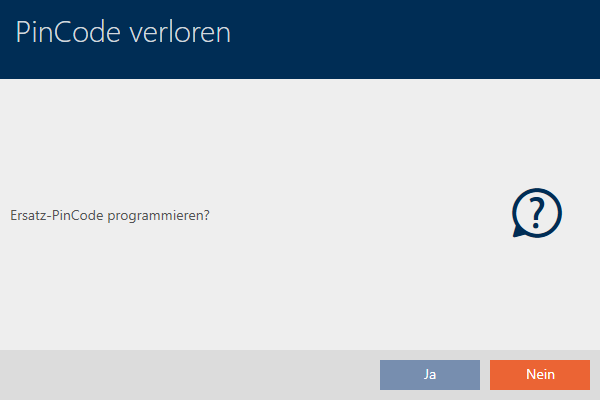
- Click on the button.
- Synchronisation of the replacement PIN code keypad launches.
- AXM Classic offers to delete the lost PIN code keypad.
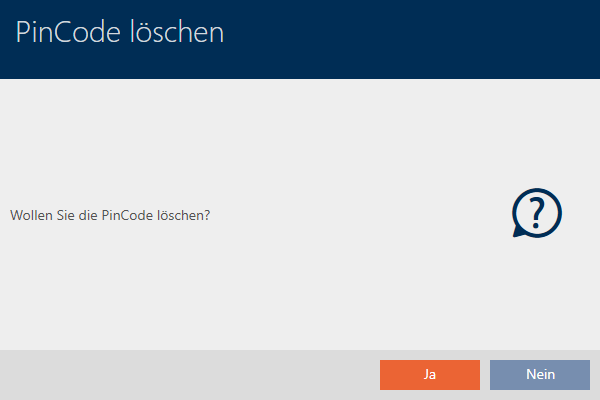
- Click on the button.
- The PIN code keypad has been blocked and a replacement PIN code keypad has been synchronised.

Both PIN code keypads are visible in the matrix.
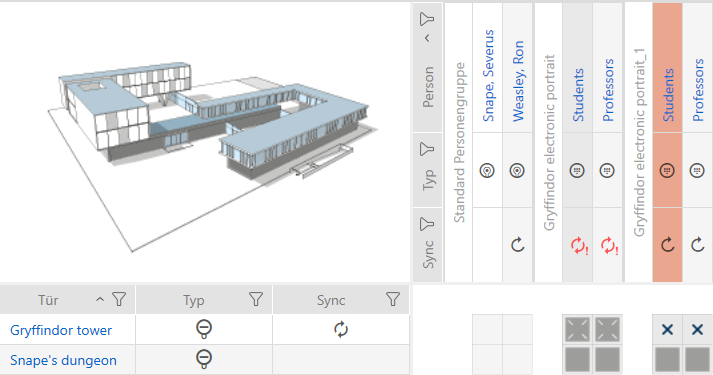
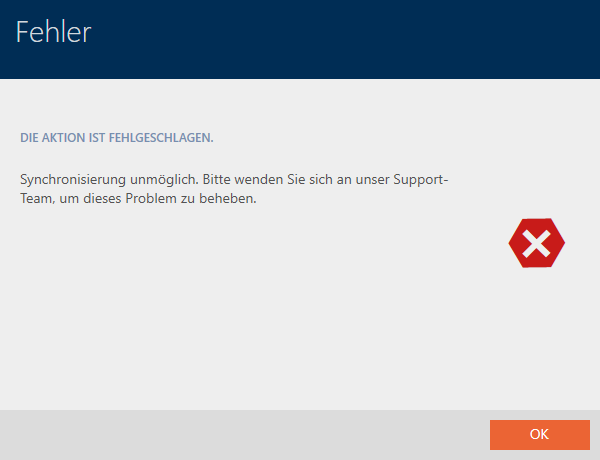
You will need a different PIN code keypad for the replacement. If you try to use the same PIN code keypad, your AXM Classic will display an error message:
You can repair the PIN code keypad as an alternative; see Repairing a PIN code keypad (resynchronising).