Creating and editing public holiday lists - AXM Classic
- AXM Classic open.
- Click the orange AXM button
 .
. - AXM bar opens.
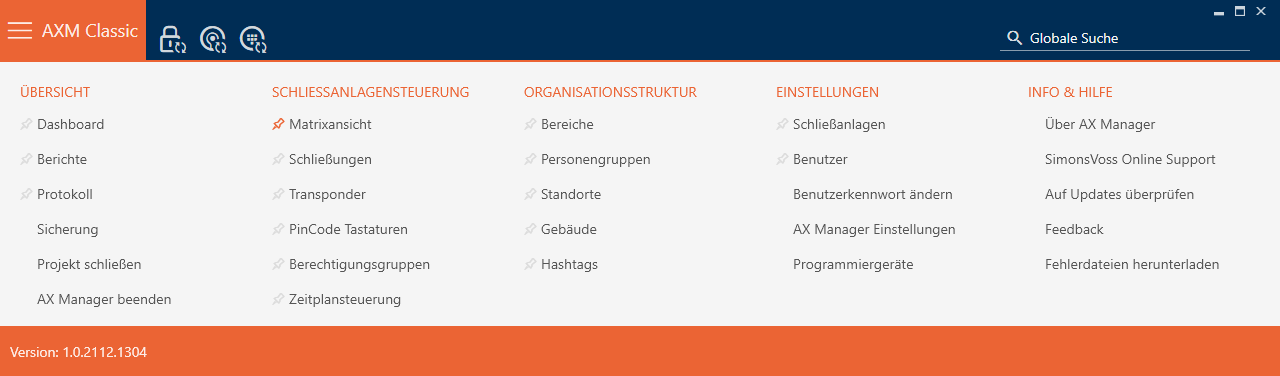
- Select the entry in the group.
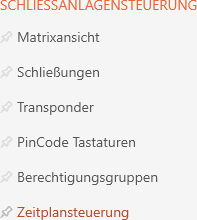
- The AXM bar will close.
- The tab will open.
- Click on the
 button.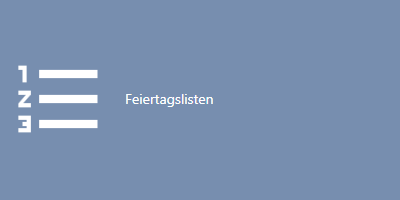
- The tab will open.
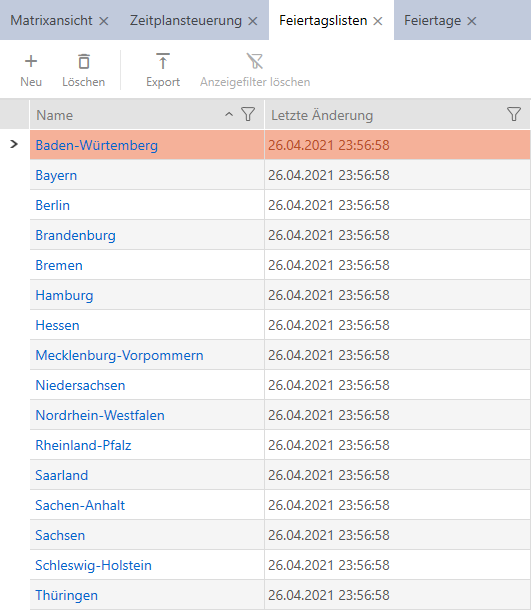
- Click on the
 button.
 - The window for creating a public holiday list will open.
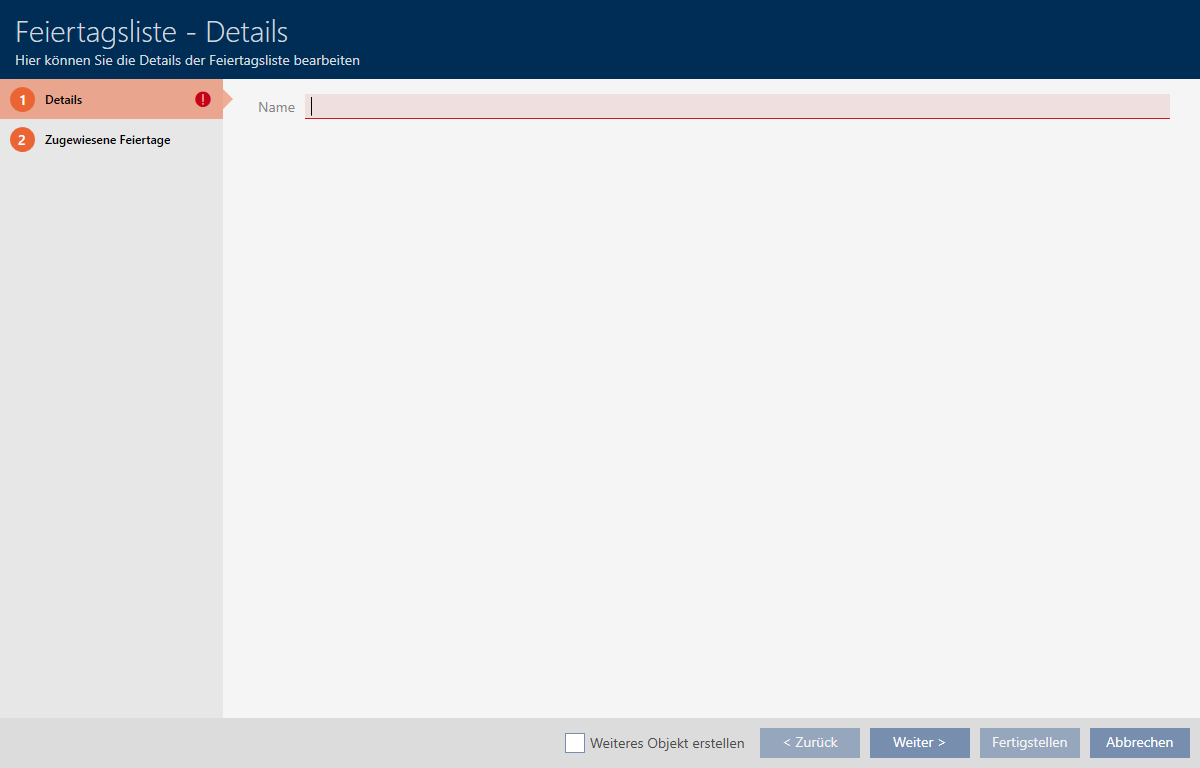
- Enter a name for your public holiday list in the field.
- Click on the tab.
- Window switches to the tab.
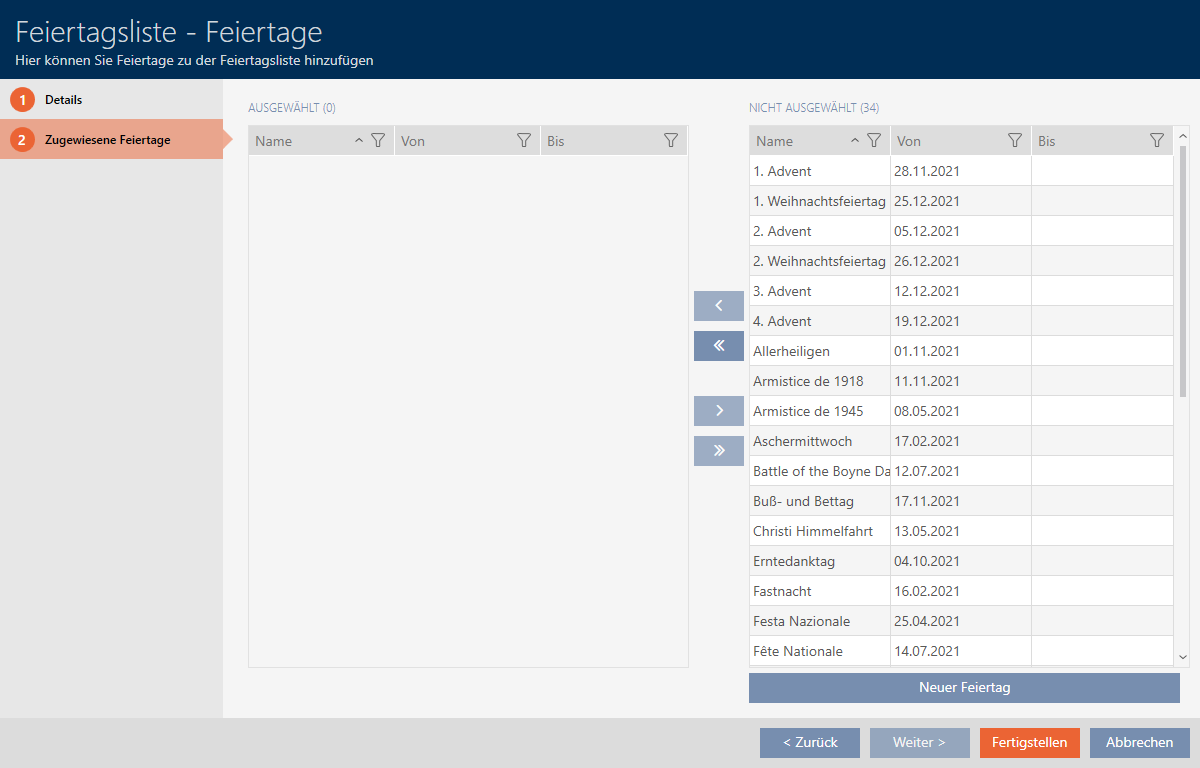
- Use
 to sort/filter the displayed entries if required (see Sorting and filtering).
 - Select all public holidays that you wish to assign to your public holiday list (Ctrl+click for single days or Shift+click for multiple days).
NOTE

Double-clicking as an alternative to arrow keys
Double-clicking an entry in the list will also move this entry to the other column.
- Use
 to move only the selected public holidays or
  to move all displayed public holidays.
 - The public holidays highlighted in the left-hand column are added to your public holiday list.
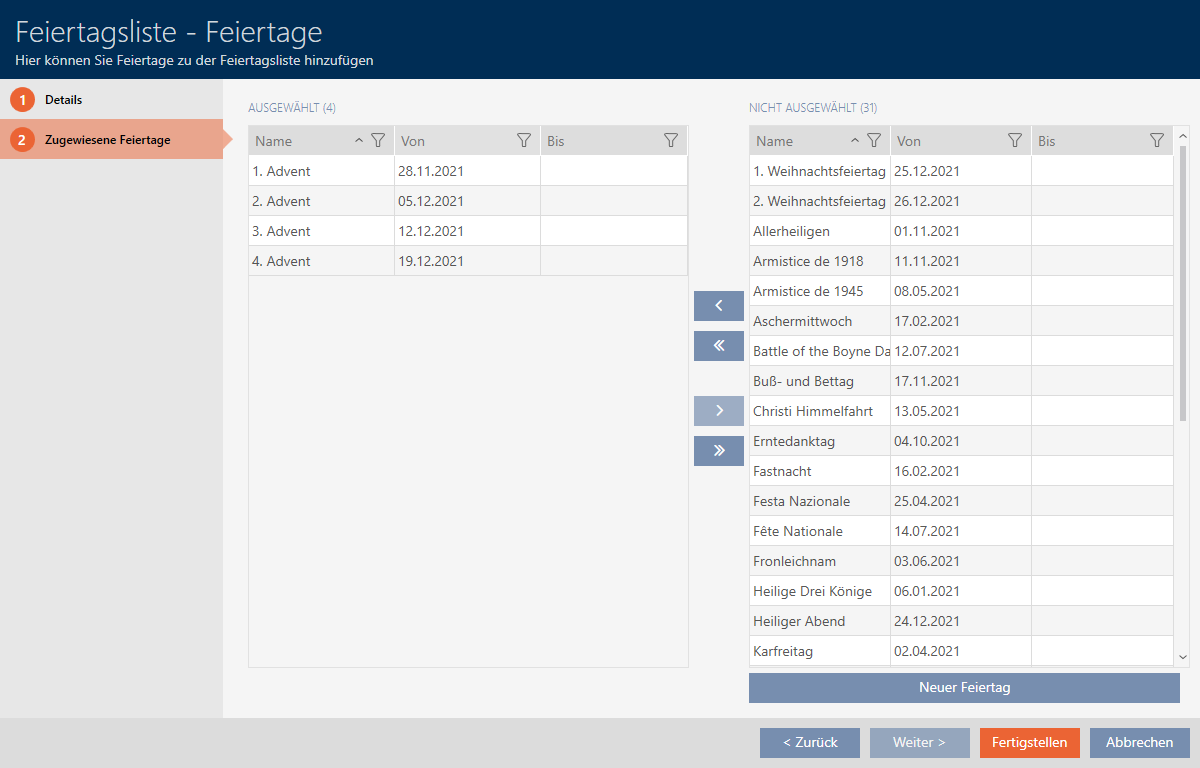
- Click on the button.
- The window for creating a public holiday list closes.
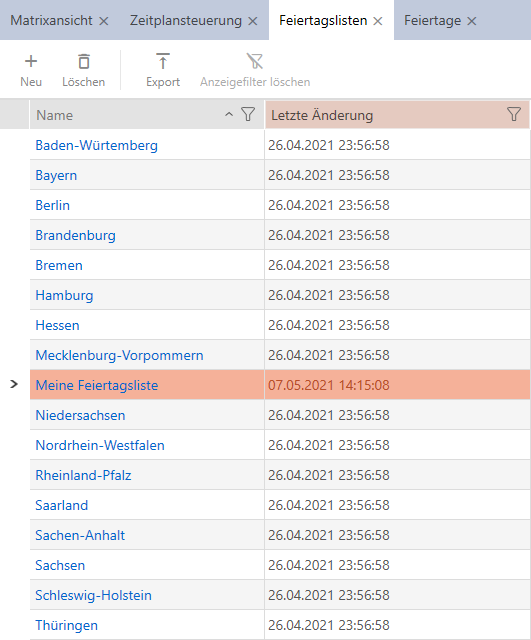
- The public holiday list has been created and is listed.
You can now add the created public holiday list to your locking devices, for example: Limiting authorisations for locking devices to specific times (schedule).