Increase password security - AXM Classic
Passwords are a key component in your security concept. You can increase security using various settings:
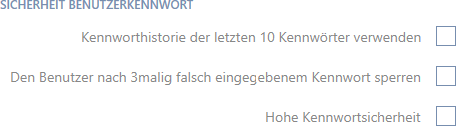
| After the configured change interval has expired, the user must assign a new password. You can set the change interval yourself using . |
| The new password must not be the same as any of the last ten passwords. |
| If a user has entered the password incorrectly three times, they will no longer be able to log in until they have been unlocked.
You as Admin must delete and create a new AdminAL user in AXM Classic. |
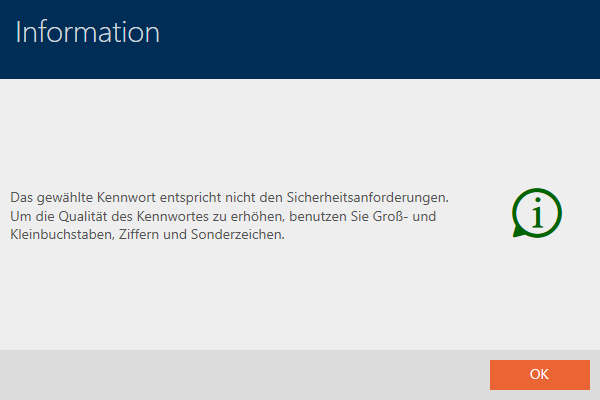
| AXM Classic automatically rejects trivial passwords such as “12345678”.
|
| If your AXM Classic does not detect any actions within the configured idle time, your AXM Classic is automatically blocked. |
 Password must be changed regularly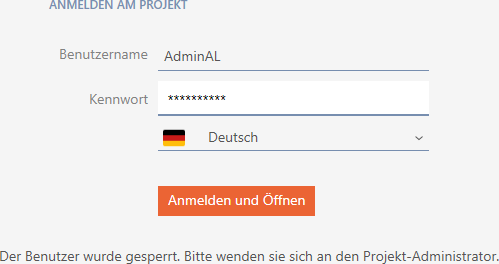
- AXM Classic open.
- Click the orange AXM button
 .
. - AXM bar opens.
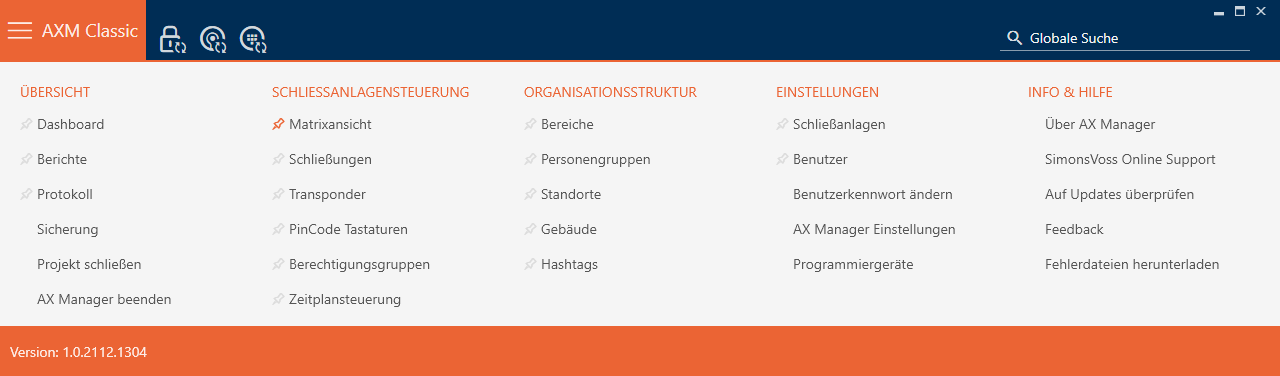
- Select the entry in the group.
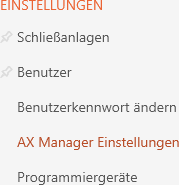
- The AXM bar will close.
- The window with the AXM Classic settings will open.
- Go to the Passwords tab.
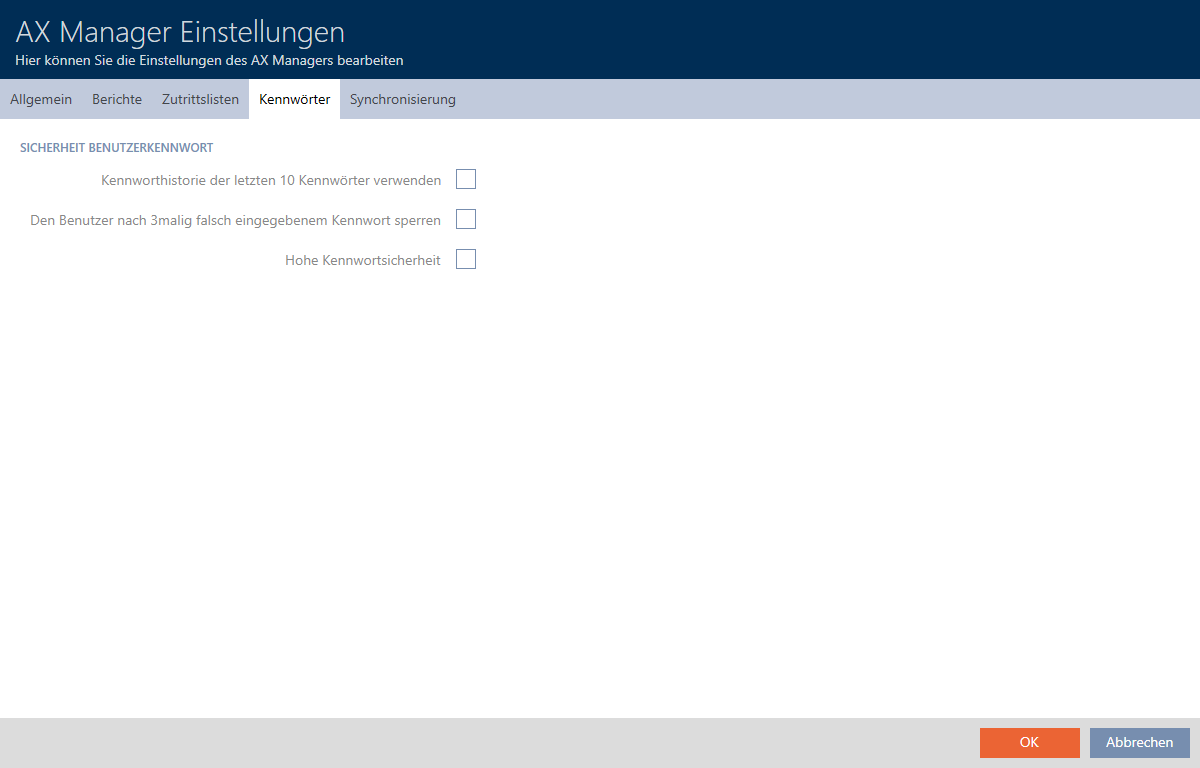
- Select the required checkboxes.
- Click on the button.
- The window with the AXM Classic settings closes.
- New password requirements are active.