Blocking and replacing lost/stolen card/transponder permanently - AXM Classic
- AXM Classic open.
- Identification media list or matrix open.
- Replacement identification medium at hand.
- Suitable programming device connected.
- Use
 to sort/filter the displayed entries if required (see Sorting and filtering).
 - Select the identification medium that has been lost/stolen.
- Click the
 button in the section.
 - Wizard for handling a lost identification medium will open.
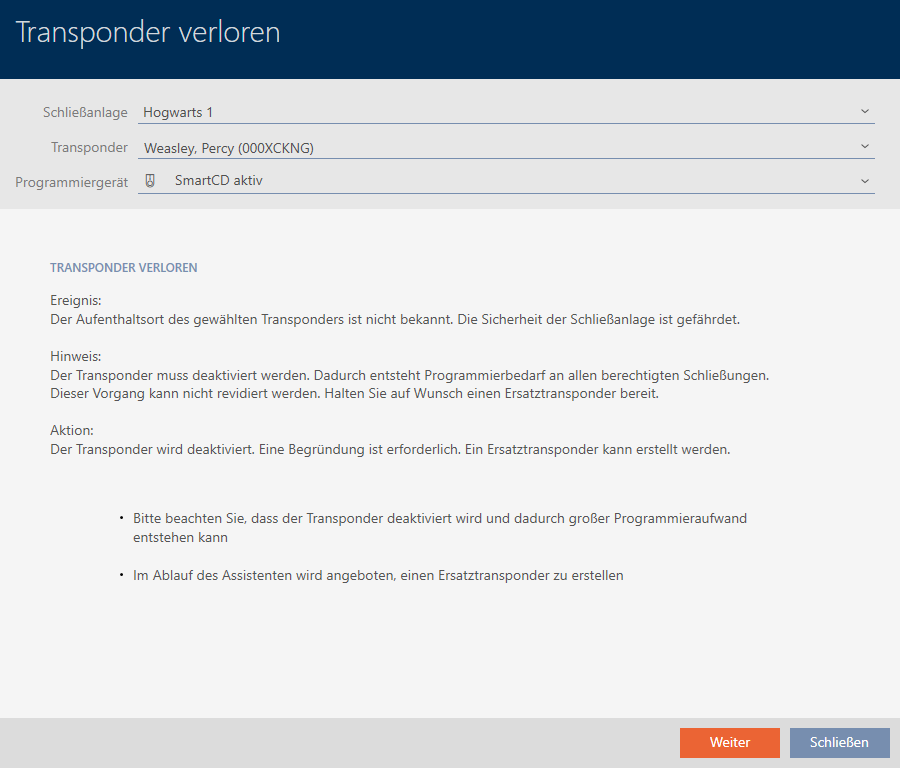
- Click on the button.
- The reason window will open.
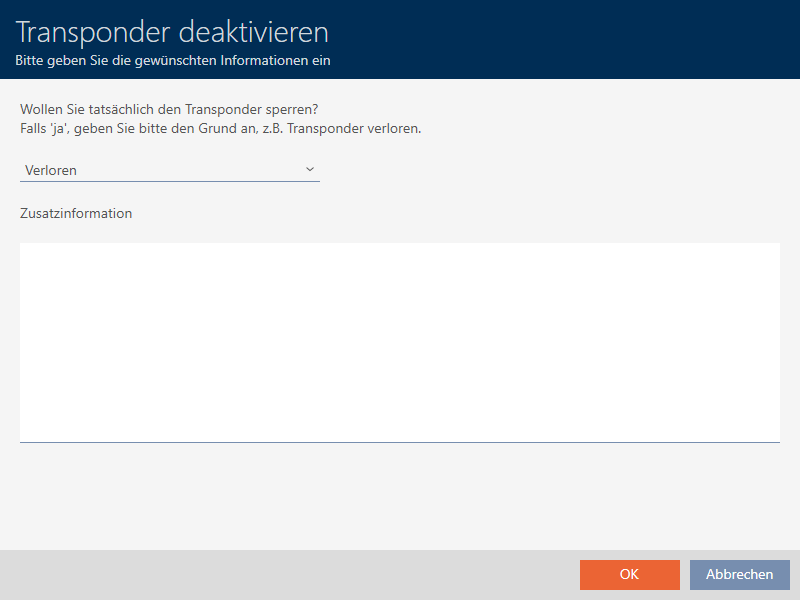
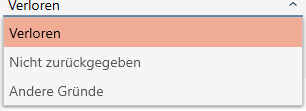
- Enter the reason in the drop-down menu.
- Click on the button.
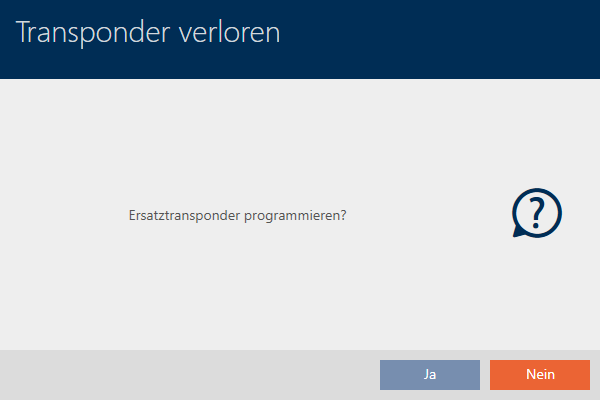
- Confirmation dialogue for replacement identification medium will open.
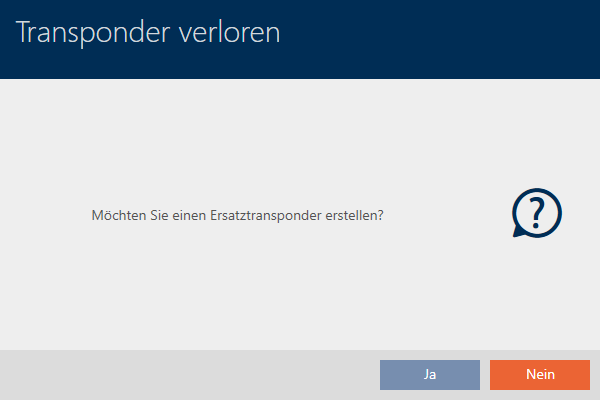
- Click on the button.
- Confirmation dialogue for replacement identification medium closes.
- Replacement identification medium can already be seen in the matrix in the background.
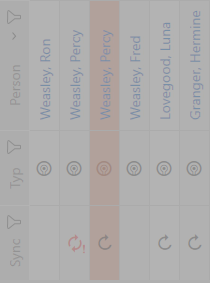
- Confirmation dialogue about synchronising the replacement identification medium will open.
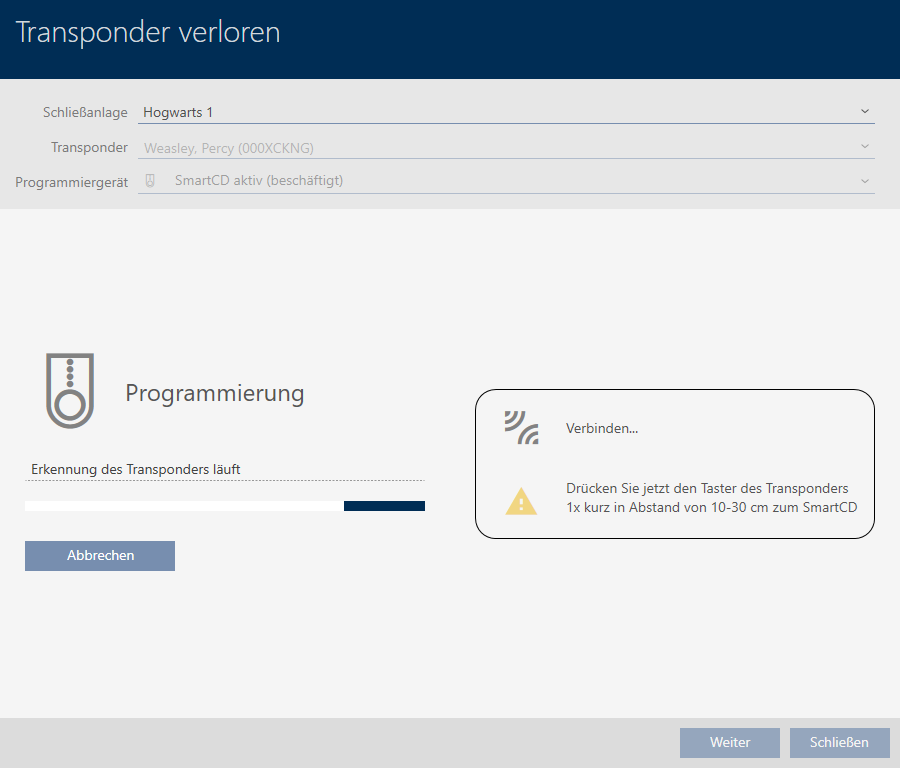
- Click on the button.
- Confirmation dialogue about synchronising the replacement identification medium closes.
- Synchronisation starts.
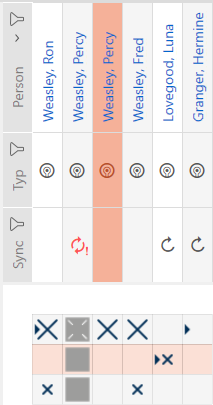
- Lost identification medium is blocked.
- Replacement identification medium is synchronised.

- Replacement identification medium is displayed in the matrix next to the lost identification medium.
IMPORTANT
Changes to the locking system only take effect after synchronisation
If you edit the locking system with the AXM Classic, the changes are initially only saved to your database.
Your actual components will not know about these changes until they are synchronised.
- Regularly check the components in the matrix for synchronisation requirements (see The AXM’s structure).
- In the event of critical incidents (e.g. identification medium lost), it is particularly important to synchronise immediately after responding to the incident (see Synchronisation: Comparison between locking plan and reality).
IMPORTANT
Block ID automatically written on replacement transponder
If you create a replacement transponder for a lost/stolen transponder, your AXM Classic automatically writes the block ID from the blocked transponder onto this replacement transponder.
You can also use this replacement transponder to transfer the block ID to the locking devices without a virtual network. This means that you do not necessarily need to go to the locking device with a programming device, even if you use a Lite/Classic edition.
- Present the replacement transponder to the locking devices.
- Alternatively, synchronise the locking devices on site.