Synchronising a PIN code keypad - AXM Classic
Changes to a PIN code keypad can also entail programming requirements for the assigned locking device (see PIN Code G1 vs. PIN Code AX). In this case, synchronise the locking device instead (see Synchronising the locking device (including reading access list)).
Synchronisation between the two PIN code keypads is different. Your AXM Classic will assist you with instructions during synchronisation.
NOTE

PIN code keypad 3068 synchronisation requires a master PIN and user PINs
In PIN code keypad 3068, the user PINs are linked to a G1 ID. The G1 IDs cannot be accessed and synchronised without user PINs being configured.
- Change the factory default master PIN (see the PIN code keypad 3068 manual).
- Assign at least one user PIN.
In the following example, a PIN code keypad AX is synchronised.
- PIN code keypad AX created and assigned (see Creating PIN code keypads).
- Programming requirement for PIN code keypad AX, e.g. due to a change in authorisation.
- Suitable programming device connected (SmartStick AX).
- Matrix screen open.
- Click the synchronise icon
 for any PIN associated with the PIN code keypad AX concerned.
 - The window opens and synchronisation starts.
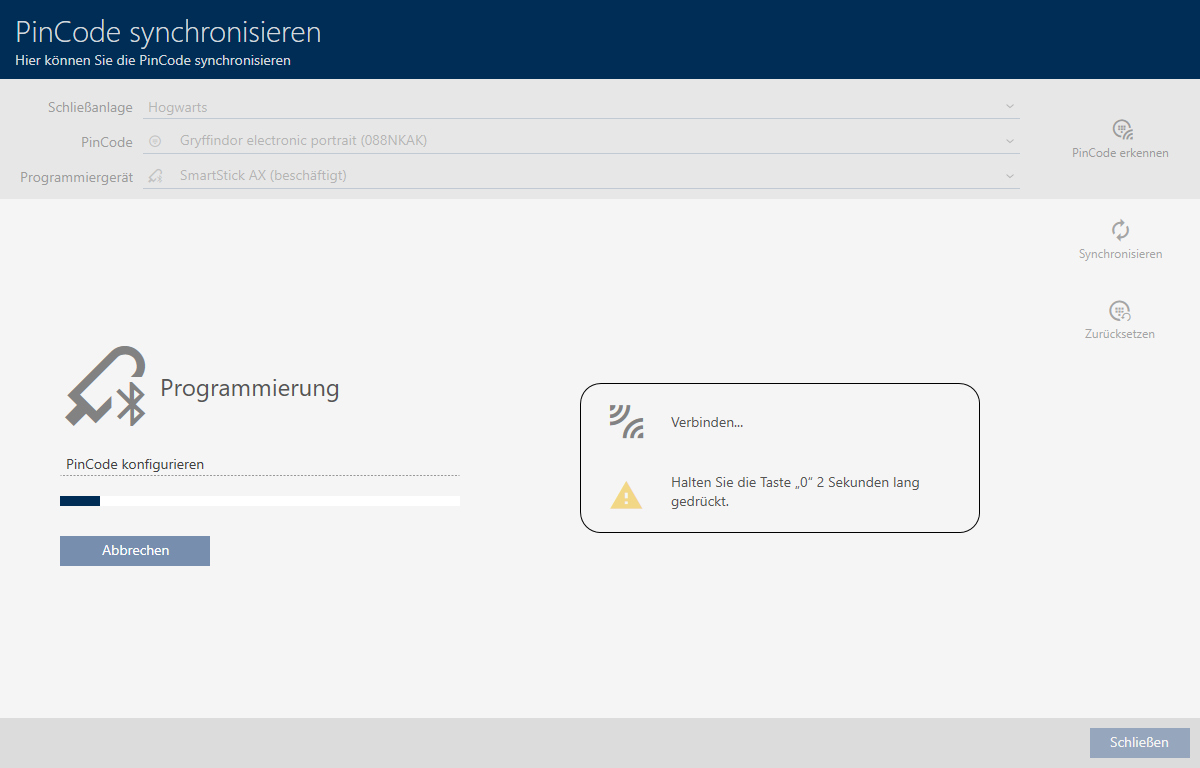
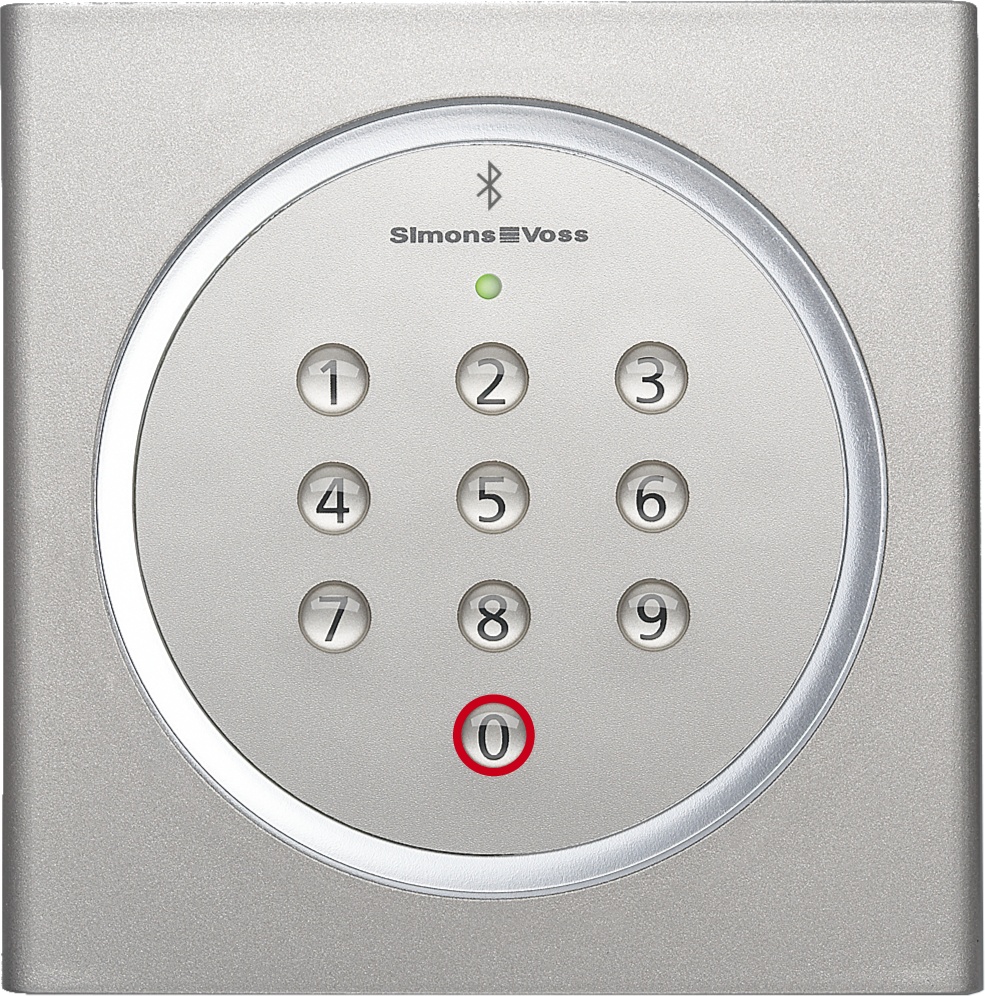
- Press and hold the “0” button on the PIN code keypad AX for at least two seconds.
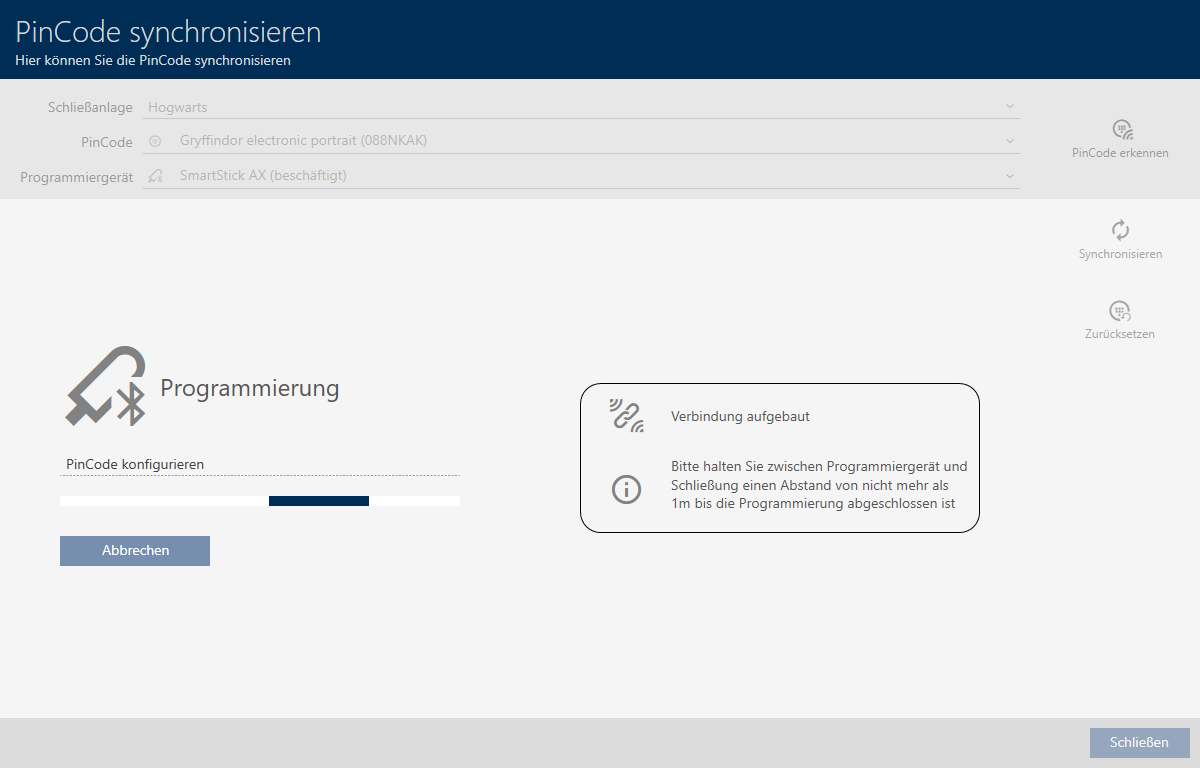
- Position the SmartStick AX close to the PIN code keypad AX (max. 1 m).
- LED flickers green and PIN code keypad AX beeps.
- BLE interface has been wakened.
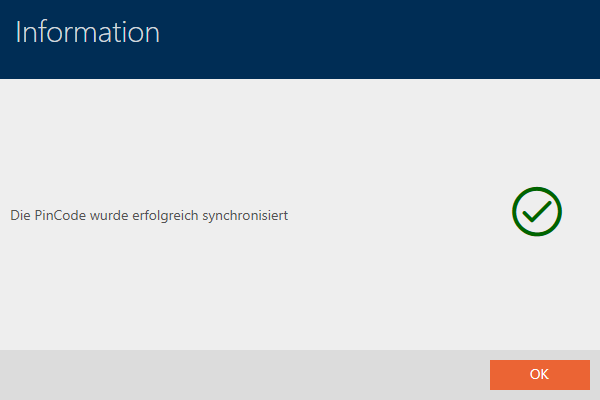
- PIN code keypad AX is synchronised.
- PIN code keypad AX is synchronised.
NOTE
PIN code keypad AX in programming mode after synchronisation
After synchronisation is complete, the PIN code keypad AX will not function for about 30 seconds as it is still in programming mode.