Assign tasks/user roles to AXM users - AXM Classic
User roles are permissions for specific task fields. You can use the user roles to set which user is permitted to do what to your locking system. You can thus increase security in your locking system.
Only give each user the rights that they need to perform the designated tasks. Someone who only reads access lists, for example, does not need the locking system  Administration of audit trails role. After all, they only need to read access lists and do not decide who is allowed to read access lists.
There are the following user roles in your AXM Classic:
Only the  Access lists and Administration of audit trails user roles can be changed in the in AXM Classic.
Project roles
Protocol | Allows the database log to be read and exported. |
Time schedule control | Allows schedules to be edited. Examples: |
Site/Building management | Allows the corresponding organisational structures to be edited. Examples: |
Using SmartSync | Allows the use of SmartSync. |
Hashtags | Allows hashtags to be edited. Example: Creating a hashtag |
User administration | Allows persons to be assigned to users and user roles to be edited. Examples: |
AX Manager settings | Allows your AXM Classic settings to be edited. Example: Your personalised AXM interface |
Locking system roles
Locking systems | Allows locking system details to be edited. Examples: |
Accesses | Allows access rights to be read and changed. Examples: |
Personnel administration | Allows personal data to be edited. Example: Persons and identification media |
Reporting | Allows reports to be exported. Examples: |
Administration of audit trails | Allows the Audit trails and Administration of audit trails user roles to be changed. Anyone who does not have these user roles cannot read access lists themselves or allow others to. |
Audit trails | Allows access lists and physical access lists to be read. Examples: |
Area roles
Read out locks | Allows locking devices to be read in general. Example: Synchronising the locking device (including reading access list) |
Program locks | Allows locking devices to be synchronised. Example: Synchronising the locking device (including reading access list) |
View/edit locks and areas | Allows locking devices and areas to be edited. Examples: |
Person group roles
Read Transponders | Allows identification media to be read in general. Examples: |
Program Transponders | Allows identification media to be programmed. Example: Synchronise a card/transponder (including importing physical access list) |
View/edit transponders and groups | Allows identification media and person groups to be viewed and edited. Examples: |
Service Set roles
You can assign user roles in user management. In the example, AdminAL should no longer be able to decide whether other users are allowed to read access lists. As a result, we will deactivate the Access lists user role for them.
- AXM Classic open.
- At least one identification medium or at least one person is created.
- Click on the orange AXM icon
 .
. - AXM bar opens.
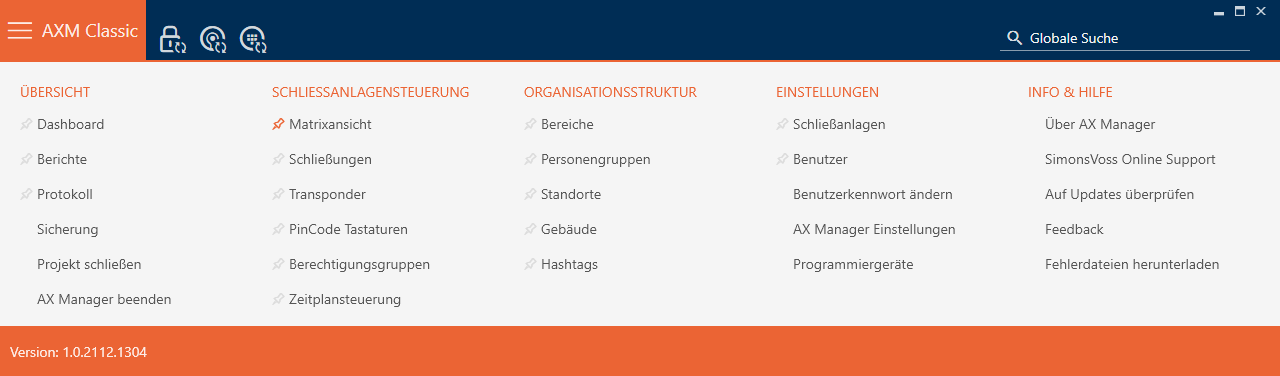
- Select the entry in the group.
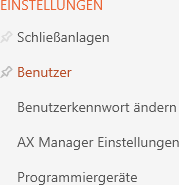
- The AXM bar will close.
- The tab will open.
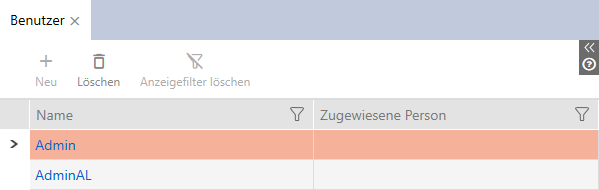
- Click the user whose user roles you want to edit (example: AdminAL).
- The window will open.
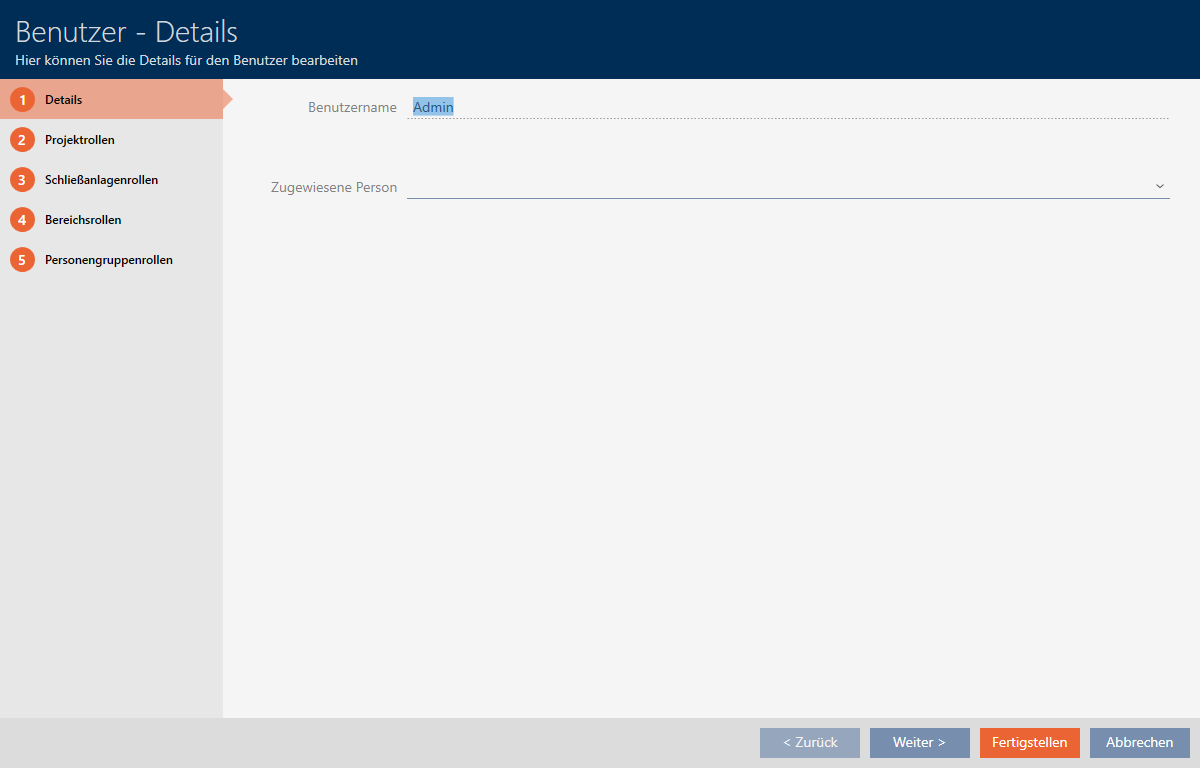
- Click on the tab with the role that you want to change (example: tab).

- Window switches to the tab.
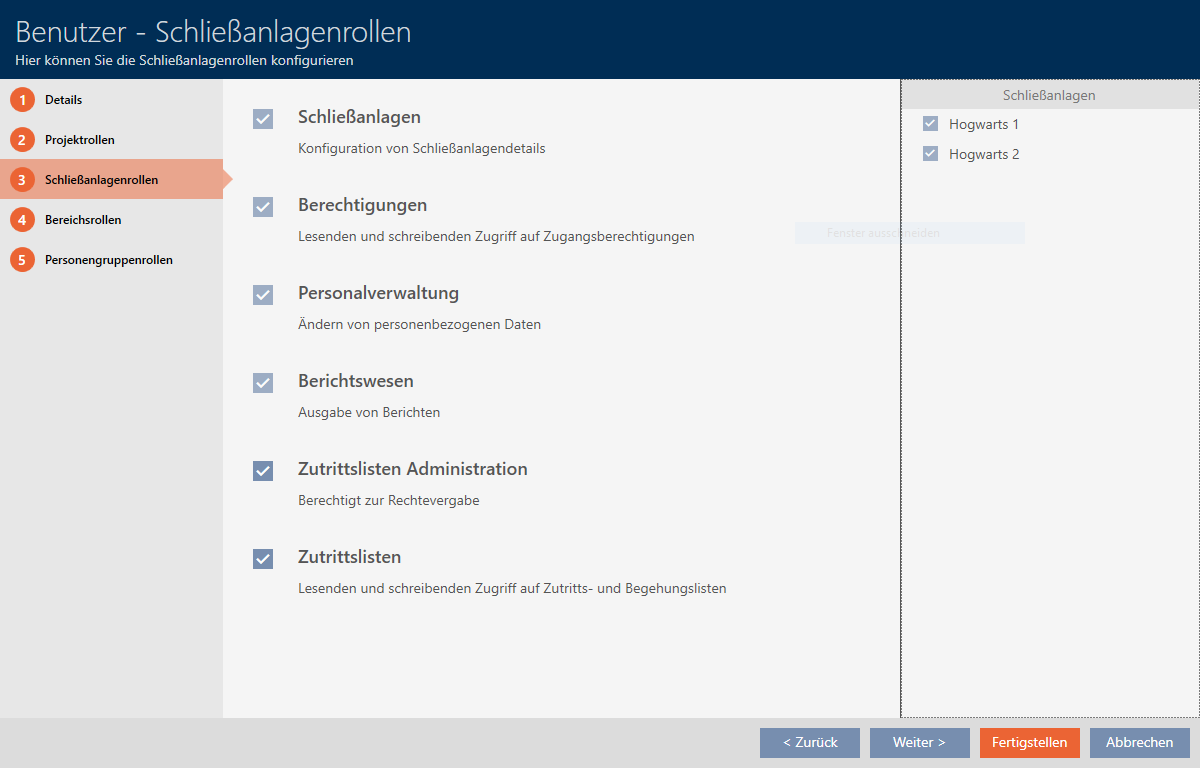
- Select or deactivate the required user roles (example: disable the Administration of audit trails checkbox).
- Use the button to switch to the next tab or complete the entries with the button.
- window closes.
- New user roles have been assigned (example: AdminAL can no longer change the Audit trails and Administration of audit trails checkboxes).
NOTE

“Locking out” own user
Users can also restrict their own user roles. Depending on which user roles are affected, these users can no longer restore them themselves.
Example: if you lock the Audit trails and Access lists user roles yourself, you do not have the rights to change access list user roles. You have locked yourself out of these user roles.
AXM Classic prevents all users from locking themselves out of a user role simultaneously. If this is the case, the corresponding checkbox is greyed out.
- Check carefully which user roles you activate or deactivate.
- In such a case, ask another authorised user to assign the desired user role to you again.