Creating a time switchover - AXM Classic
- AXM Classic open.
- Click the orange AXM button
 .
. - AXM bar opens.
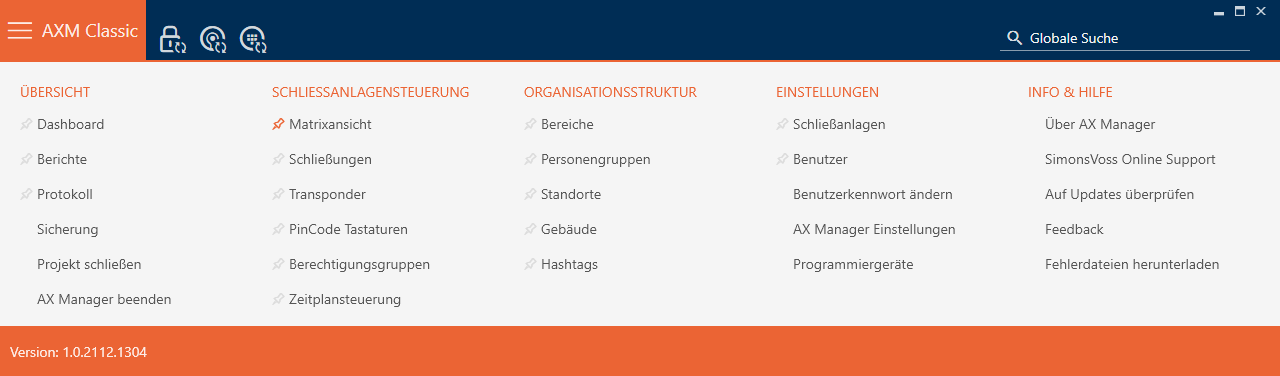
- Select the entry in the group.
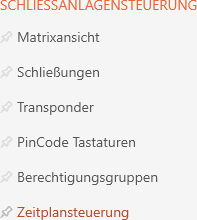
- The AXM bar will close.
- The tab will open.
- Click on the
 button.
- The tab will open.

- Click on the
 button.
 - The window for creating a time switchover will open.
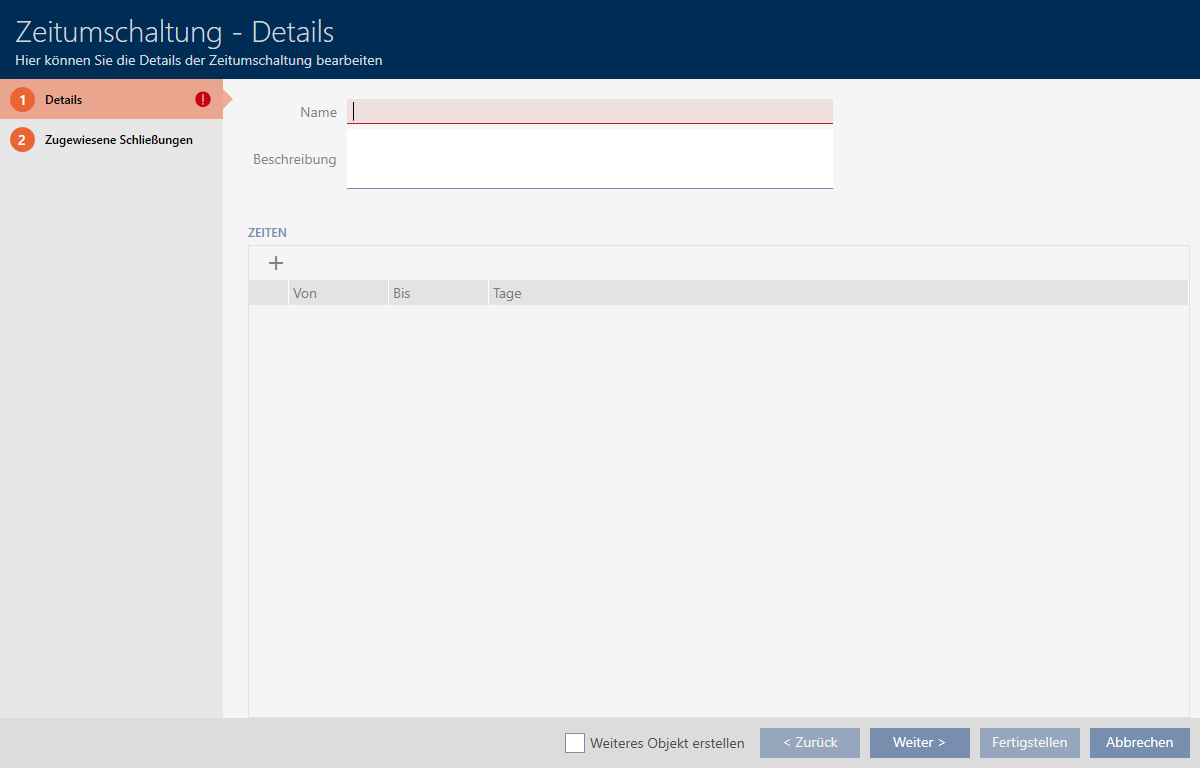
- Enter a name for your time switchover in the field.
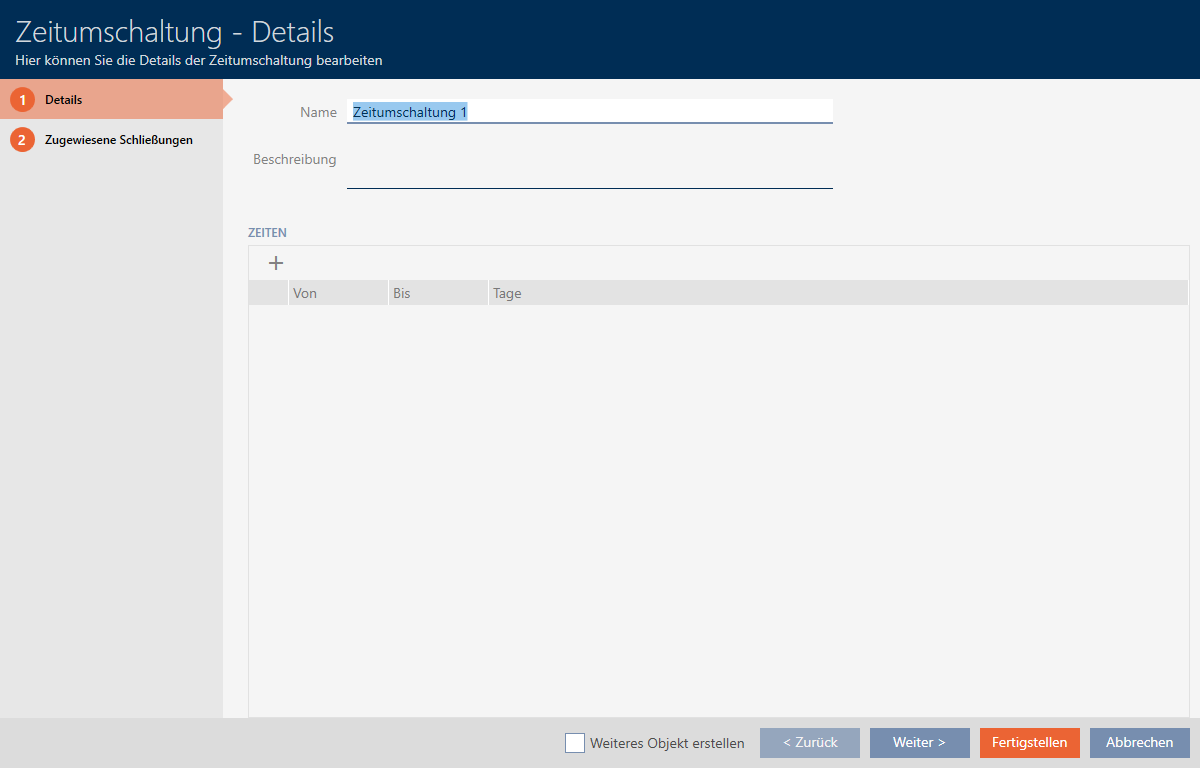
- Enter a description in the field if required.
- Click on the
 icon to create a new interval for your time switchover.
 - Activate the checkboxes for the weekdays on which the locking device should engage (
 Mon, Tue, Wed, Thu, , Fri, Sat, Sun & Special day).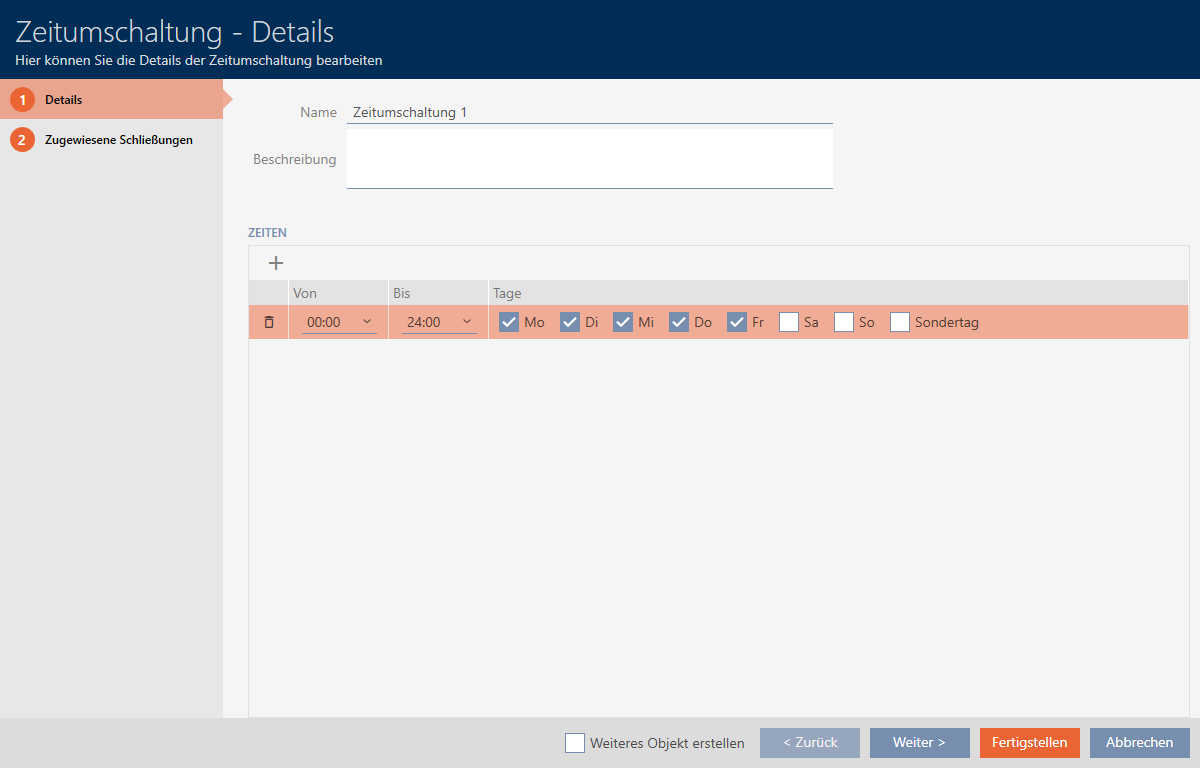
- Set the time interval for these days in the and drop-down menus.
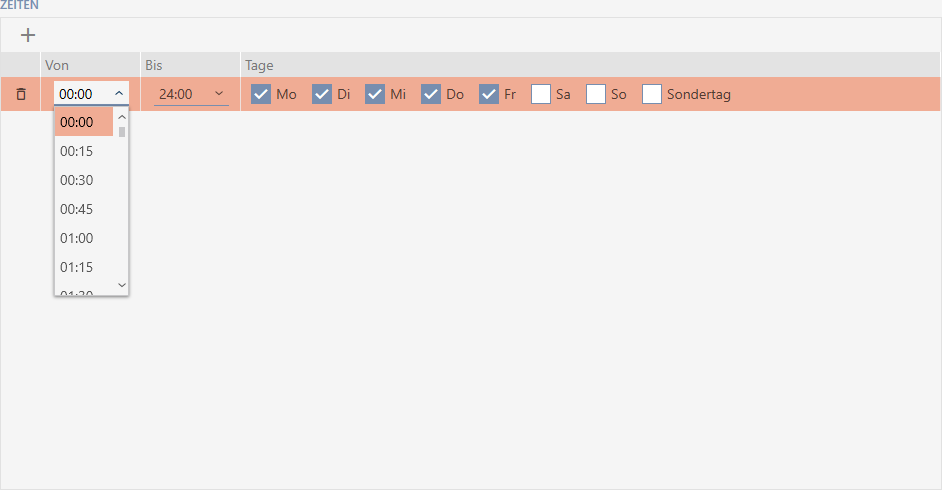
- Set other time intervals if required.
- Click on the button.
- Window for creating a time switchover closes.
- Time changeover is created and listed. Continue with Engaging and disengaging locking devices automatically with time switchover if required.
