Add area, including locking devices, to a schedule - AXM Classic
Ideally, you should create your schedules before the locking devices (see Best practice: setting up the locking system). You can then add your locking devices to the schedule while you are creating each locking device (see Creating a locking device).
Sometimes, however, you have already created locking devices and only later decide to control authorisations in terms of time, for example. In this case, you simply add the locking devices to your schedules at a later date.
In this section, you will learn how to add an entire area, including locking devices, to a schedule in the schedule window (see Limiting authorisations for locking devices to specific times (schedule) for adding individual locking devices using the locking device properties).
- AXM Classic open.
- Schedule created (see Creating a schedule).
- Area created (see Creating an area).
- Locking devices in the area (see Moving locking devices to areas).
- Locking device equipped with .ZK option.
- Click the orange AXM button
 .
. - AXM bar opens.
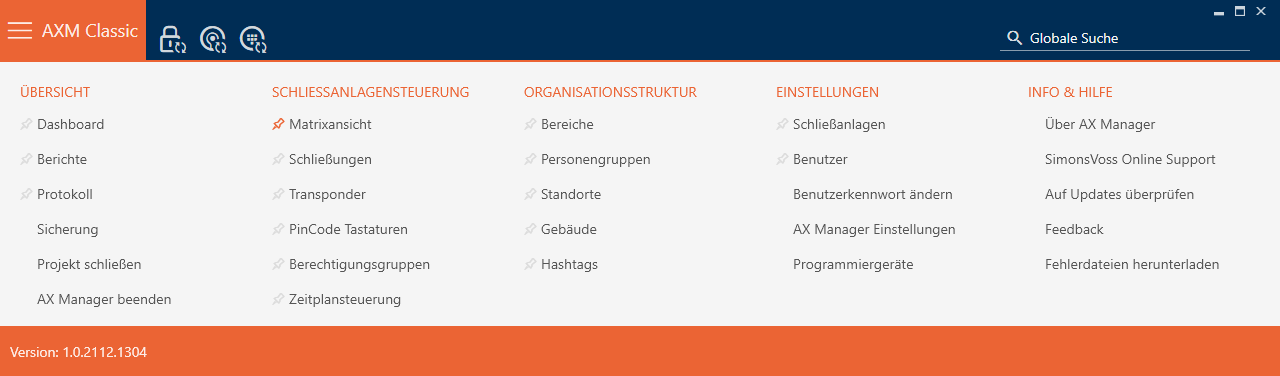
- Select the entry in the group.
- The tab will open.
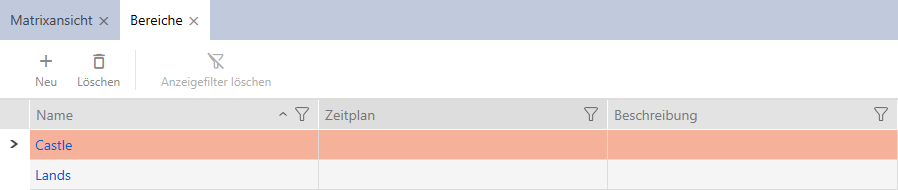
- Select the locking system with the area you want to assign to a time group in the top right-hand corner (alternatively: ).
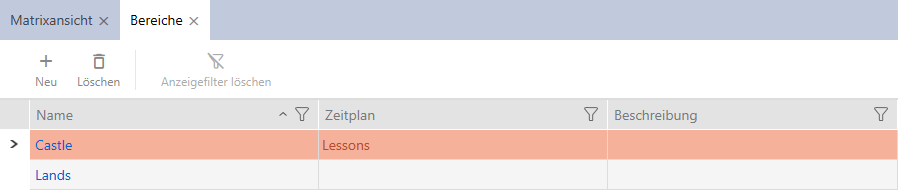
- Click on the area you want to assign to a time group.
- The window will open.
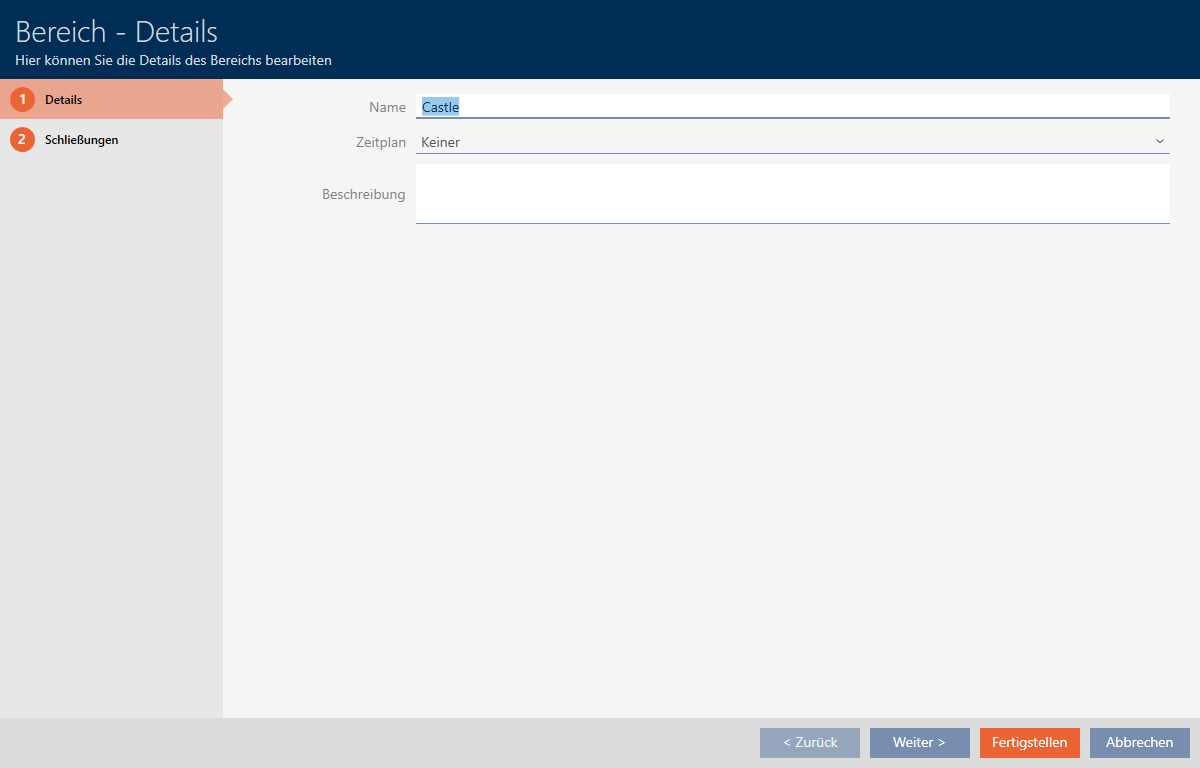
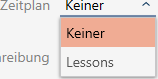
- Select the required schedule from the drop-down menu.
- Click on the button.
- window closes.
- Area, including locking devices, added to the schedule.
Locking devices within an area with a schedule can also be assigned a different schedule or no schedule at all. To do so, select another schedule from the drop-down menu.
Behaviour of inherited schedules
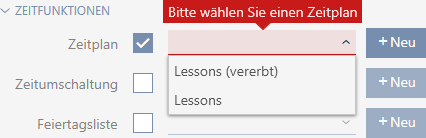
You can recognise inherited schedules by the suffix ().
- Newly created locking devices inherit the schedule if they are assigned to an area with a schedule during their creation.
- Locking devices that have already been created but never synchronised inherit the schedule if they are assigned to an area with a schedule.
- Locking devices with inherited schedules adopt the area’s schedule, even if it is changed in the area
- If the schedule is removed from the area, locking devices that have inherited it will also no longer have the schedule.
- If you assign a different schedule to the area, the schedule also changes for the locking devices that inherit the schedule.
- Locking devices that have already been synchronised with an inherited schedule inherit the schedule of the new area if a new area with a schedule is assigned to them.
- Locking devices that have already been synchronised with an inherited schedule will no longer have the schedule if they are assigned a new area without a schedule.
- Locking devices that have already been synchronised in an area without a schedule inherit the schedule if a schedule is assigned to their area.
- Locking devices with a manually assigned schedule retain this schedule, even if they are assigned to an area with a schedule.
Inheriting a schedule from existing and synchronised locking devices
In some cases, locking devices do not automatically inherit the schedule for security reasons. You can still configure this “inherit” relationship for the schedule manually:
- Select the
 Time schedule checkbox in the details for the locking devices concerned.
 - Then select the entry with the suffix .
- Click on the button.
- Locking device inherits the area’s schedule.