Resetting cards/transponders - AXM Classic
You must reset a component such as a transponder before it can be used again for an identification medium or another locking system.
- Suitable programming device connected.
- AXM Classic open.
- Identification media list or matrix view open.
- Click on the identification medium you wish to reset.
If the identification medium is not present in your locking system, identify the identification medium (see Recognise unknown cards/transponders). Then continue. - The identification medium window will open.
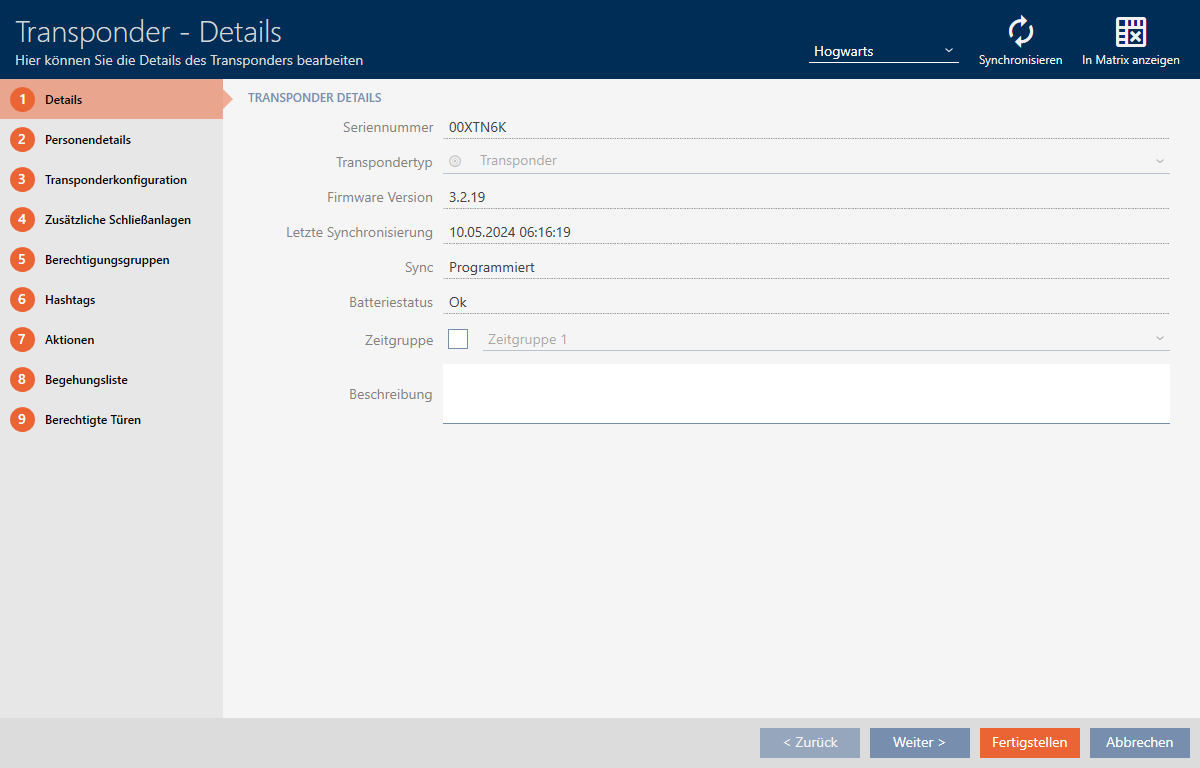
- Click on the
 button.
 - Synchronise window will open.
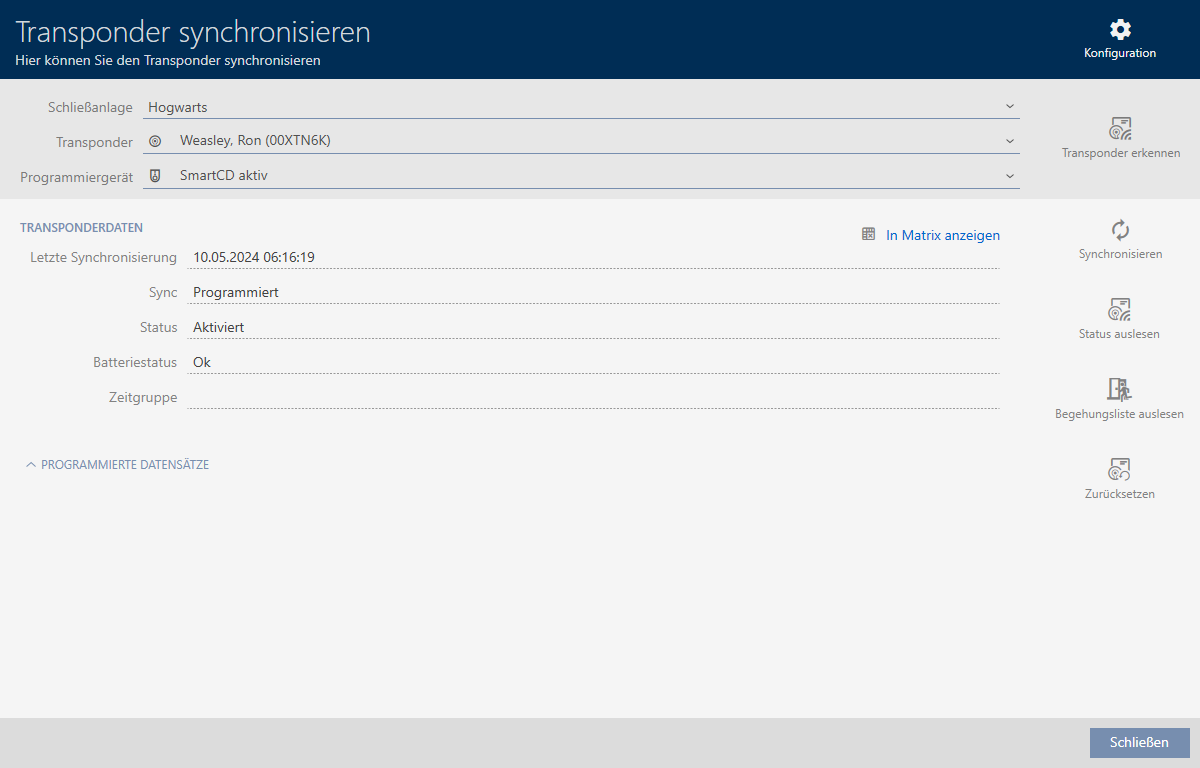
- Select the programming device you wish to use to reset your identification medium from the drop-down menu.
- Click on the button
 .
. - If necessary, select which of the existing data records you wish to reset.

NOTE

Resetting data records from unknown locking systems
If a locking plan from a different project is stored on the identification medium, your AXM Classic does not recognise this locking system and indicates .
You can also select such data records using the checkbox in the column. Since your AXM Classic does not know the locking system and thus doesn’t know the locking system password either, you must enter the locking system password for the unknown locking system in this case.
- If necessary, enter the locking system password for the locking system to which this data record belongs.
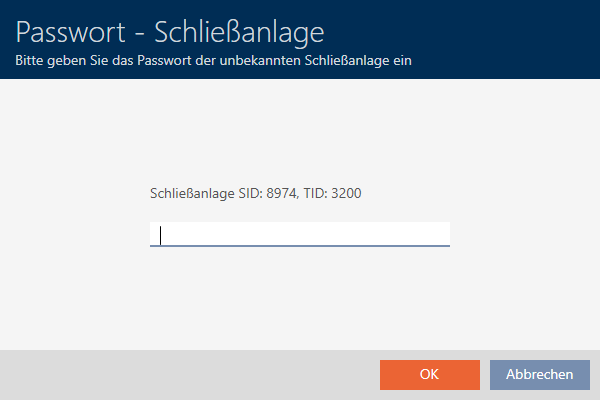
- The checkbox for the data record to be reset is activated.

- Click on the button.
- Follow any further instructions as necessary.
- Identification medium is being reset.
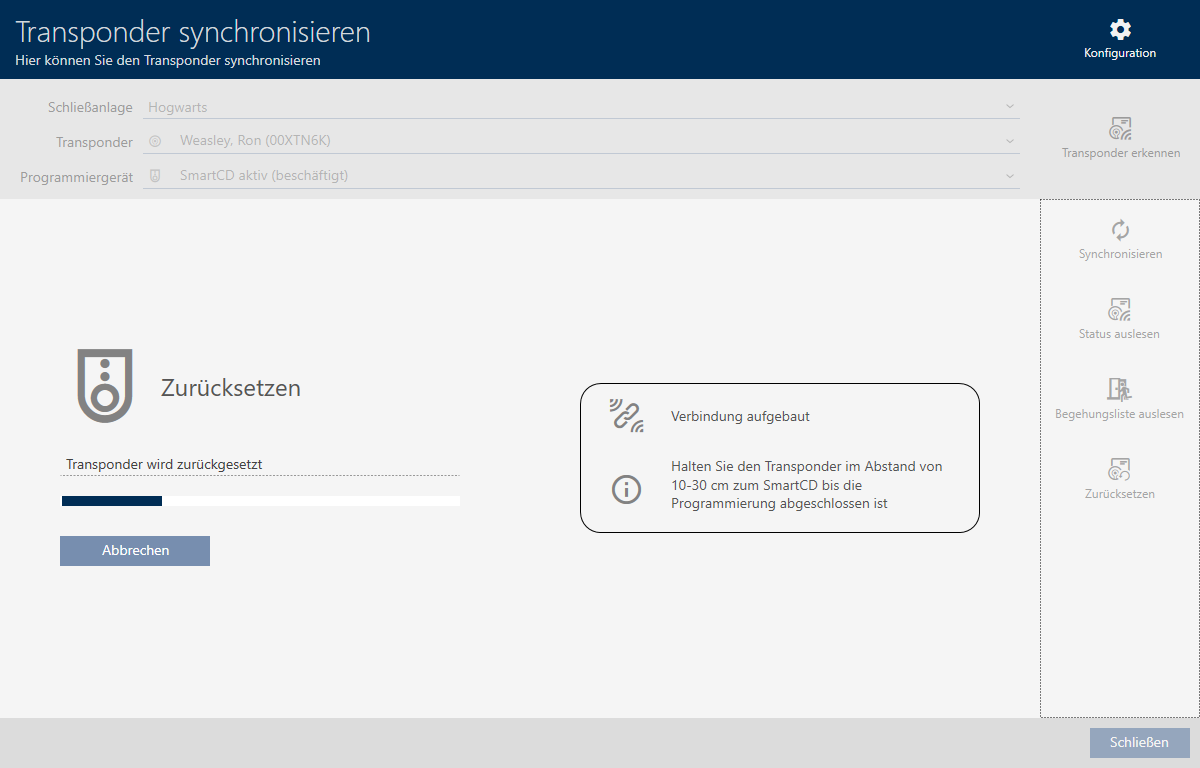
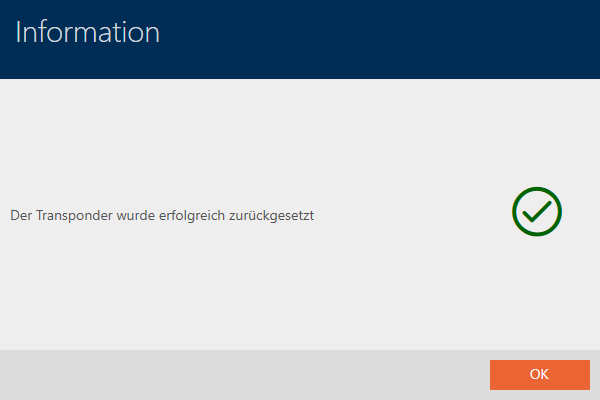
- Identification medium is reset.