Import identification media - AXM Classic
The import function can be used to create multiple identification media/persons simultaneously. To do this, you need an import file in CSV or XLSX format. The columns in this file are subsequently assigned to a field in the AXM Classic. A new identification medium (and person) is created with each line, with the fields populated with the contents of the assigned columns.
Ideally, your import file is encoded in Unicode (UTF-8) format.
There is a similar function for doors and locking devices: Importing locking devices
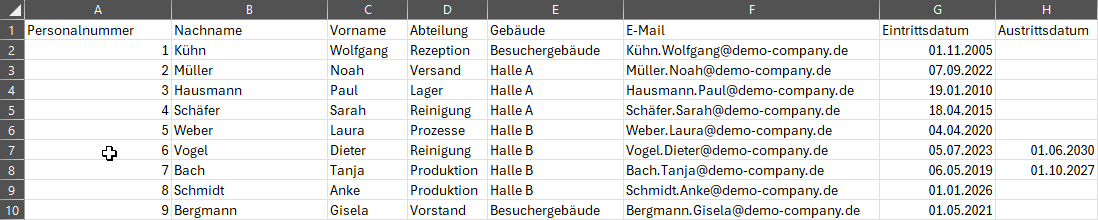
Example file
An example file could look like this:
- AXM Classic open.
- Selection values (e.g. ), which appear in the import file, have already been created (see e.g. Creating a person group).
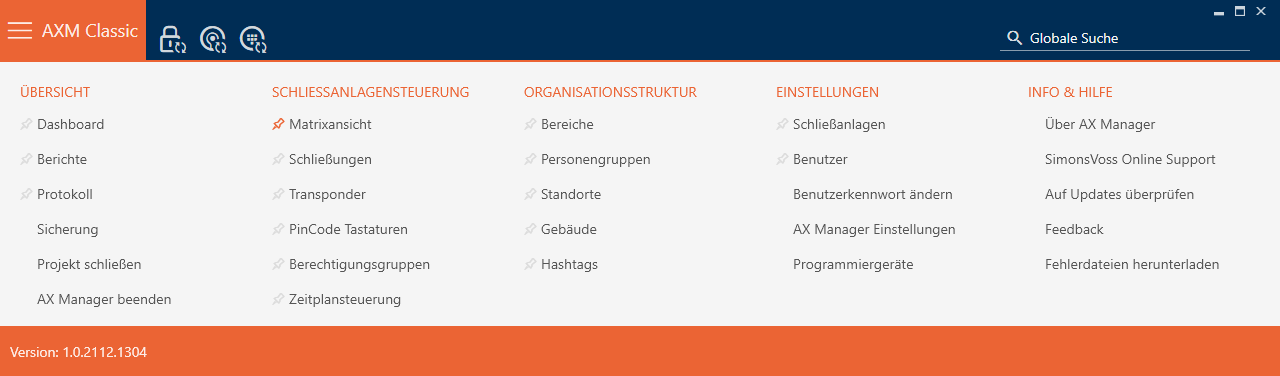
- Click the orange AXM button
 .
. - AXM bar opens.
- Select the entry in the group.
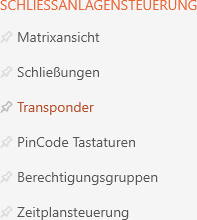
- The list with all identification media in the locking system will open.
- Click on the
 button.
 - The window will open.
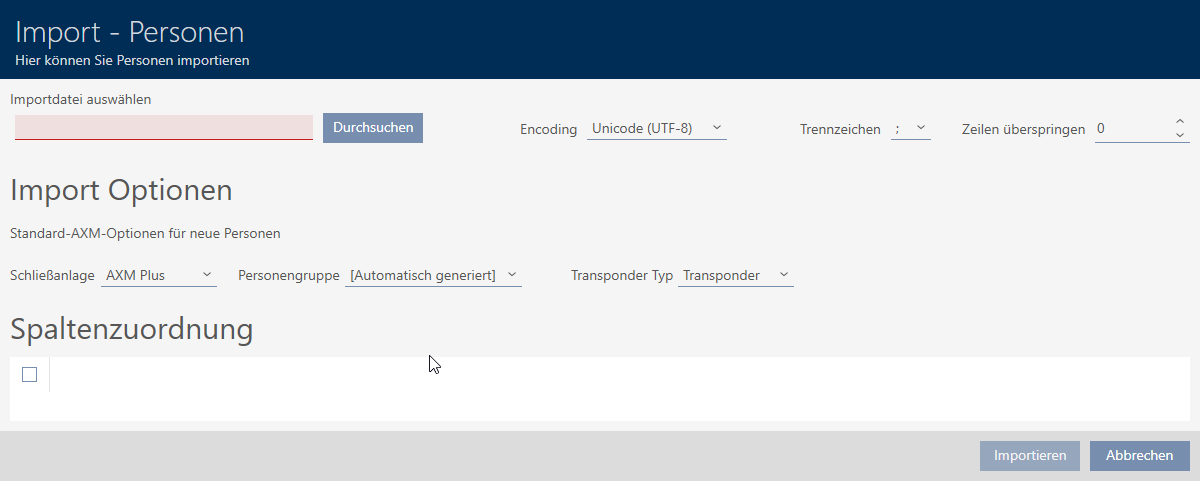
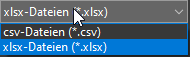
- Click the button and navigate to your import file. You may need to set the file type to see your import file.
- Area is loading.
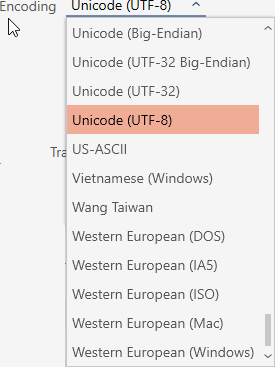
- Select the encoding for your import file from the dropdown menu; (recommendation: import the file in Unicode (UTF-8) format).
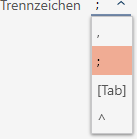
- Select the delimiter for your import file from the dropdown menu (in the example: ;).
- In field , give the number of import file lines that should be skipped (for example, column headings, in the example: 1).

- Open the dropdown menu and select the target locking system .
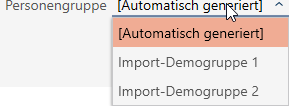
- Open the dropdown menu and select the target group of people to whom you want to import your identification media.
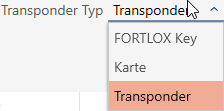
- Open the dropdown menu and select the type of identification medium you want to create with the import.
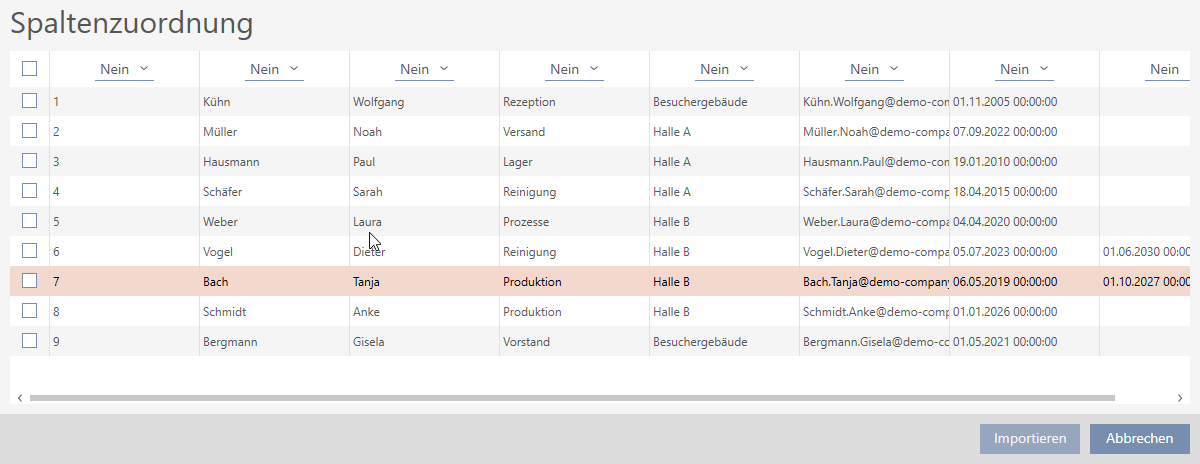
- Each column has a drop-down menu above it. Use this drop-down menu to select the field in the identity media details into which you want to import the entry in this column. If you select the entry , the column will be ignored and not imported.
The entries and must be selected as these fields are mandatory (*) fields. 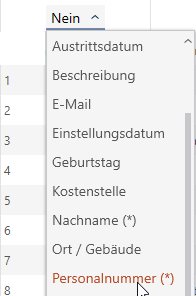
NOTE

Values to be imported must be selected before importing
Fields such as are selectable values. Only existing values may be selected for import; new values cannot be created.
If a selection value is not available, the field is skipped during import.
- Create all required values before importing.
- Columns are assigned to the fields as per the identification media details.
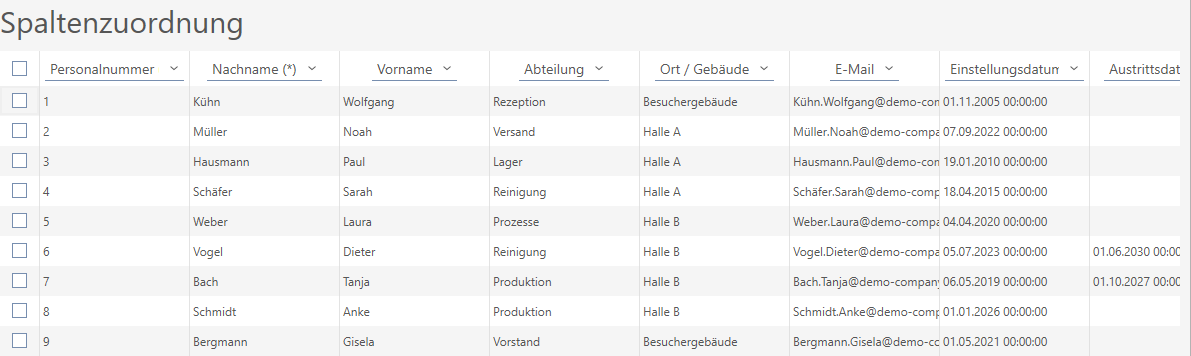
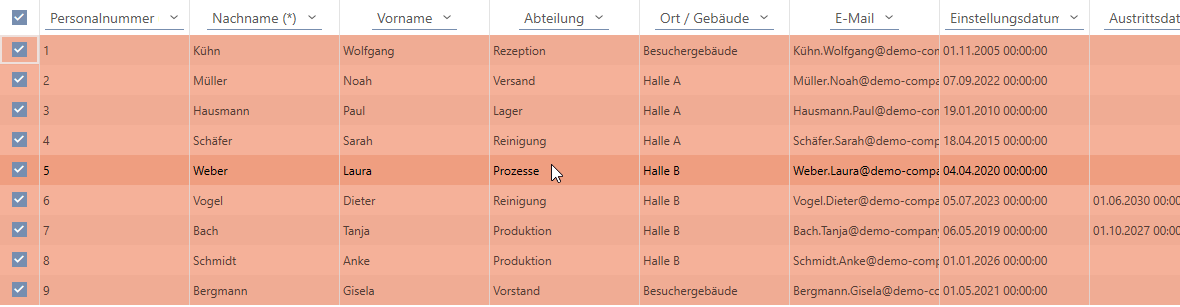
- Mark all the lines you want to import.
- Click the button.
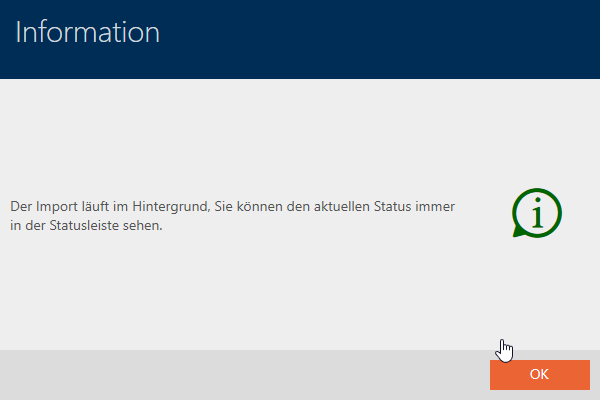
- Import begins.
- Once the import is concluded, the imported identification media/persons can be viewed in the list of identification media:
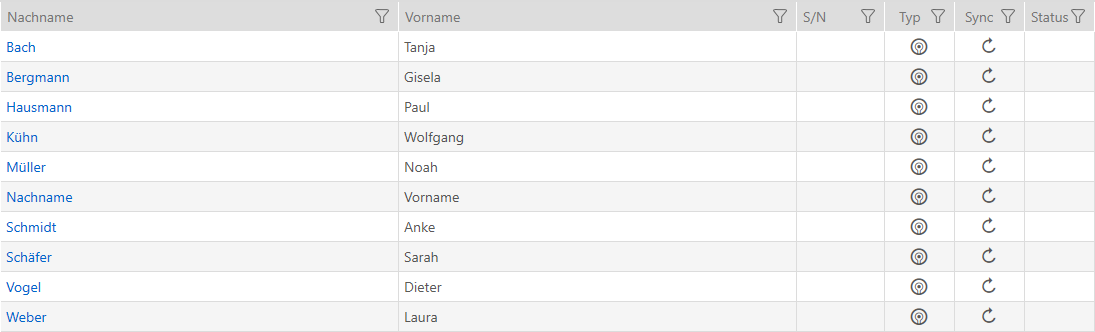
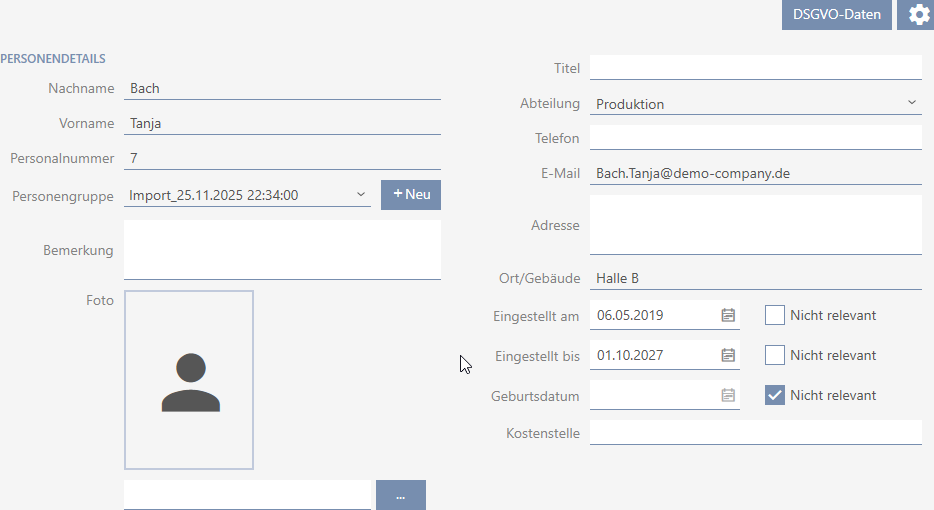
The details you have entered, including the automatically generated person group, can be viewed in the person details of the imported persons: