Handling defective identification media - AXM Classic
Identification media can suffer from defects:
- Software defect
- Hardware defect
As a basic rule, all actions can be performed using the wizard section on the right-hand side:
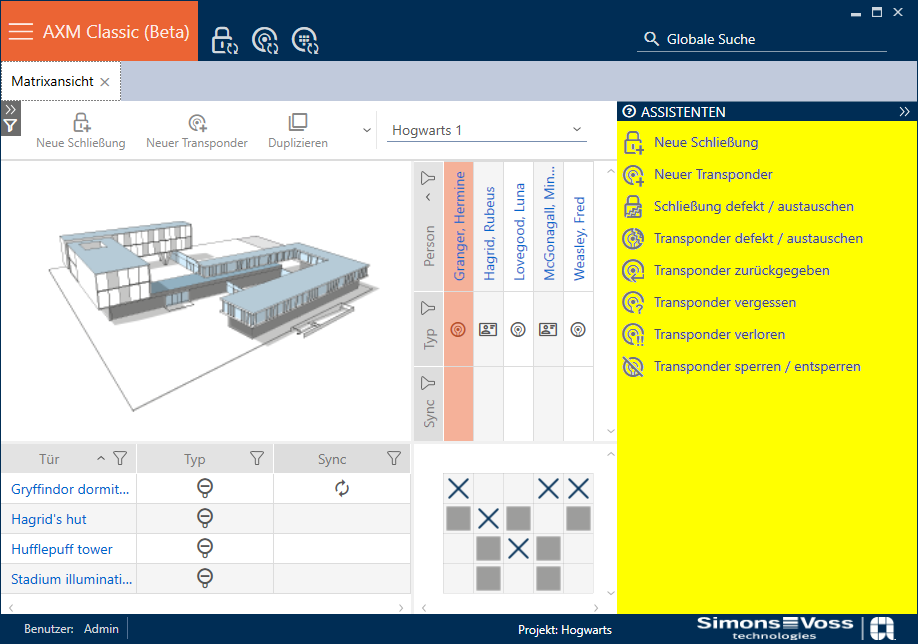
If the identification medium has been lost or stolen, you must block it (see Blocking and replacing lost/stolen card/transponder permanently).
The following overview will help you to decide on the correct course of action. It is helpful if you know how identification media and TID are linked (see Identification media, locking devices and the locking plan).
Transponders/replacement transponders are required again immediately:
Suitable for:
Re-synchronise (repair) | Resetting and replacing | Delete and replace |
|---|---|---|
Identification media with undefined software status. |
| Identification media with permanent damage (e.g. burnt) for which a replacement is required. |
Example situation:
Re-synchronise (repair) | Resetting and replacing | Delete and replace |
|---|---|---|
Employee’s transponder has fallen into the pool. Consequence: transponder works but at risk of failure due to exposure to water. | Employee’s transponder has fallen into a camp fire. Consequence: transponder melted and permanently damaged. |
Procedure:
Re-synchronise (repair) | Resetting and replacing | Delete and replace |
|---|---|---|
Repairing a card/transponder (resynchronising)
The identification medium functions as before after it is repaired. | Resetting and replacing a card/transponder
After the reset, the TID is no longer contained in the identification medium. The identification medium can therefore no longer be used. However, it can be re-synchronised. A new TID is written onto the identification medium. | Deleting and replacing a card/transponder
It is obviously not possible to reset a permanently damaged identification medium because it is no longer accessible. This means the TID remains in the identification medium. Deleting allows you to “clean up” your project. The TID marked as "defective" will remain permanently stored in the database regardless and will not be reassigned. You can also hide defective or disabled identification media as an alternative to deletion (see Hiding deactivated and defective identification media). |
Transponder/replacement transponder is not required:
Suitable for:
Taking out of use and leaving in project | Taking out of use and deleting from project |
|---|---|
Permanently damaged identification media (e.g. burnt) for which no replacement is required (e.g. employee left company) | Permanently damaged identification media (e.g. burnt) for which no replacement is required (e.g. employee left company) |
Example situation:
Taking out of use and leaving in project | Taking out of use and deleting from project |
|---|---|
The employee’s transponder fell into camp fire at the employees’ farewell party. Consequence: transponder melted and permanently damaged; employee no longer on staff. | The employee’s transponder fell into camp fire at the employees’ farewell party. Consequence: transponder melted and permanently damaged; employee no longer on staff. |
Procedure:
Taking out of use and leaving in project | Taking out of use and deleting from project |
|---|---|
Take card/transponder out of use and leave in project
The permanently damaged identification medium retains its TID but the TID is flagged as “defective”. New identification media cannot be created with this TID. This means that the same TID cannot brought into circulation twice. | Taking a card/transponder out of use and deleting it from project
Deleting allows you to “clean up” your project. The TID marked as "defective" will remain permanently stored in the database regardless and will not be reassigned. You can also hide defective or disabled identification media as an alternative to deletion (see Hiding deactivated and defective identification media). |
Handling a defective PIN code keypad
As with transponders and cards, you also have various options in the event of a defective PIN code keypad:
- Repair PinCode keypad (see Repairing a PIN code keypad (resynchronising))
- Reset and Replace PinCode keypad (manual; not via wizard - see Resetting and replacing a PIN code keypad)
- Delete and Replace PinCode keypad (see Deleting and replacing a PIN code keypad)
- Decommission PinCode keypad and leave in the project (see Taking a PIN code keypad out of use and leaving it in project)
- Decommission PinCode keypad and remove from project (see Taking a PIN code keypad out of use and deleting it from project)