Creating a backup - AXM Classic
Your database and thus your workload can be quickly restored if a backup is copied on a regular basis.
Our backup function uses AES 256 encryption.
You can easily create the backup in AXM Classic itself:
On the login mask (button
 ):
):
Alternatively: in the expandable AXM bar ( button):
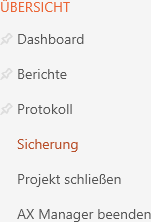
This section explains how to back up the database using the expandable AXM bar.
- AXM Classic open.
- Click on the orange AXM icon
 .
. - AXM bar opens.
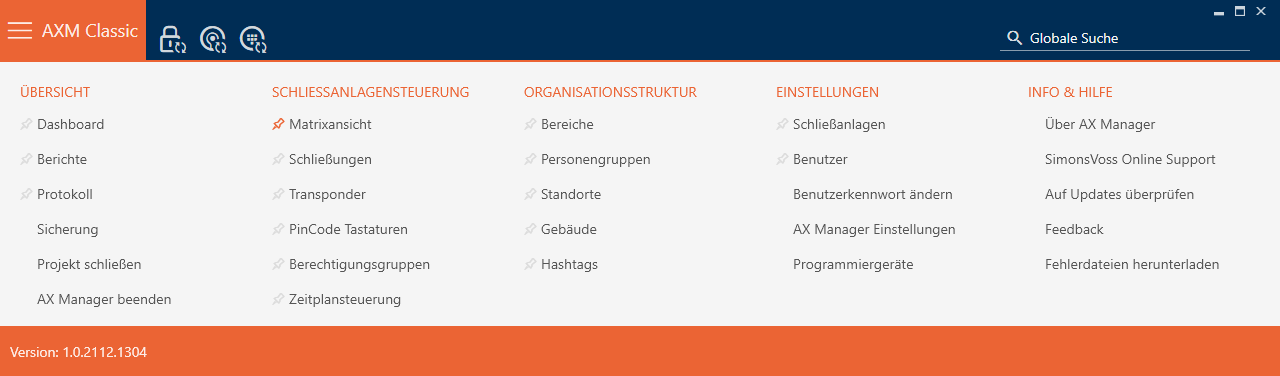
- Click on the entry in the group.
- The AXM bar will close.
- The window for assigning passwords will open.
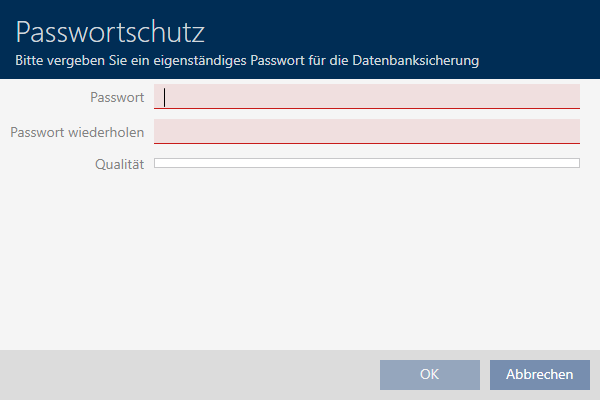
- Enter a password in the field to protect this backup.
- A coloured bar shows you how secure your password is.

- Repeat the entered password in the field.
- Click on the button.
- The window for assigning passwords closes.
- Backup is being created.
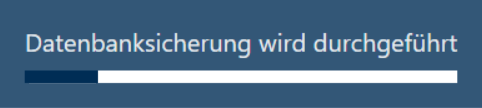
- The Explorer window will open.
- Save the backup file (extension: .axmbackup) in a file directory of your choice.
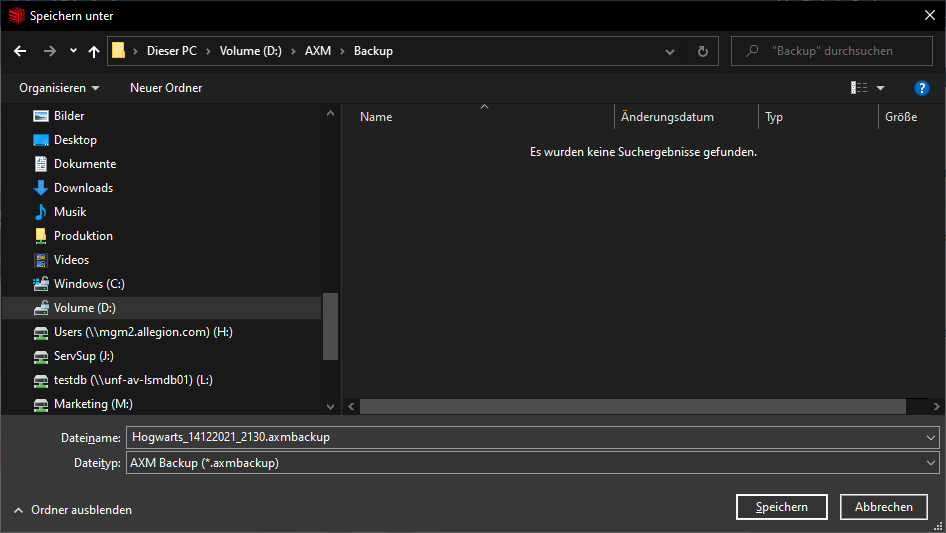
- Explorer window closes.
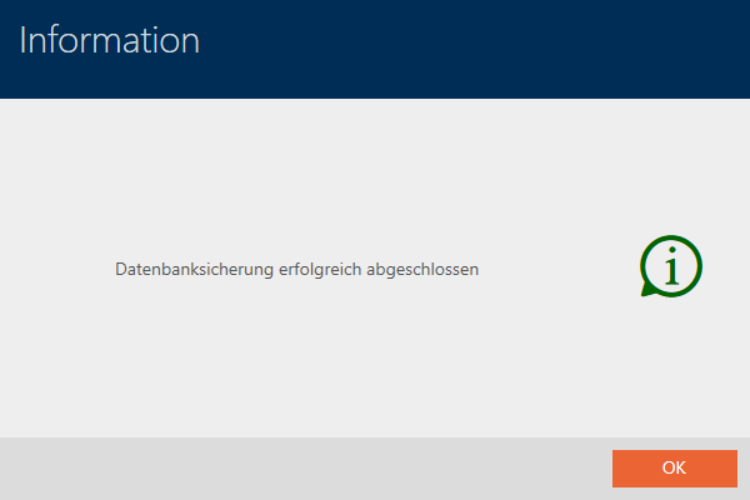
- Backup is complete.
You can also see when you last created a backup on the AXM Classic login mask:
