Delete and replace - AXM Classic
- AXM Classic open.
- Locking device list or matrix view open.
- Suitable replacement locking device available.
- Suitable programming device connected.
- Use
 to sort/filter the displayed entries if required (see Sorting and filtering).
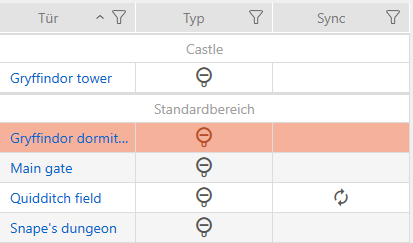
 - Select the faulty locking device.
- Click the
 button in the section.
 - Wizard for dealing with a faulty locking device will open.
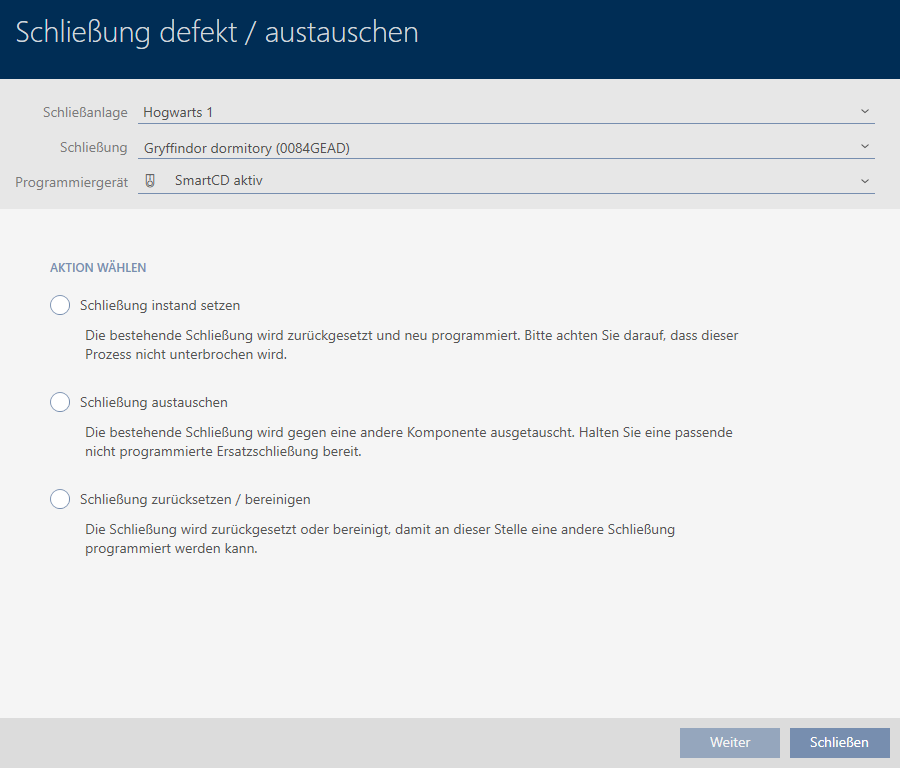
- Select the
 Replace lock option.
 - Click on the button.
- Reset query will open.
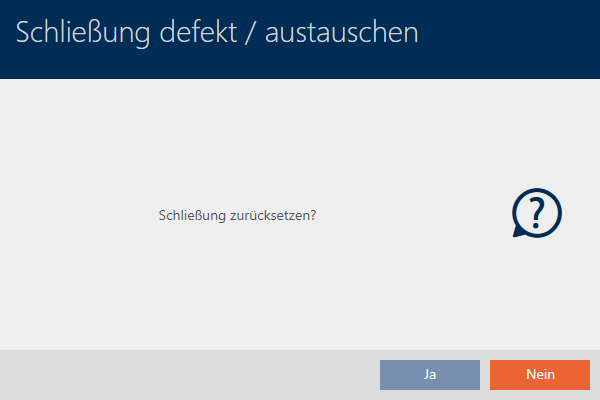
- Click on the button.
- Reset query will close.
- Confirmation dialogue for creating a replacement locking device will open.
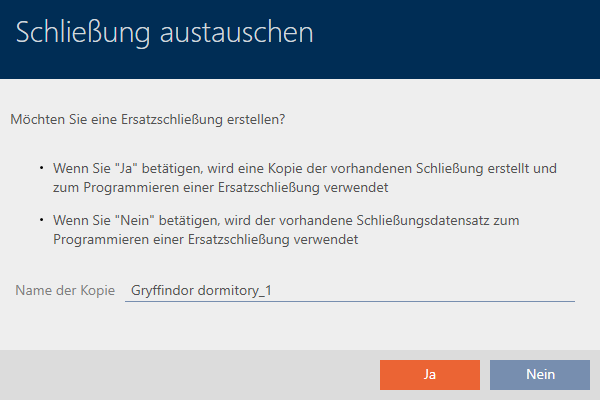
- If necessary, change the entry in the field.
- Click on the button.
- Confirmation dialogue for creating a replacement locking device closes.
- Replacement locking device is already visible in the matrix in the background.
- Wizard prepares synchronisation for the replacement locking device.
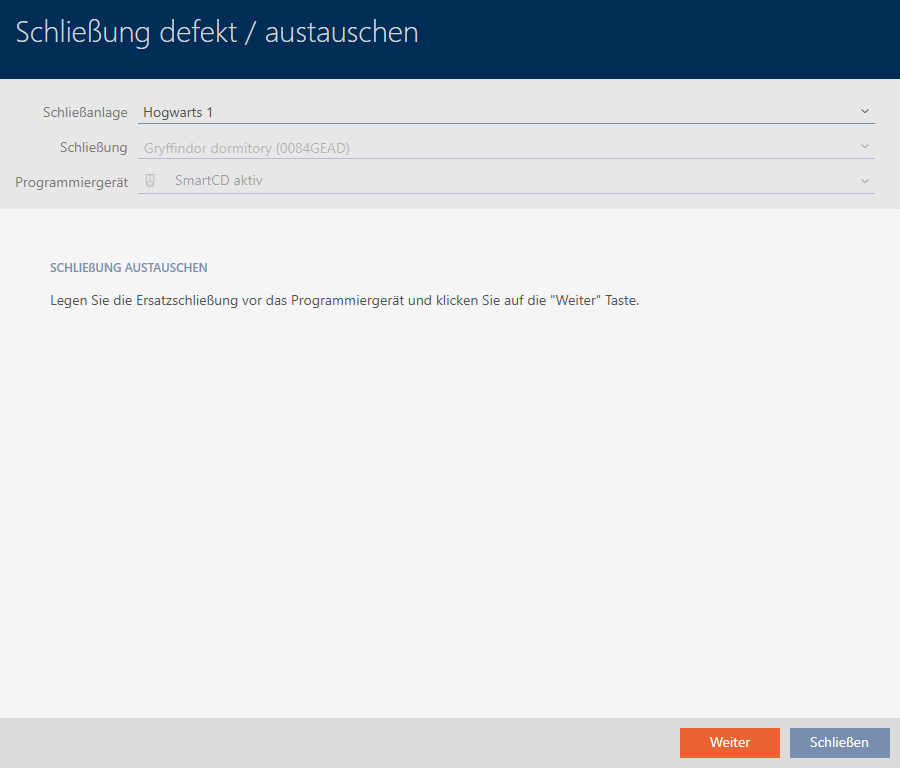
- Click on the button.
- Replacement locking device is being synchronised.
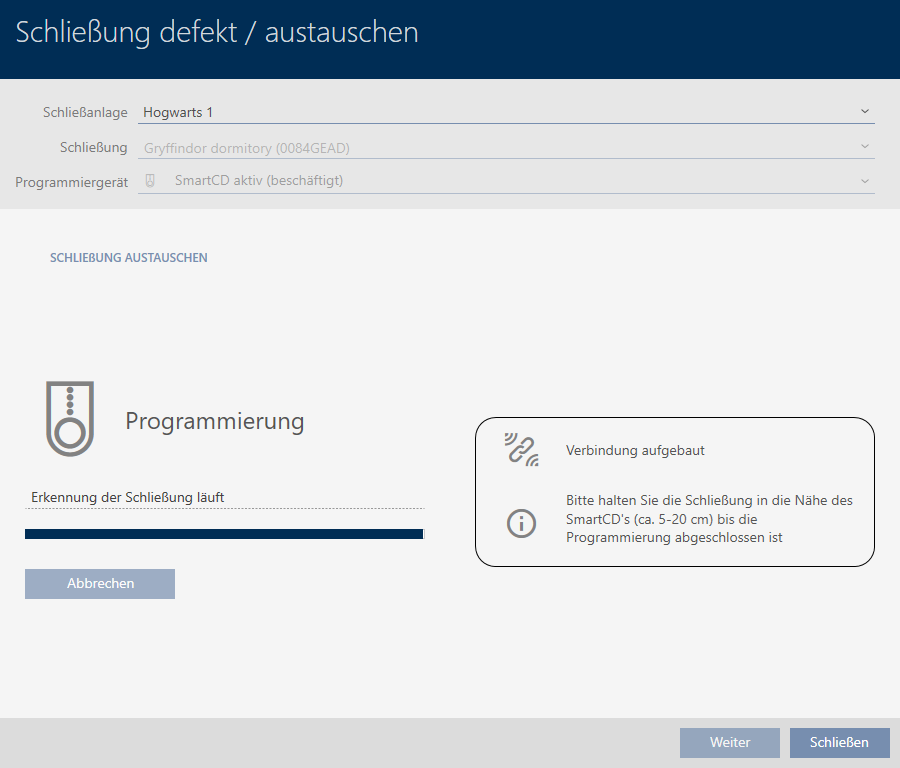
- Replacement locking device is synchronised.

- Click on the button.
- Wizard for dealing with a faulty locking device closes.
- Select the defective original locking device.
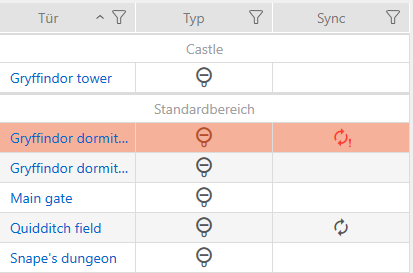
- Click on the button
 .
. - Defective locking device is deleted from the locking plan.
- Replacement locking device is displayed in the matrix.