Update GatewayNode - Step-by-Step WO
GatewayNodes with Ethernet connection
- A firmware update takes about a minute.
- A firmware update does not change the configuration.
- During the firmware update, the GatewayNode is not available for the integrator system.
You can update the firmware yourself using the Operations, Administration and Maintenance tool (OAM tool) (GN2 only). The OAM tool is available free of charge in the download area on the SimonsVoss website ( https://www.simons-voss.com). You do not need to install the OAM tool.
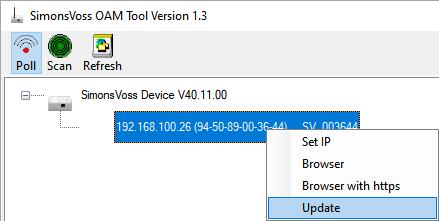
- Latest version of OAM tool opened (see Search GatewayNode).
- GatewayNode (see Search GatewayNode).
- Change of IP allowed via OAM tool (see Disable OAM tool access).
- Current firmware of RouterNode 40.1X or later.
- GatewayNode type GN2
- Firmware file (.REL) available (included in your SI-TechKit).
- Right-click the entry of the GatewayNode you want to update to open the context menu.
- Select the entry .
- A window XTUpdate with a GatewayNode list opens.
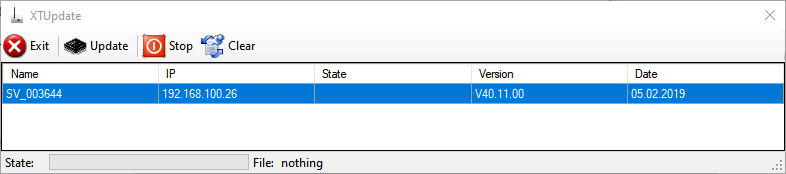
NOTE

Updating multiple GatewayNodes
The OAM tool remains open. You can add further entries to the update list in the window XTUpdate.
- Select another GatewayNode in the OAM tool.
- Select the entry .
- GatewayNode is added to the update list in the window XTUpdate.
- Repeat the steps until all GatewayNodes you want to update are in the update list.
- GatewayNodes are added to the update list in the window XTUpdate.
- Make sure that the GatewayNodes you want to update are highlighted.
- Click on the Update button.
- The Explorer window opens.
- Navigate to the firmware file location.
- Select the firmware file.
- Click on the Open button.
- Explorer window closes.
- Updating firmware of GatewayNodes.
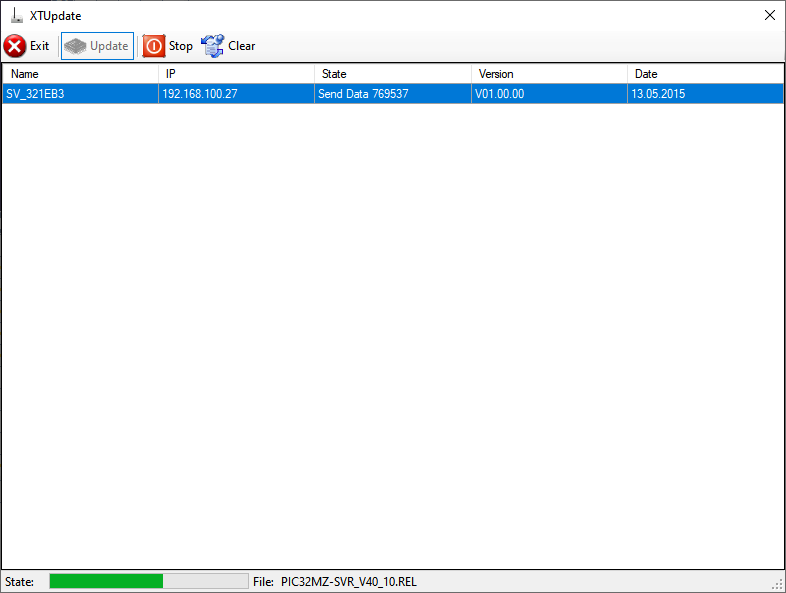
- The window AKForms opens.
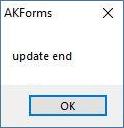
- Click on the OK button.
- Window AKForms closes.
- Click on the Exit button.
- Window XTUpdate closes.
- The firmware of the GatewayNodes is updated.