Resetting the programmed LockNode and non-programmed locking device - Step-by-Step WO
Resetting the LockNode
- SmartIntego-Tool (WO) opened.
- Two additional locking devices of the same type available.
- Two GatewayNodes available.
- SI.SmartCD available.
- In the SmartIntego tool (WO) l, create a second project with a different SID (see Createing a SmartIntego project).
- Add a GatewayNode to this project (see Add GatewayNode).
- Add the second locking device (see Add LockNodes).
- Program the LockNode of the second locking device and the second locking device (see Programme locking device).
- Second system set up.
- In the SmartIntego tool (WO) l, create a third project with a different SID (see Createing a SmartIntego project).
- Add the second GatewayNode to this project (see Add GatewayNode).
- Add the third locking device (see Add LockNodes).
- Programme the LockNode of the third locking device and the third locking device (see Programme locking device).
- Third system set up.
- Remove the LockNodes from all locking devices (see quick guide or manual).
- Install the LockNode of the old locking device in the second locking device.
- The locking device beeps and flashes red four times.
- Remove the LockNode of the old locking device from the second locking device.
- Install the LockNode of the old locking device in the third locking device.
- The locking device beeps and flashes red four times.
- Remove the LockNode of the old locking device from the third locking device.
- Reinstall the LockNode of the old locking device into the old locking device.
- The locking device beeps and flashes red four times.
- Reinstall the LockNodes of the second and third locking devices in the original locking devices.
- LockNode is reset.
- Then reset the second and third locking devices, LockNodes and GatewayNode with SmartIntego Manager and the SmartIntego tool (WO) l if necessary.
Re-set locking device
- SmartIntego-Tool (WO) opened.
- LockNode reset as described.
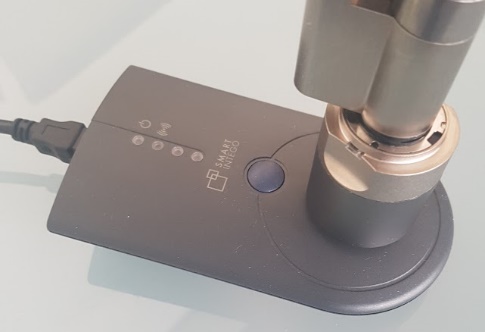
- Position the programming device on the locking device (example: locking cylinder).
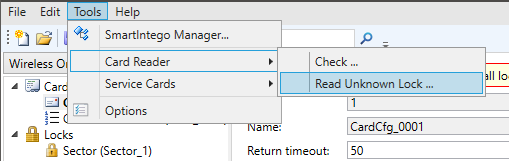
- Read the locking device using Tools and .
- Summary of the read locking device is displayed.
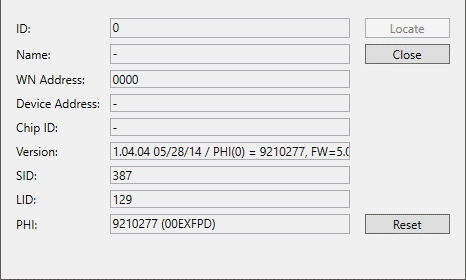
- Click on the button Reset
- Locking system password is queried.
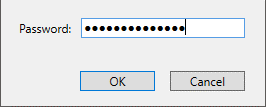
- Enter the locking system password.
- Click on the button OK.
- The locking device is reset.
- Locking device and LockNode reset.