Createing a SmartIntego project - Step-by-Step WO
- Open the SmartIntego tool (WO).
- Via File select the entry .
- The view for creating a new project opens.
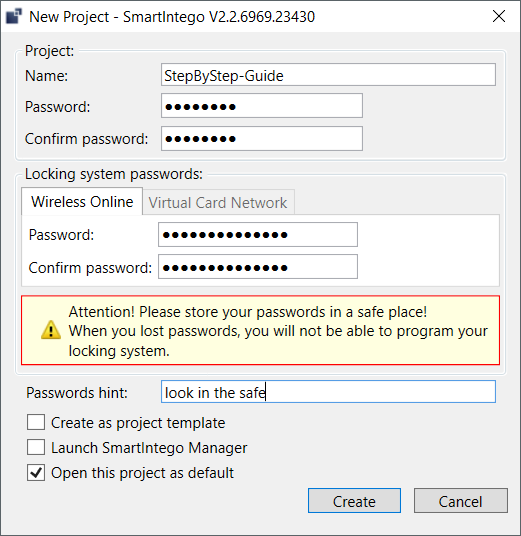
- Enter a project name.
- Assign a login password (project password).
- Change to the "SI-Tool - Projekt erstellen: Wireless online [offen]" tab.
- Assign a locking system password.
NOTE

Loss of passwords
Your passwords are the basis for managing your locking system. Lost or publicly known passwords are a serious security risk and/or lead to loss of control over the system.
- Make a note of your passwords.
- Store your passwords in a safe place.
- Provide a password hint.
- Click on the Create button.
- The Explorer opens.
- Select an output folder for your project file.
- Click on the button Save.
- The Explorer closes.
- The project is created (*.ikp).
NOTE
Multiple project files for an integration project
Using a separate project file for each hardware controller of the integrator system significantly increases the administrative effort for the installer.
- SimonsVoss advises against this type of administration.
- If necessary, ensure that the integrator system supports the use of multiple project files.
Loss of the project file (*.ikp)
If the project file is lost despite a backed up environment and backup, you will no longer be able to continue working with the existing project.
- Reset the locking devices with the locking system password.
- If necessary, reset the LockNodes with a hardware reset.
- If necessary, reset the GatewayNodes with a hardware reset.
- Then reprogram the entire locking system.