Moving several locking devices - Step-by-Step WO
- SmartIntego Manager opened.
- Locking devices of new GatewayNode.
- Right-click the entry of the GatewayNode to which you want to relocate the locking device.
- The window Administration opens.
- Select the option
 Search master segment.
 - Click on the button OK.
- Window Administration closes.
- The window for selecting between quick and intensive search opens.
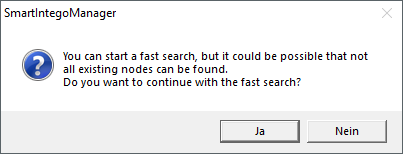
- Click on the button Yes to perform a quick search or
click on the button No to perform an intensive search. - Searching for new and known LockNodes. (Known LockNodes are already assigned to other segments.)
- The window Search results opens.
Display of search results
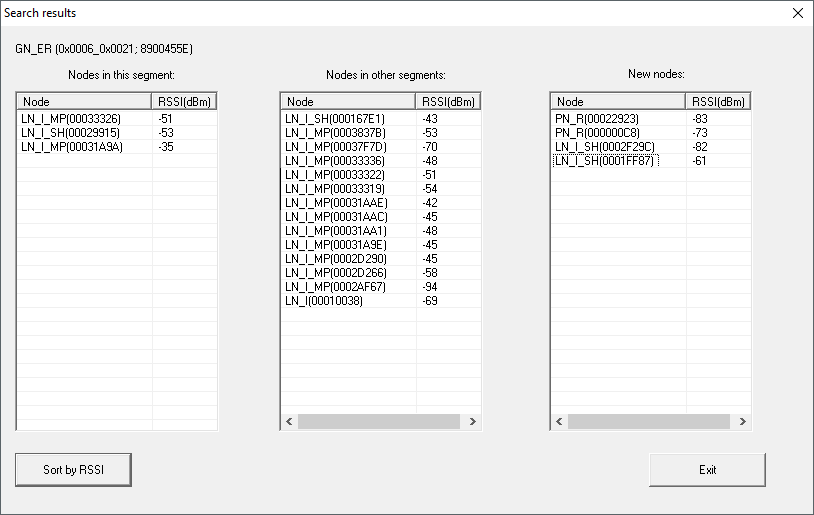
Column | Meaning |
|---|---|
Nodes in this segment | These LockNodes are assigned to the current GatewayNode. |
Nodes in other segments | These LockNodes are assigned to another GatewayNode in this WaveNet. |
New nodes | These LockNodes are not yet assigned to a GatewayNode. |
RSSI value | The value displayed refers to the connection quality from the current GatewayNode to the respective LockNodes. |
Relocate locking devices
- Highlight the LockNodes in the "Nodes in other segments" column (Ctrl key and selection with the mouse).
- Drag and drop the selection into the "Nodes in this segment" column.
- Click on the Exit button.
- Window Search results closes.
- Locking devices are displayed for the new GatewayNode.
- Click on the button Save.
- Click on the Exit button.
- Locking devices have relocated.
NOTE

Manual configuration if CSV import of the configuration file is missing
Some integrator systems do not support CSV import of the configuration file.
- Configure manually in the integrator system (considerable effort).
NOTE
Different procedure for Mercury components
Mercury GatewayNodes will change the device address (LockNodes) when moving.