Replace defective locking device - Step-by-Step WO
Proceed as described if your locking device is mechanically or electronically defective. For information on replacing an intact locking device with another model, see Replace intact locking device.
- SmartIntego Manager opened.
- SmartIntego-Tool (WO) opened.
- Replace the defective locking device on the door physically.
- Remove the batteries of the faulty locking device (see quick guide or locking device manual).
- Right-click on the entry for the defective locking device.
- The window Administration opens.
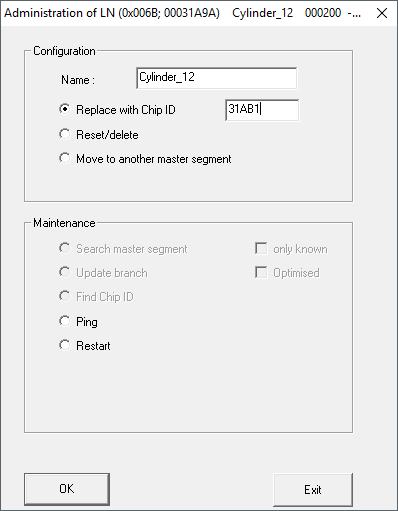
- Select the option
 Replace with Chip ID.
 - Enter the chip ID of the new locking device (overwrite old chip ID).
- Window Administration closes.
- LockNode is being reconfigured.
- Confirm the message with OK.
- Click on the button Save.
- Click on the Exit button.
- Programme the new locking device in the SmartIntego tool (WO) (see Programme locking device).
- Defective locking device replaced.
Further procedure at RMA
Reset the locking device with the SI.SmartCD:
- Use the SmartIntego tool (WO) to create a new, empty * .ikp file to reset.
- Insert the batteries into the locking device.
- Read out the locking device via Tools, and .
- Locking device is read out.
- The window with read-out values opens.
- Click on the Reset button.
- Window with read-out values closes.
- Enter the locking system password.
- The locking device is reset.
- Remove the batteries of the faulty locking device again.
- Update the name list if necessary (see Creating, expanding and importing a name list).
- Locking device prepared for RMA.