Configure RS-485 ConfigNode - Step-by-Step WO
There is no need to pre-configure your RS-485 GatewayNodes.
Only assign a free IP address to the ConfigNode. You can assign this IP address statically or have it defined by a DHCP server. If there is no DHCP server, the component uses the default IP address: 169.254.X.X.
Find ConfigNode
You can find your ConfigNode with the Digi Device Discovery Tool:
- Launch the Digi Device Discovery Tool.
- Connect ConfigNode to your computer.
- Start the Digi Device Discovery Tool.
- Digi Device Discovery Tool.
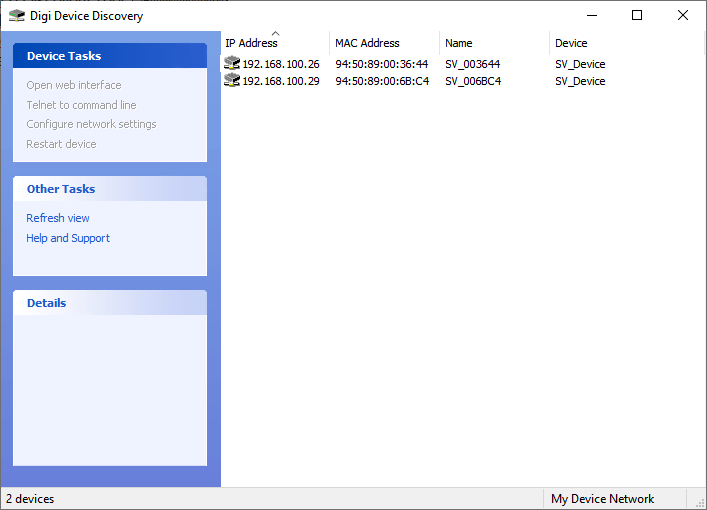
- Highlight the entry of your component.
- Click on the Configure network settings button.
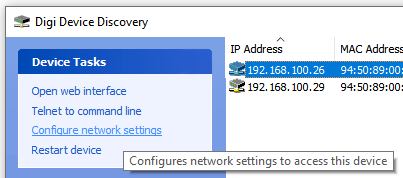
- The DDD Tool: Configure network settings window opens.
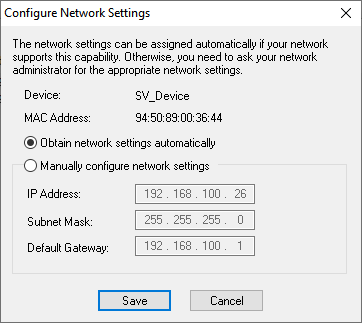
- Specify the IP settings.
- Click on the button Save.
Add ConfigNode
- SmartIntego Manager opened.
- Right-click on the navigation root (WaveNet_XX_X).
- The window Administration opens.
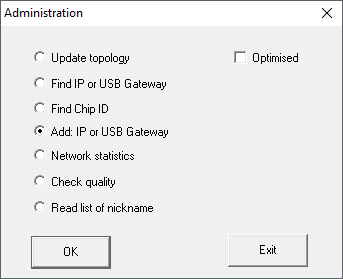
- Select the
 Add IP or USB gateway option.
 - Click on the button OK.
- Window Administration closes.
- The window Add IP or USB Gateway opens.
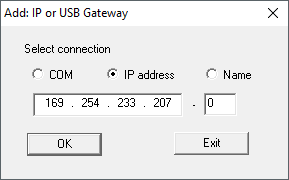
- Select the option IP address.
- Enter the IP address you have identified (example: Start-IP 169.254.233.207, end-IP: 0).
- Click on the button OK.
- ConfigNode is added.