Create door name list - Step-by-Step WO
The door name list should be available as a text file (*.txt) in the following format:
GatewayNode_01
GatewayNode_02
GatewayNode_03
Cylinder_01
Cylinder_02
Cylinder_03
Cylinder_04
Cylinder_05
Cylinder_06
Cylinder_07
Cylinder_08
Cylinder_09
Cylinder_10
SmartHandle_01
Cylinder_12
Use the names of the corresponding doors instead of the terms GatewayNode, Cylinder and SmartHandle. The order of the list entries does not matter.
- SimonsVoss QR code scanner installed.
- SmartIntego components already delivered.
- Physical QR barcode scanner available (Datamatrix code capable, recommendation: Honeywell Voyager 1400g D2).
- Door name list of the doors and GatewayNodes to be equipped.
- Open the SimonsVoss QR code scanner (chip ID).
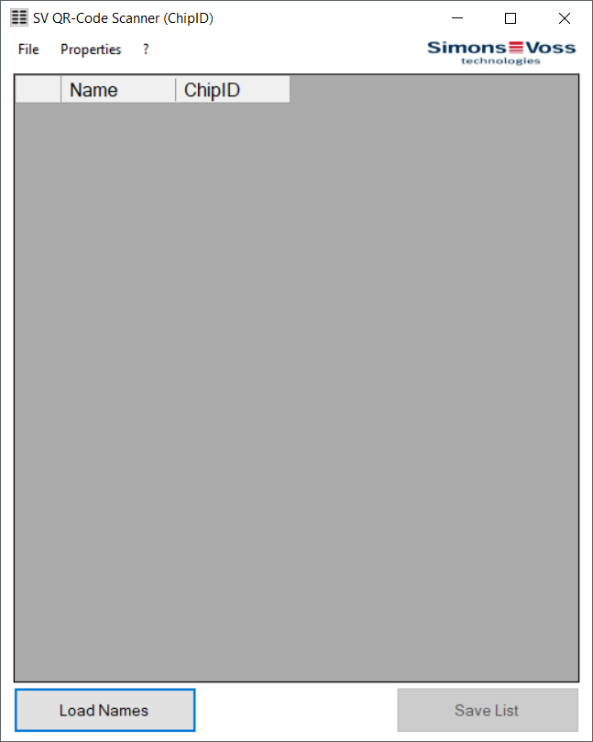
- Connect the QR barcode scanner.
NOTE

QR barcode scanner settings
The SimonsVoss QR barcode scanner processes keyboard entries in a German keyboard layout (QWERTZ).
- Set the QR barcode scanner as a keyboard (normally default setting).
- Set the QR barcode scanner to the German keyboard layout (QWERTZ) (Properties - Configuration).
- Click on the Load Names button.
- The Explorer opens.
- Navigate to your door name list.
- Click on the button OK.
- The Explorer closes.
- Reading in door name list.
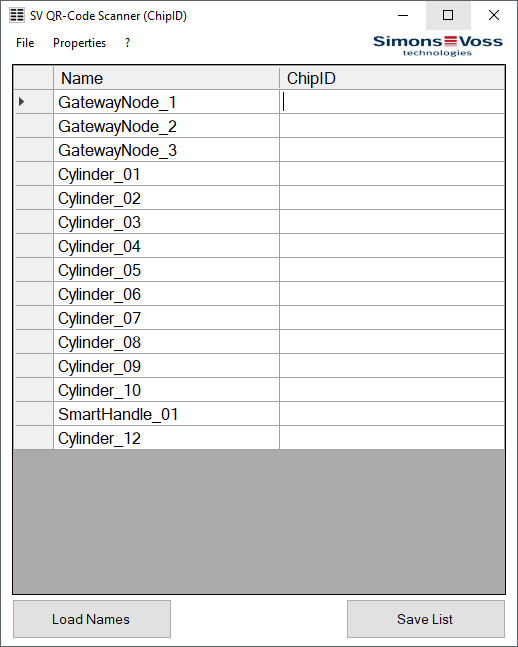
- Highlight the line or place the cursor in the chip ID cell.
- Scan the code on the appropriate packaging.
- Entire code is read in.
- Go to the next line.
- Previously scanned code is filtered down to chip ID.
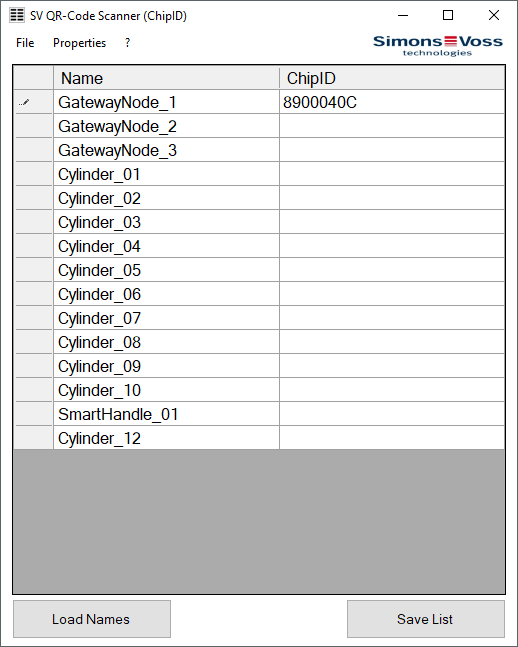
- Scan further locking devices and GatewayNodes.
- Click on the Save List button.
- The Explorer opens.
- Navigate to an output directory of your choice.
- Click on the button OK.
- The Explorer closes.
- The door name list with the chip IDs is saved (required later by SmartIntego Manager, see)Importing a door name list into SmartIntego Manager.