Replace intact locking device - Step-by-Step WO
Proceed as described if you want to replace an intact locking device with another locking device (e.g. a SmartHandle instead of a locking cylinder).
- SmartIntego-Tool (WO) opened.
- New and old locking device within reach of a GatewayNode.
- In the navigation area, click the entry for the locking device you want to replace.
- Select the option
 WaveNet in the settings.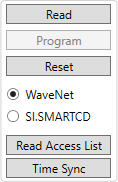
- Click on the Reset button.
- The locking device is reset.
- Open SmartIntego Manager.
- Right-click the entry of the locking device you want to replace.
- The window Administration opens.
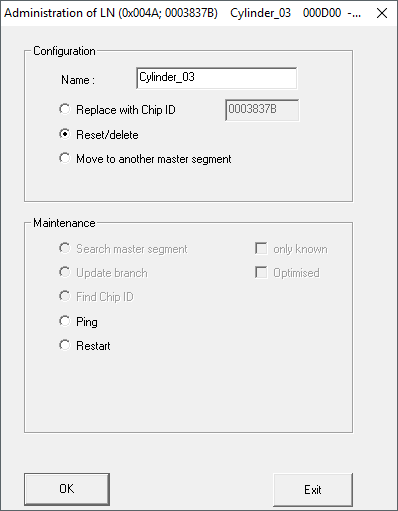
- Select the option Reset/delete.
- Click on the button OK.
- Window Administration closes.
- The window Procedure started opens.
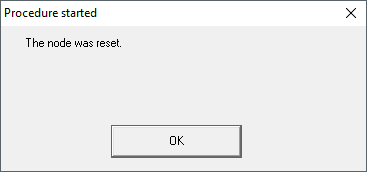
- Click on the button OK.
- Window Procedure started closes.
- Right-click the entry of the GatewayNode in which the locking device was located.
- The window Administration opens.
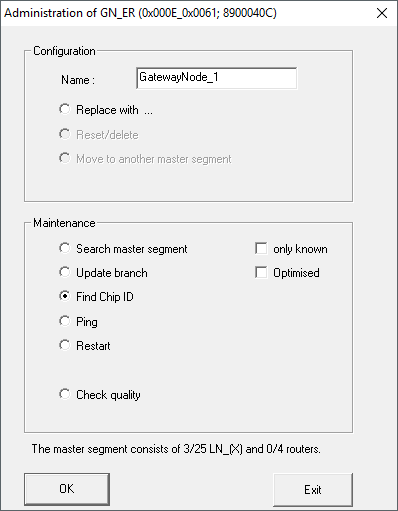
- Select the option Find Chip ID.
- Click on the button OK.
- Window Administration closes.
- The window Search for node opens.
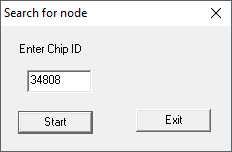
- Enter the chip ID of the new locking device.
- Click on the Start button.
- Window Search for node closes.
- SmartIntego Manager searches for chip ID.
- The window Results opens.
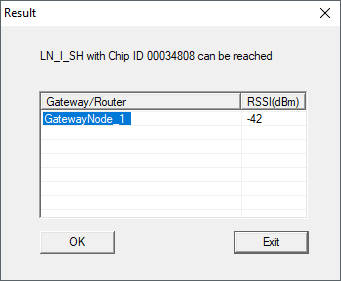
- Select the entry of the GatewayNode.
- Click on the button OK.
- Window Results closes.
- Locking device is displayed in SmartIntego Manager.
- Click on the button Save.
- Update the name list if necessary (see Creating, expanding and importing a name list).
- Click on the Exit button.
- Program the new locking device in the SmartIntego tool (see Programme locking device).
- Locking device has been replaced.
NOTE

New locking device with new device address
This is a new locking device with a new device address.