Adding Lock Nodes to WaveNet - WaveNet
If you want to use LockNodes in your WaveNet, you must first add the LockNodes in the WaveNet Manager. LockNodes do not have an IP address and can therefore only be found using the Chip ID. You can find the Chip ID on the LockNode itself, on the supplied sticker or on its packaging.RouterNode connected to the network.
You can later manually assign the LockNode to another RouterNode (see Assigning LockNodes to another RouterNode).
Single LockNode: Find Chip ID
- RouterNode is connected to the network.
- WaveNet Manager opened via LSM (see Best Practice: From the LSM software)
- LockNode installed or supplied with power.
- LockNode within range of the WaveNet.
- The chip ID of the LockNode is known.
- Right click the entry WaveNet_XX_X.
- The window Administration opens.
- Select the option
 Find Chip ID.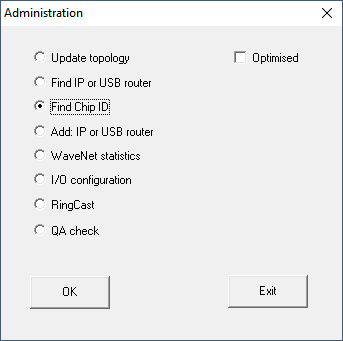
- Click on the OK button.
- The Administration window closes.
- The window Search for node opens.
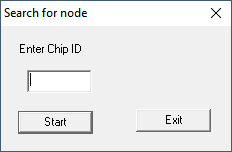
- Enter the chip ID.
- Click on the button Start.
- The Search for node window closes.
- WaveNet Manager searches for reachable chip IDs.
- The window Result opens. You will see a list of router nodes that reach the LockNode.
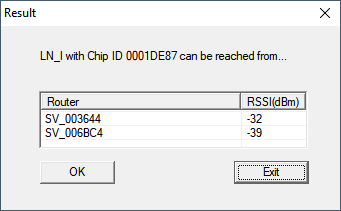
- Select the RouterNode with which you want to spark the LockNode.
NOTE

Observe the signal strength
The signal strength in the WaveNet Manager should be between 0 dBm and -70 dBm.
If the signal strength is between -75 dBm and -90 dBm, the connection and communication between the devices may become slow or interrupted, and there will also be higher power consumption.
- Select the RouterNode with the best signal strength.
- If no RouterNode has sufficient signal strength, position a RouterNode closer to the LockNode (see Improving signal quality).
- Click on the OK button.
- The window Result closes.
- The Procedure started window opens temporarily.
- Click on the button Save.
- LockNode is imported and linked to the selected RouterNode.
LockNodes are displayed in the WaveNet topology below the RouterNode to which they are assigned.

Multiple LockNodes: Search by RouterNode
Alternatively, you can also use a RouterNode to search for accessible LockNodes and then select the LockNodes you want to assign to this RouterNode from a list of LockNodes.
- WaveNet Manager opened via LSM (see Best Practice: From the LSM software)
- RouterNodes and LockNodes connected to power.
- RouterNodes connected to WaveNet (for testing, see Testing accessibility (WaveNet)).
- Right-click on the RouterNode you want to use to search for new LockNodes.
- The window Administration opens.
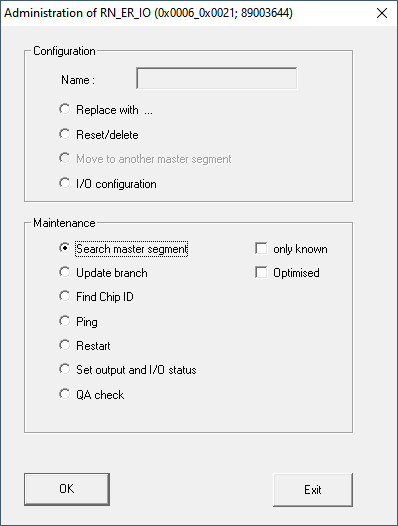
- In the area Maintenance select the option Search master segment.
- Make sure that the
 only known is disabled.
 - Click on the OK button.
- The window Administration closes.
- The window WaveNetManager opens.
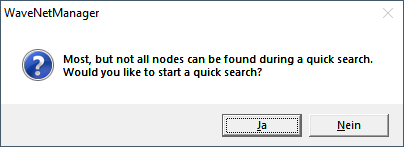
- Click button Yes (quick search) or No (regular search).
NOTE
Quick search
If you perform a fast search, the RouterNode will only send a single broadcast. If you perform a regular sweep, the RouterNode sends a total of six broadcasts. The quick search is completed faster, but the normal scan is more thorough and finds LockNodes that were not reached during a quick search.
- The WaveNetManager window closes.
- The Procedure started window opens temporarily.
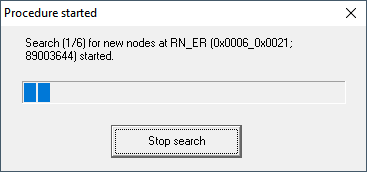
- The window Search results opens.
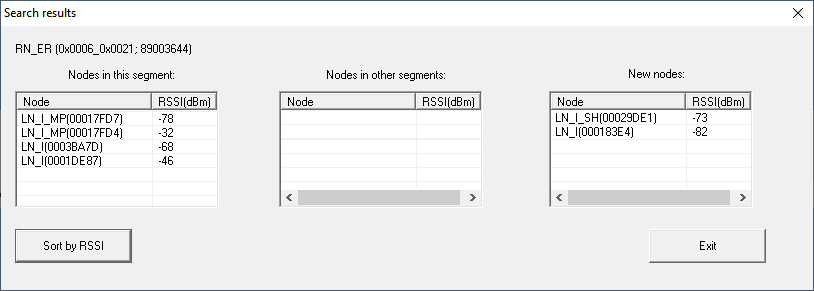
You will see an overview table of the LockNodes found by the RouterNode during the search. This table has three columns:
Nodes in this segment | Nodes from other segments | New nodes |
|---|---|---|
These LockNodes are located in the WaveNet topology and are already assigned to the RouterNode. | These LockNodes are located in the WaveNet topology, but are assigned to a different RouterNode. | These RouterNodes are unconfigured and are not located in any topology. |
Each column contains two sub-columns:
Node | RSSI |
|---|---|
Name of the LockNode | Signal strength of the connection of the LockNode to the searching RouterNode |
Unit of signal strength
The WaveNet Manager displays the signal strength as an RSSI value (Received Signal Strength) in dBm. This value is:
- Logarithmic: In practice, an improvement of 10 dBm means twice the signal strength.
- Negative: The theoretical best value is 0 dBm and is only achieved by cable connections. The closer the value is to 0 dBm (i.e. the smaller the amount), the better the reception.
- Select the LockNodes of the right column (New Nodes) that you want to assign to the RouterNode.
- Drag and drop the LockNodes to the left column (Nodes in this segment) to assign them to the current RouterNode (the one you used to search).
- LockNodes are assigned to the current RouterNode.
NOTE
Assignment duration
When you reassign LockNodes, the WaveNet Manager communicates with the LockNodes to transfer the configuration and check the LockNode. This check takes a few seconds
- If necessary, confirm the IO configuration of the LockNode by clicking the OK (you can change the IO configuration at any time, see I/O configuration and protection functions).
- LockNode is imported and linked to the selected RouterNode.
LockNodes are displayed in the WaveNet topology below the RouterNode to which they are assigned.