Check signal quality - WaveNet
IMPORTANT
Recommended signal strength
The signal strength in the WaveNet Manager should be between 0 dBm and -70 dBm.
If the signal strength is insufficient, the connection and communication between devices can become slow or interrupted, and there will also be higher power consumption.
- If the signal strength is between -75 dBm and -90 dBm, there may be limited functionality. Improve the signal quality (see Improving signal quality).
Unit of signal strength
The WaveNet Manager displays the signal strength as an RSSI value (Received Signal Strength) in dBm. This value is:
- Logarithmic: In practice, an improvement of 10 dBm means twice the signal strength.
- Negative: The theoretical best value is 0 dBm and is only achieved by cable connections. The closer the value is to 0 dBm (i.e. the smaller the amount), the better the reception.
Single RouterNode
- WaveNet Manager opened via LSM (see Best Practice: From the LSM software)
- RouterNodes and LockNodes connected to WaveNet (see Finding and adding devices).
- Right-click the entry of the RouterNode whose signal quality to its LockNodes you want to check.
- The window Administration opens.
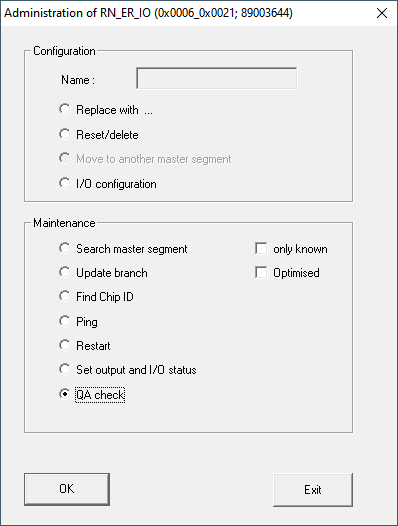
- Select the option
 QA check.
 - Click on the OK button.
- The Administration window closes.
- The Procedure started window opens temporarily.
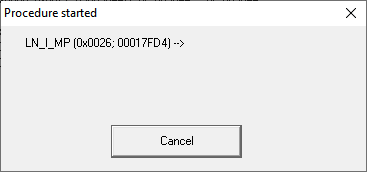
- RSSI values in the overview are updated for the corresponding RouterNode.
Multiple RouterNodes
- WaveNet-Manager opened.
- RouterNodes and LockNodes connected to WaveNet.
- Right click the entry WaveNet_XX_X.
- The window Administration opens.
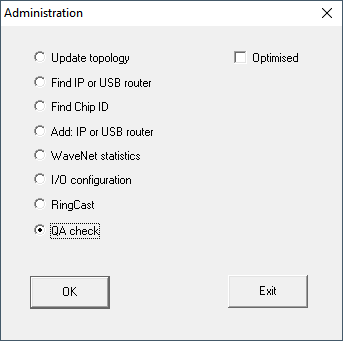
- Select the option QA check.
- Click on the OK button.
- The Administration window closes.
- The window Select CN/RN opens. You will see a list of RouterNoudes in your WaveNet.
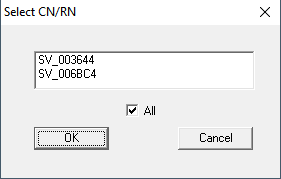
- Either select all desired RouterNodes or activate the checkbox
 all.
all. - Click on the OK button.
- The Select CN/RN window closes.
- The Procedure started window opens temporarily.
- RSSI values in the overview are updated for the corresponding RouterNodes.