Updating firmware - WaveNet
Newer firmware versions improve your products and may also enable new features (see Firmware information).
RouterNodes with Ethernet connection
You can update the firmware yourself by using the Operation, Administration and Maintenance Tool (OAM tool) (only RN2). The OAM tool is available free of charge in the download area on the SimonsVoss website ( https://www.simons-voss.com). You do not need to install the OAM tool.
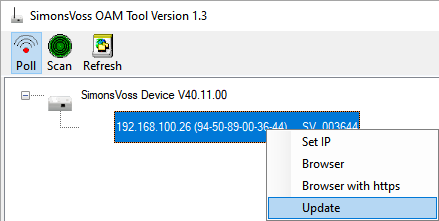
- Latest version of the OAM tool opened (see Determining and setting the IP address).
- RouterNode listed (see Determining and setting the IP address).
- Change of IP allowed via the OAM tool (see Browser interface).
- Current firmware of RouterNode 40.1X or higher.
- RouterNode type RN2
- Firmware file (.REL) available (contact your dealer or system partner)
- Right-click on the entry of the RouterNode you want to update to open the context menu.
- Select the entry .
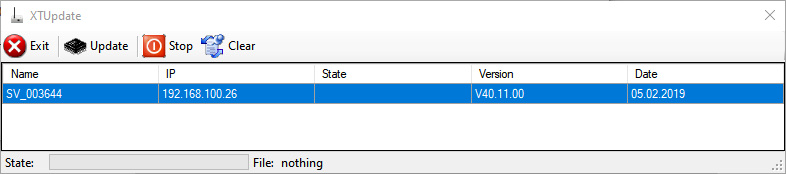
- Window XTUpdate with a RouterNode list opens.
NOTE

Updating multiple RouterNodes
The OAM tool stays open. You can add more entries to the update list in the XTUpdate window.
- Select another RouterNode in the OAM tool.
- Select the entry aus.
- RouterNode is added to the update list in the XTUpdate window.
- Repeat the steps until all RouterNodes you want to update are in the update list.
- RouterNodes are added to the update list in the XTUpdate window.
- Make sure that the RouterNodes you want to update are highlighted.
- Click on the button Update.
- Explorer window opens.
- Navigate to the location of the firmware file.
- Highlight the firmware file.
- Click on the button Open.
- The Explorer window closes.
- The firmware of the RouterNodes is updated.
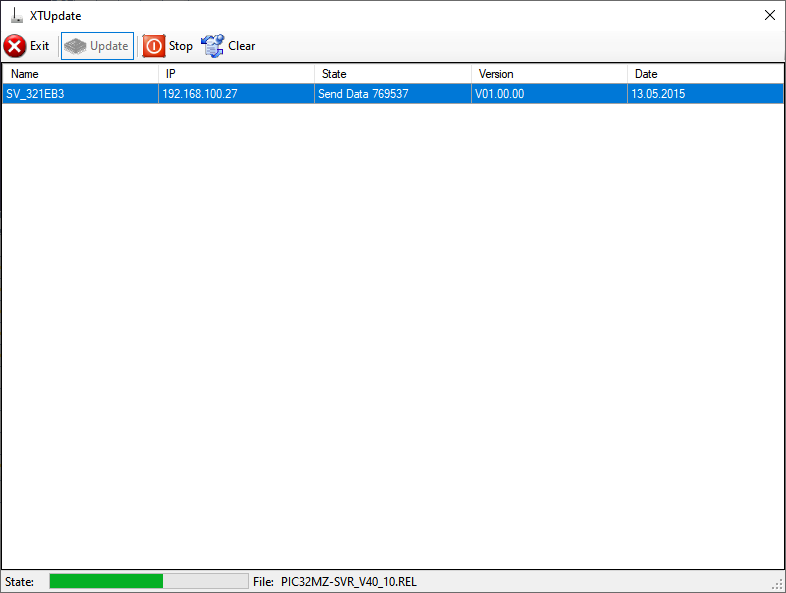
- The window AKForms opens.
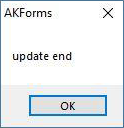
- Click on the OK button.
- The AKForms window closes.
- Click on the button Exit.
- The XTUpdate window closes.
- The firmware of the RouterNodes is updated.