Assigning keys for AXM Plus and higher - AXM Plus
In the interests of best practice (see Best practice: setting up the locking system), SimonsVoss recommends that you configure access levels, person groups and schedules/time groups:
- Access levels (see Access levels for background information )
- Creating a person group (see Person groups for background information )
- Creating a schedule or Create time group (see Time groups and schedules for background information )
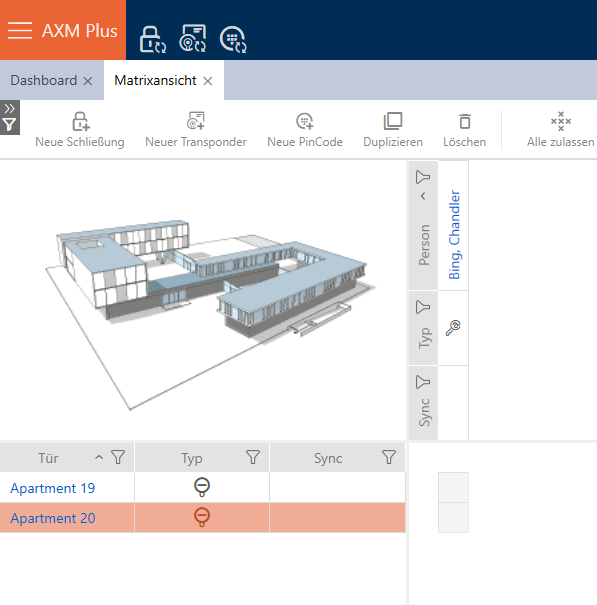
As a locking system administrator, you can also send mobile keys to users, which are saved as access authorisations in the AX2Go app. Creating keys for AX2Go works in the same way as creating transponders.
- Click the
 button in the matrix view of your locking system.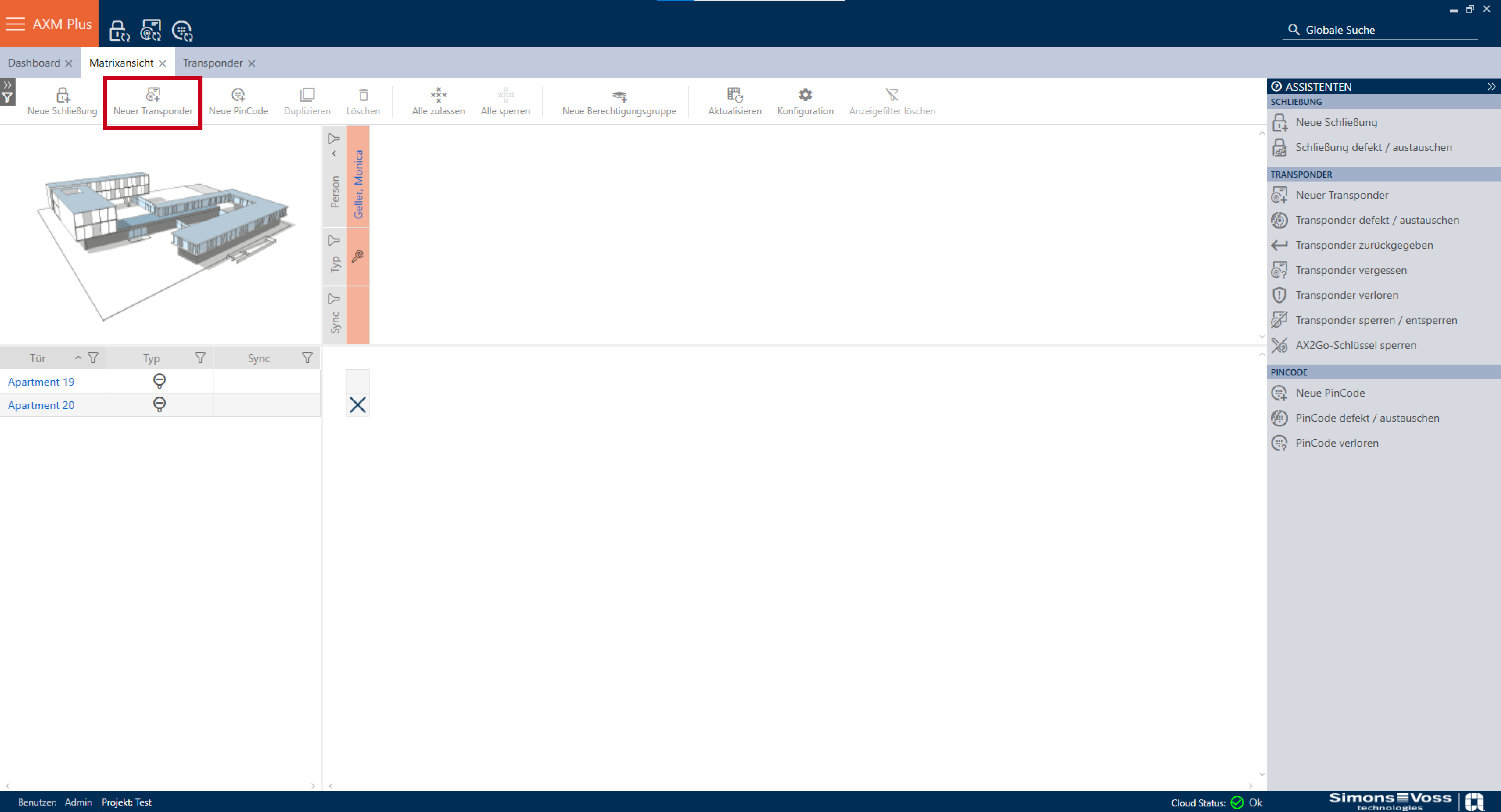
- A screen will open where you can configure the key and user settings.
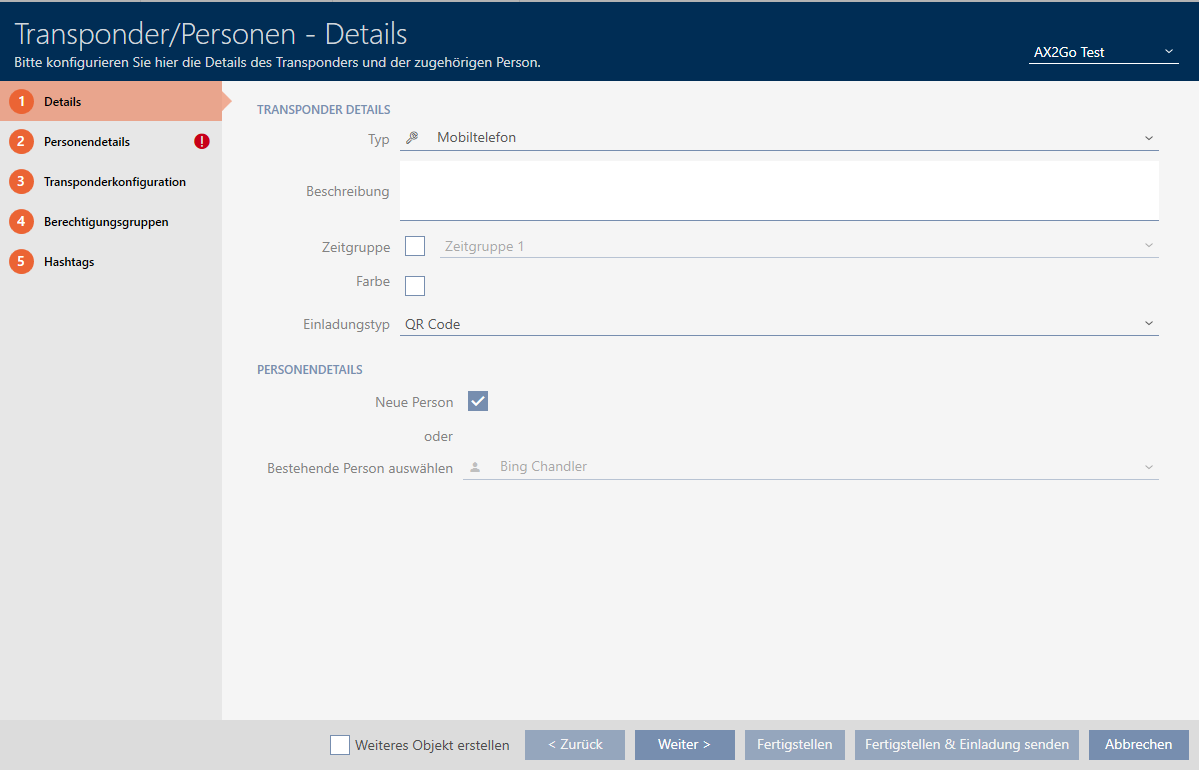
- Selecting as a transponder type
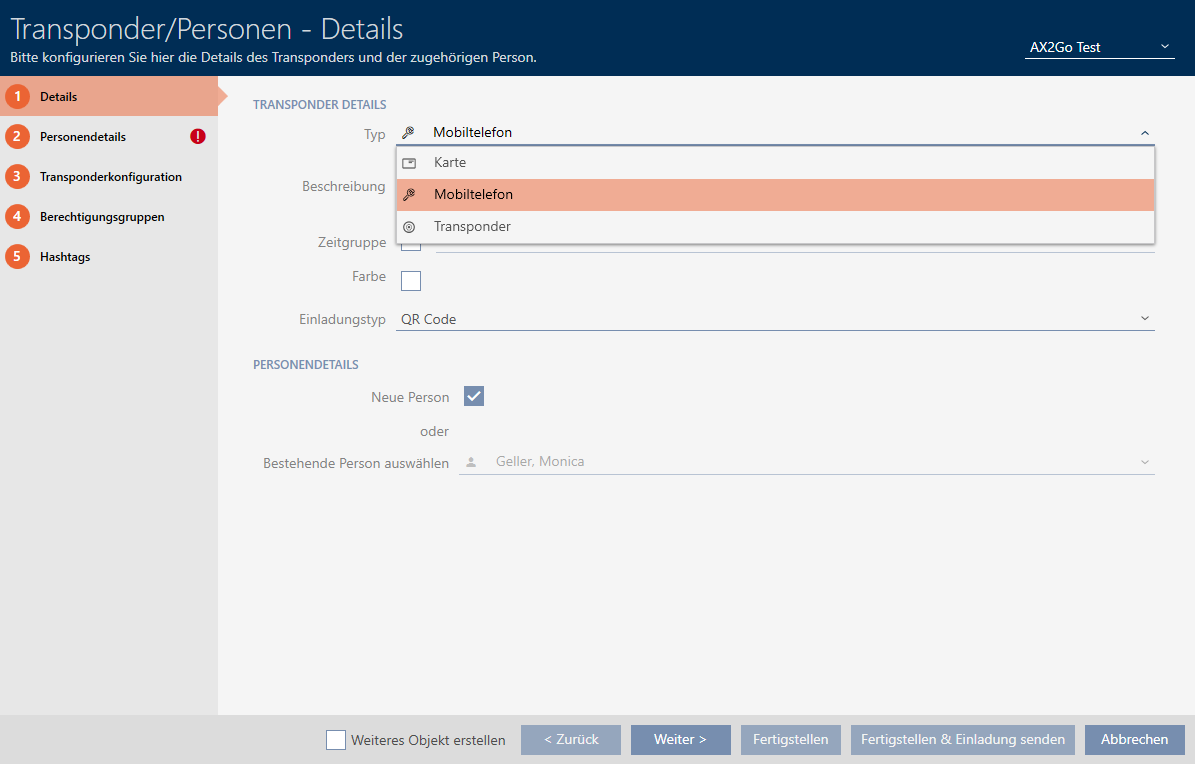
- Select the option that you require from .
You can choose between , and SMS here. 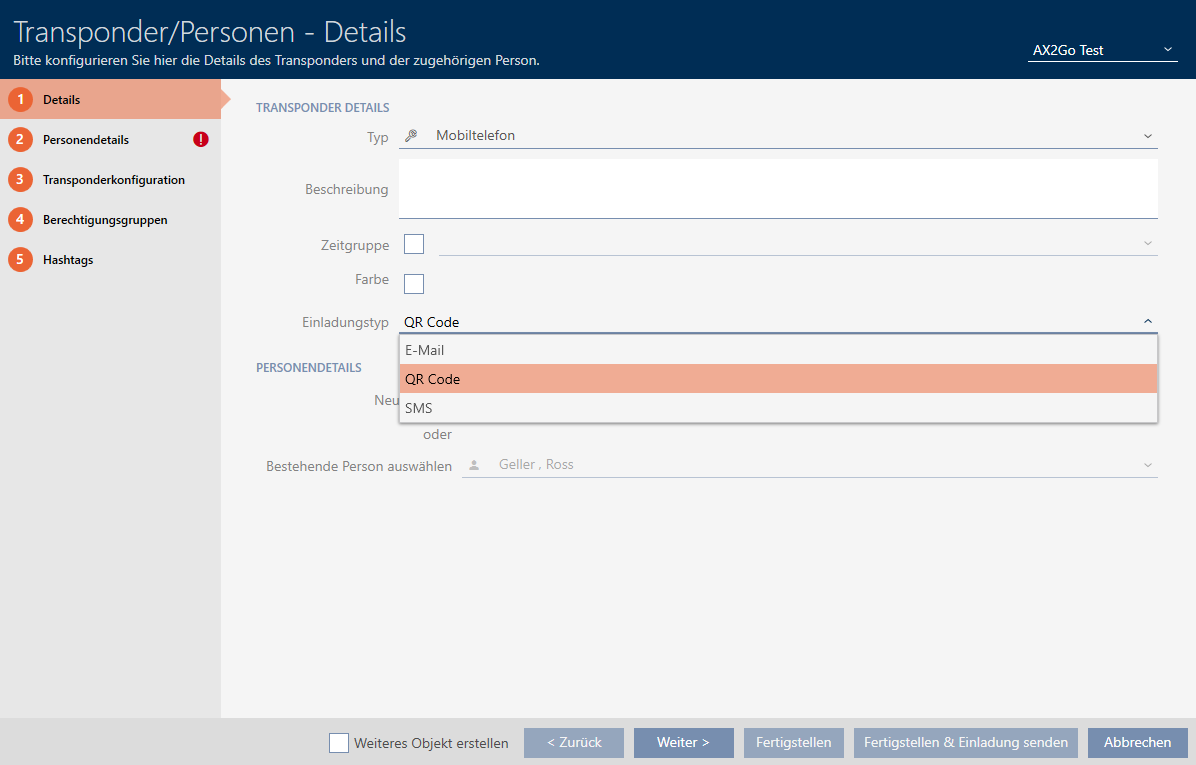
- To create a new person, select the
 New person box in the section.
Alternatively, you can also choose from the list of existing persons if you want to assign a second key to a person. Then click on . 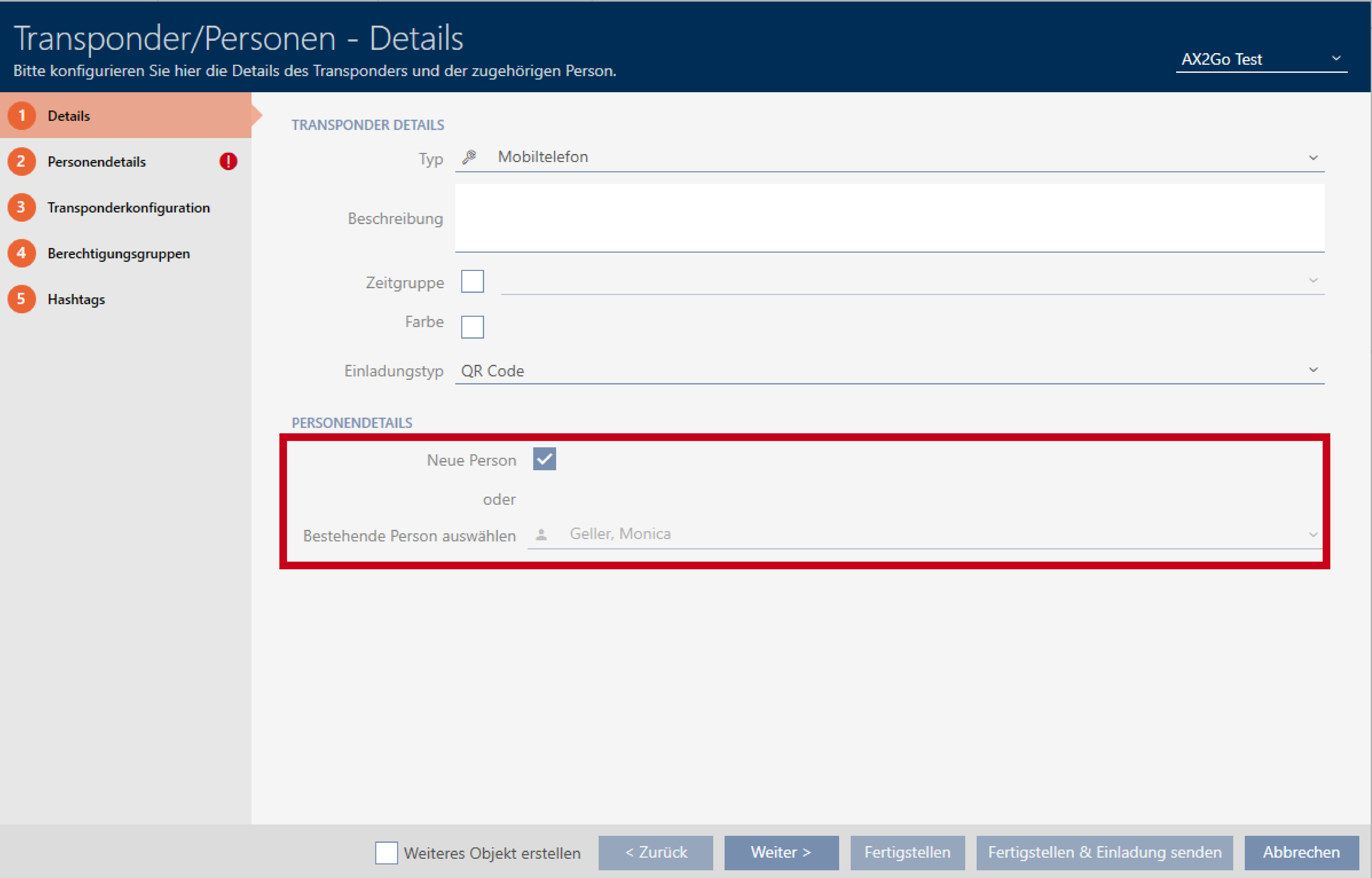
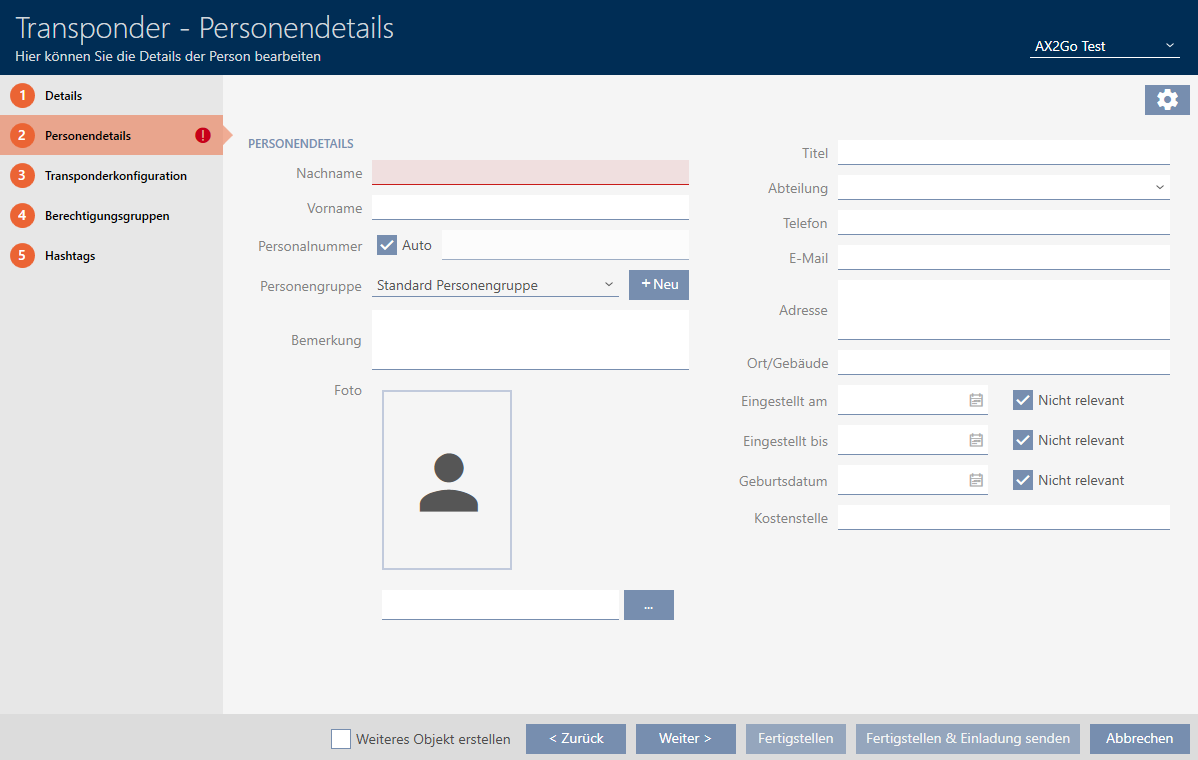
- Fill in the mandatory fields marked in red in the tab. All other details are optional. Then click on .
NOTE

Mandatory information, depending on the type of invitation
Note that the mandatory fields to be completed vary depending on the type of invitation selected.
- You can configure further settings in the , and tabs.
See Creating transponders and cards, Creating a hashtag and Access levels for more information. - Once you have made all the settings that are relevant to you, you can complete the configuration and send an invitation immediately. To do so, click on the button.
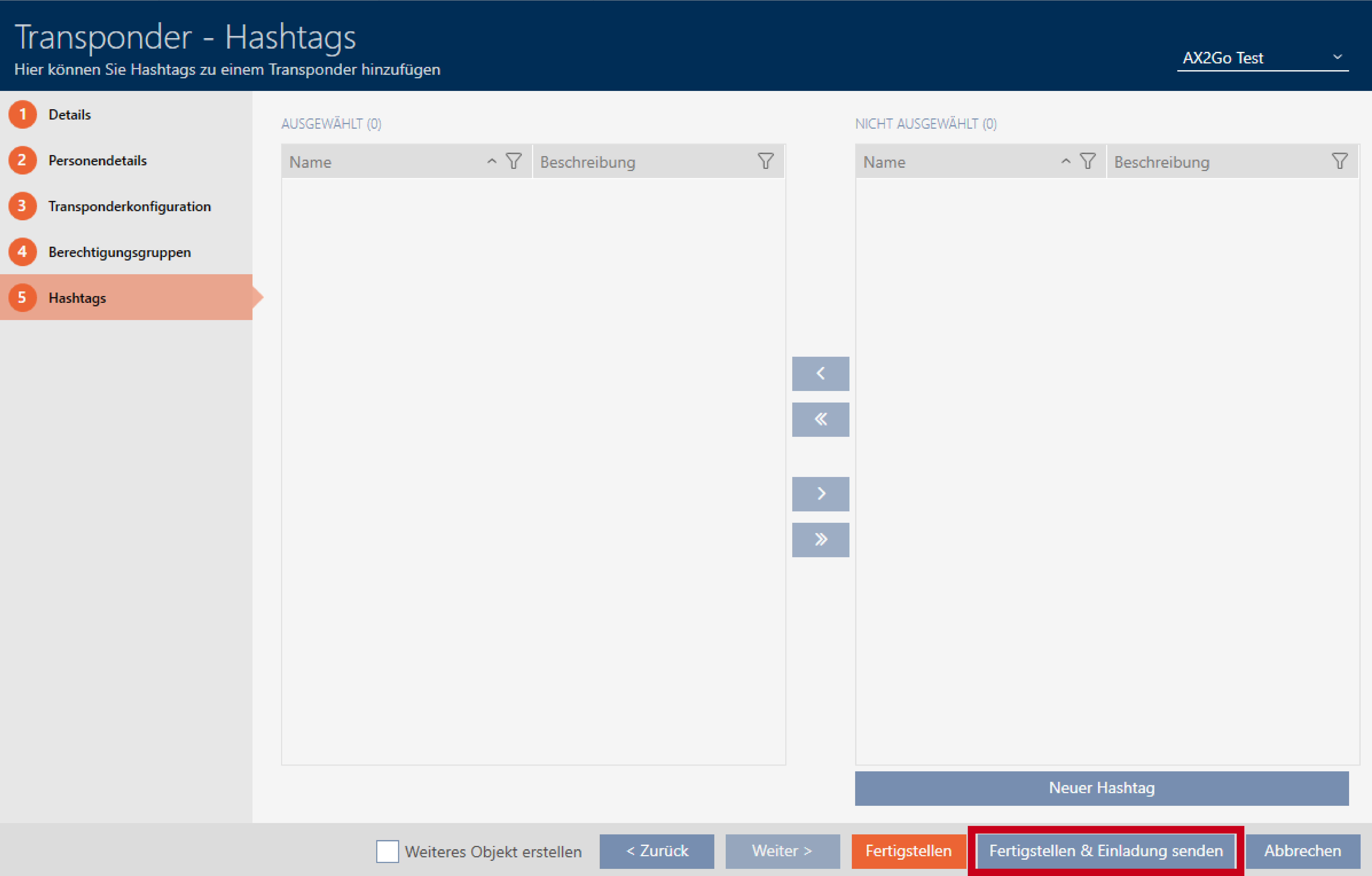
- Optionally, you can complete the configuration with the button and send the invitation at a later time in the transponder settings.
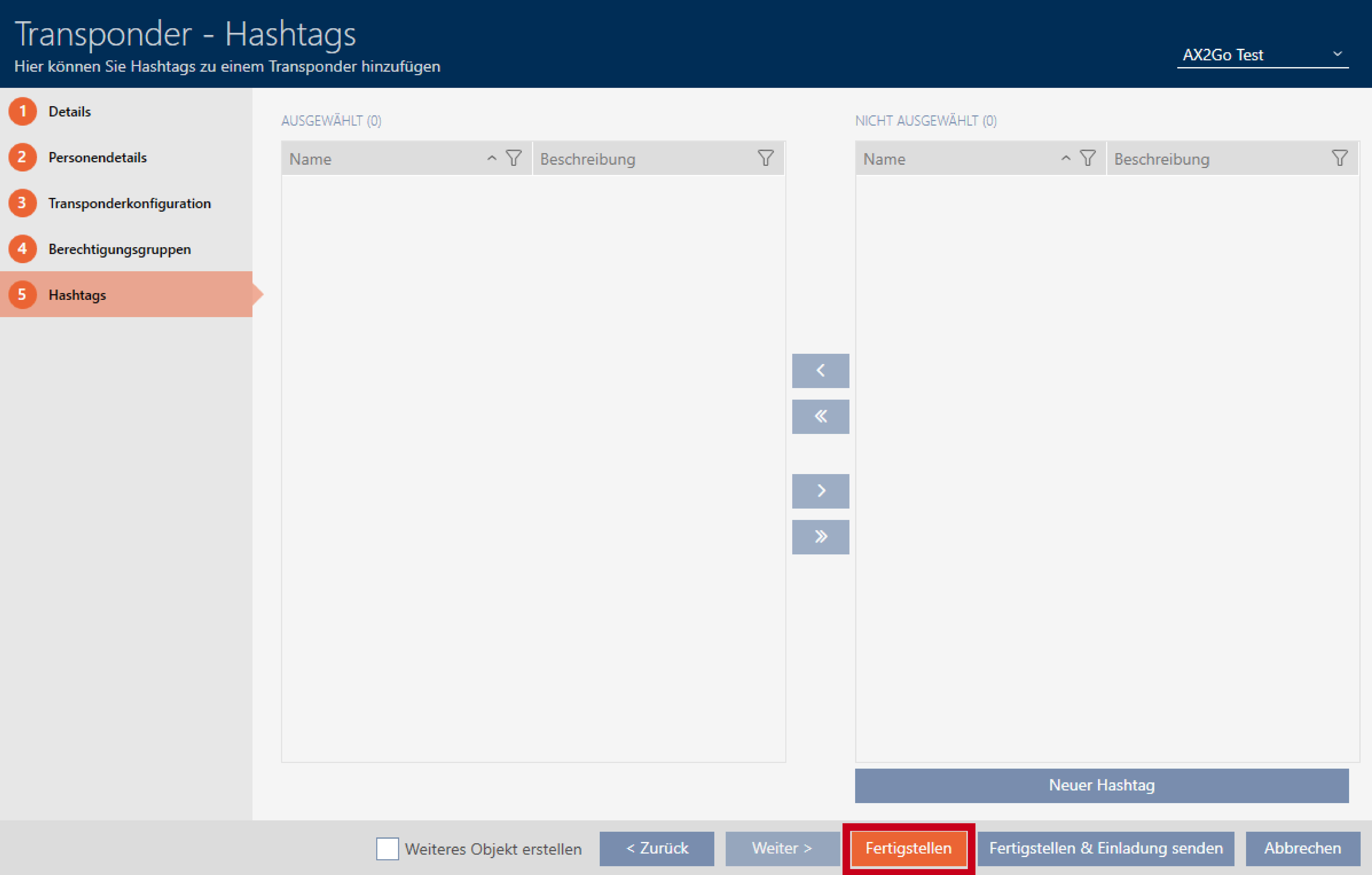
- Click on the relevant user.
- The transponder details will open. A message will also appear stating that no invitation has been registered for this user yet.

- Click the button to send the invitation.
- With , another window will appear, e.g. with a QR code and a link.
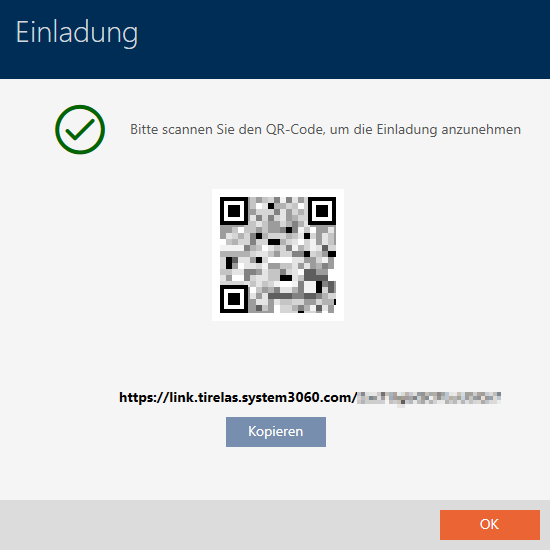
- You have successfully sent the invitation and created an AX2Go key.