Add RouterNodes - AXM Plus
You can add the RouterNodes either via the IP address or via the host name.
- First, you must first determine the IP address. Details can be found in the manual of the respective RouterNode. Alternatively, you can find the IP address via a DHCP server if one is available.
- The host name can be found on the back of your RouterNode.
- You must change the factory password before adding the RouterNode (see the manual of the respective RouterNode).
Further details on the assignment of IP addresses and host names can be found in the WaveNet manual and the respective RouterNode manual.
- WaveNet is configured (see Specify WaveNet channel, address and password).
- Tab opens.
- RouterNode is connected to the same network and ready for operation.
- The factory password of the RouterNode has been changed.
- Click on the
 button.
 - The window will open.
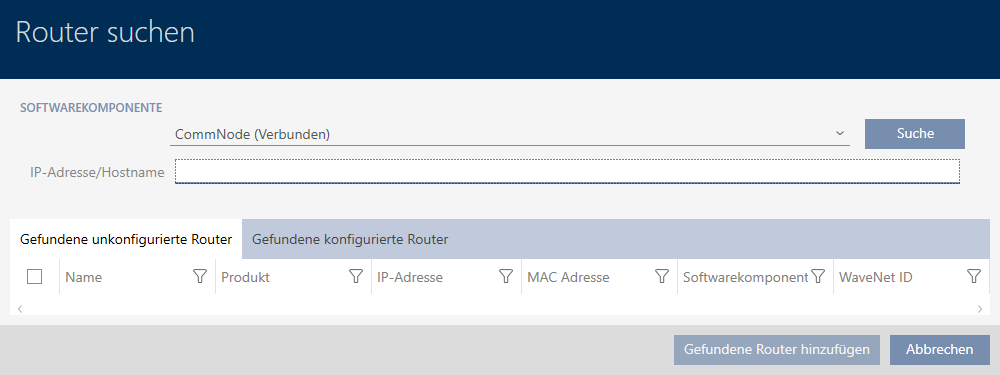
- Please ensure that entry is selected in section CommNode.
- Enter the IP address or hostname of your RouterNode in field .

NOTE

Search without specifying IP address/hostname
A search by IP address or host name without further conditions will find all RouterNodes that can be reached in the network. This enables you to simultaneously add multiple RouterNodes.
- Click the button .
- The window displays a list of available RouterNode (column ).

- Mark the RouterNode you want to add.

- Click the button.
- RouterNodes are added.
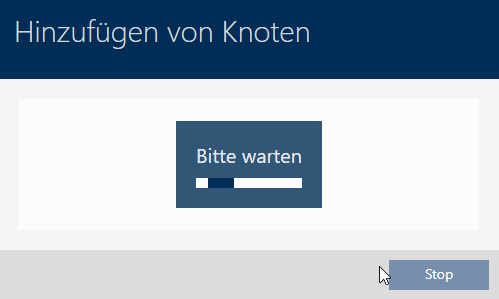
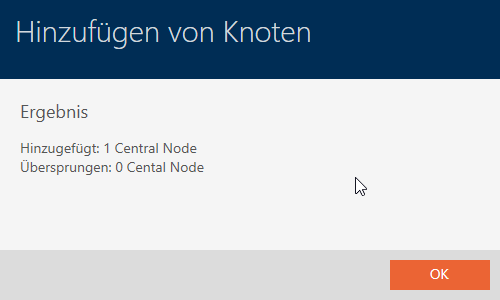
- Click on the button.
- Window closes.
- List of available RouterNode.

With the help of the RouterNode, you may now search for the Lock Nodes in your locking devices (see Add Lock Nodes).