AX2Go settings - AXM Plus
AX2Go can be custom-adjusted to your personal needs.
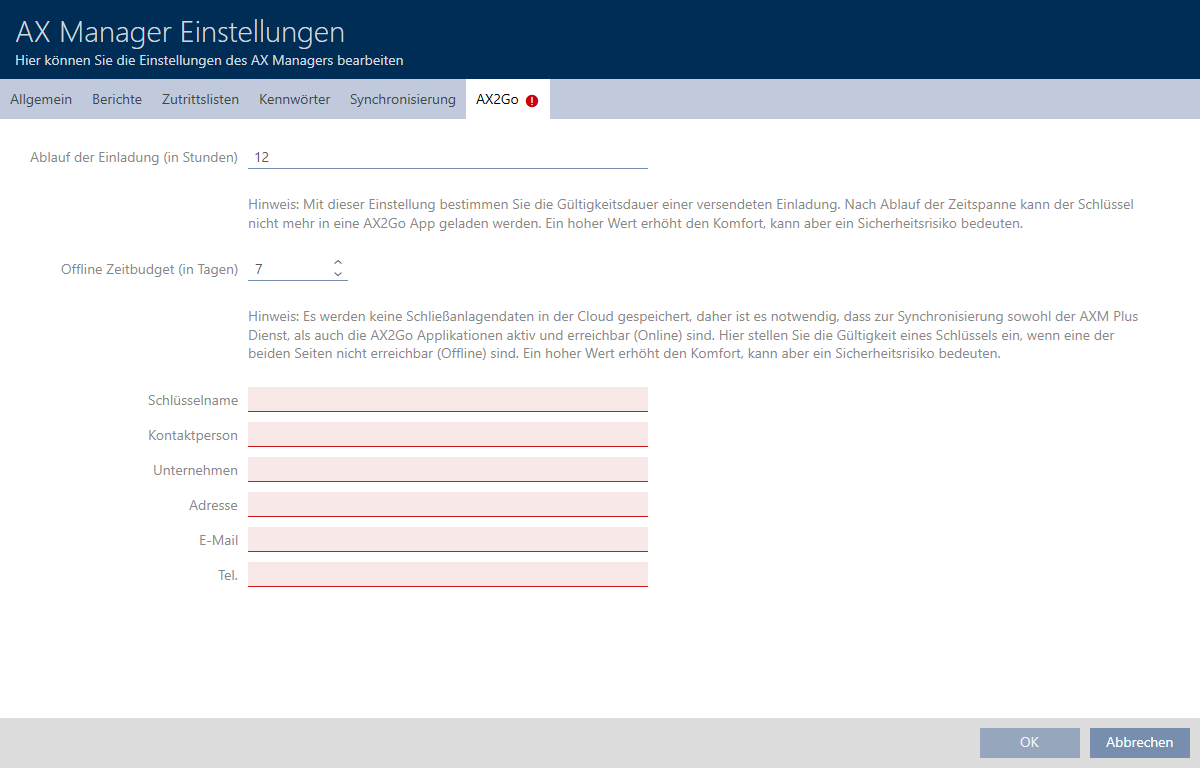
The following settings are available to you:
Setting | Meaning |
|---|---|
Invite expiration (in hours) | The longer an invitation is valid, the more time users need to import it into their AX2Go app. Invitations that are valid for longer are more convenient but riskier. The maximum value is 120 hours (= 5 days). |
Offline time budget (in days) | This setting determines how long the AX2Go will work on the mobile device if no connection can be established between AX2Go and your AXM Plus‘s AXM service. A longer offline time budget is more convenient but riskier. The maximum value is 30 days. Note: no locking system data is stored in the cloud. For synchronisation, the AX2Go must therefore be able to communicate to the cloud and from there to the AXM service. This means that both must be active and accessible (online). You can check the connection between the AXM service and the cloud: Checking the connection between database and cloud. |
NOTE

Differences in time budgets in AX2Go and the virtual network
AX2Go: the AXM service fully reloads the time budget as soon as the AX2Go has connected to it.
Main purpose: prevent a AX2Go permission from being used permanently using flight mode.
Virtual network: the gateway reloads the time budget as configured as soon as the identification medium is activated on it.
Main purpose: to fetch identification media to the gateway to transfer data regularly.
- See Time budget (AX2Go and virtual network) for more information on time budgets.
Please also specify a suitable contact person for your internal support here (e.g. locking system administrator). This information is displayed in the mobile keys in the AX2Go app.
- Key name (e.g. locking system or company name)
- Contact person
- Company
- Address
- Phone number
Changing the AX2Go settings
- Click the orange AXM button
 .
. - AXM bar opens.

- Select the entry in the group.
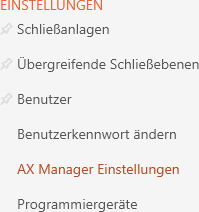
- The AXM bar will close.
- The window with the AXM Plus settings will open.
- Go to the “AX2Go” tab.
- Specify the required settings.
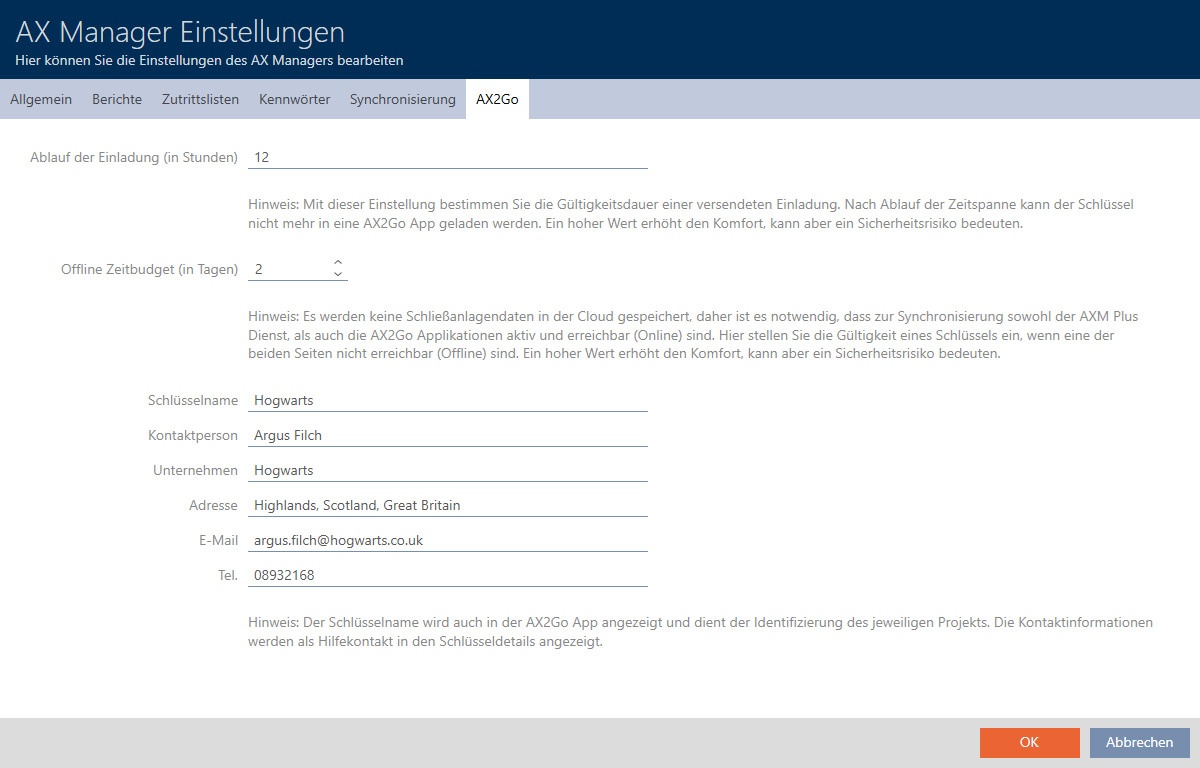
- Click on the button.
- The window with the AXM Plus settings closes.
- Settings for your AX2Go are fixed and used on new AX2Go keys. Existing AX2Go keys receive the update twice daily with the AXM service or after a change to the AX2Go key.