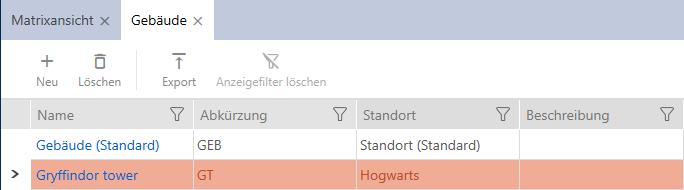
Creating a building and assigning it to a location - AXM Plus

There must be at least one building in the database. AXM Plus therefore creates a default building for you. Obviously, you can create additional buildings.
- Click on the orange AXM icon
 .
. - AXM bar opens.

- Select the entry in the group.
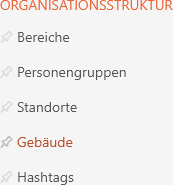
- The tab will open.
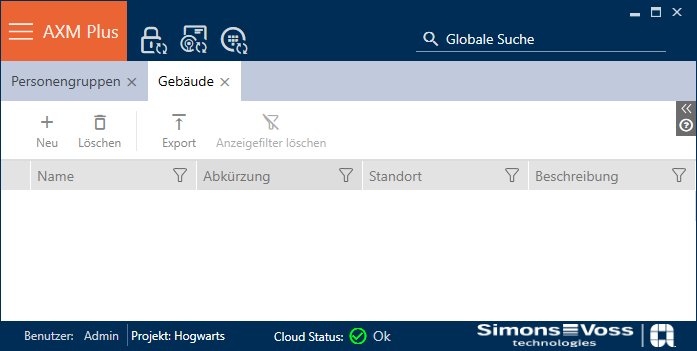
- Click on the
 button.
 - The window for creating a new building will open.
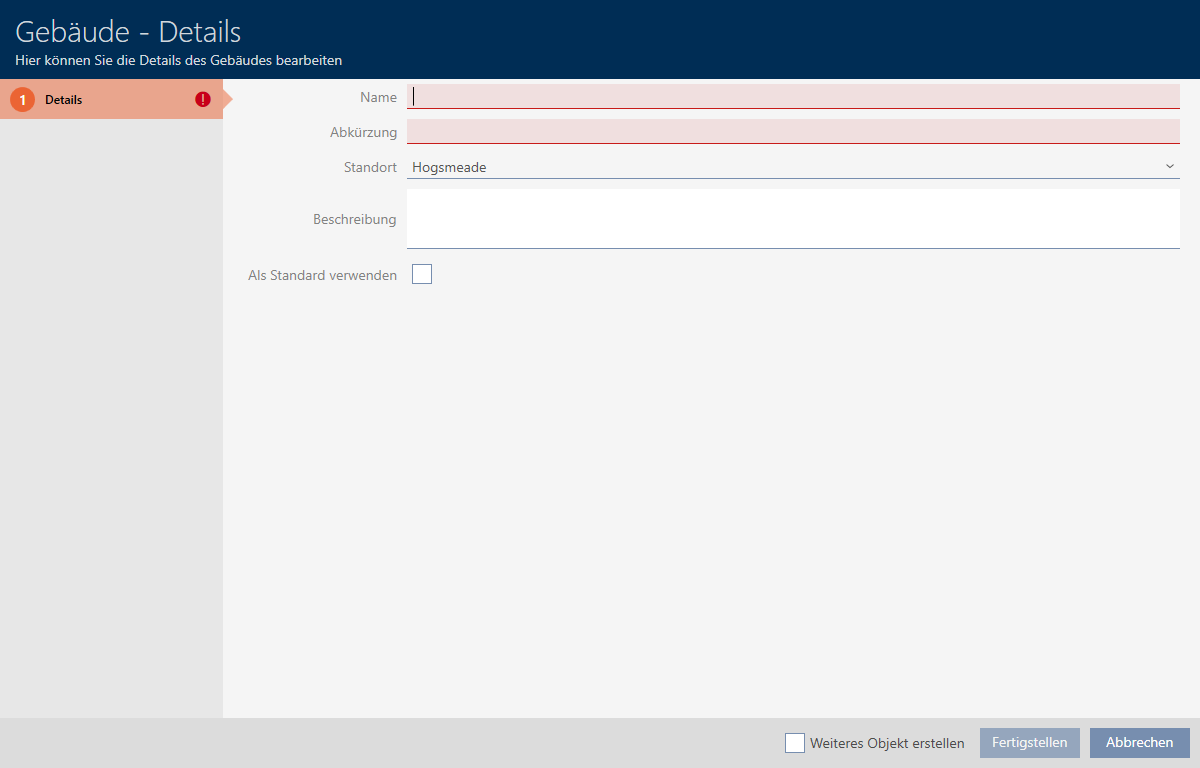
- Enter a name for your building in the field.
- Enter the abbreviation for your building in the field (max. 5 characters).
- Select the location to which your building belongs from the drop-down menu.
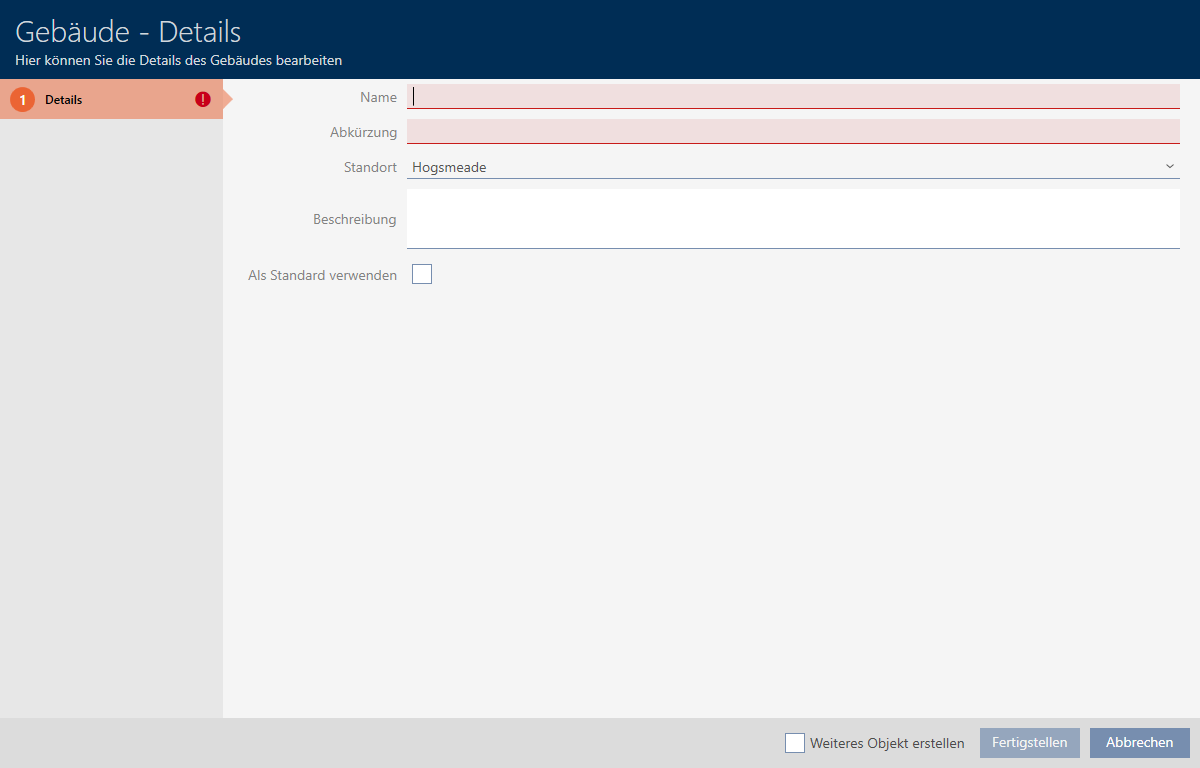
- Enter a description of your building in the field if required.
- Click on the button.
- Window for creating a new building closes.
- The newly created building is listed.