Export data - LSM 3.6 SP1 Basic Online
NOTE

Other language texts
The same language as in the LSM software is used for texts in the exported files.
Persons
You can export the saved personal data of people in the locking system as CSV files. Three files are generated during this process:
Person | This file contains personal data which can be used to identify the person (for example, surname, address or photo). | |
PersonHistory | This file contains the dates that the data record was created and erased. | |
PersonLog | This file contains different processing steps which have been performed on the person in question's data record, such as changes to authorisations and programming processes. | |
NOTE
The GDPR functions access HR Management for this purpose. As a result, the functions need to be assigned to a user group which is authorised to access HR Management.
- LSM open.
- Use Options to select the item.
- The GDPR functions window will open.
- Highlight the entry for the person whose data needs to be exported in the People section.
- Click on the Export personal data button in the People section.
- The Search Folder window will open.
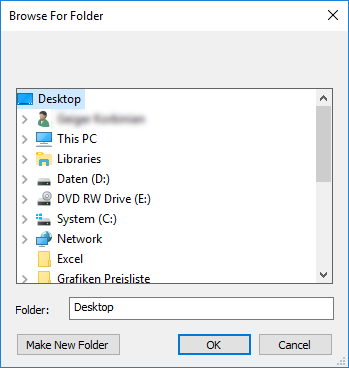
- Indicate the folder where the files are to be exported.
- Click on the OK button.
- Data is exported.
Users
You can export the users' saved personal data as CSV files in the LSM software. Two files are generated during this process:
User | This file contains the data which refers to the user, such as user name and user group. | |
UserLog | This file contains different processing steps which the user has carried out, such as creating a new locking device. | |
NOTE
The GDPR functions access administration functions for this purpose. As a result, they need to be assigned to a user group which is authorised to access Administration.
- LSM open.
- Use Options to select the item.
- The GDPR functions window will open.
- Highlight the entry for the user whose data needs to be exported in the Users section.
- Click on the Export personal data button in the Users section.
- The Search Folder window will open.
- Indicate the folder where the files are to be exported.
- Click on the OK button.
- Data is exported.