Define time zone plan (with public holidays and company holidays - LSM 3.6 SP1 Basic Online
NOTE

Different times for G2 locks
The internal time unit of the G2 locks has a technical tolerance of up to ± 15 minutes per year.
- Regularly reprogram time-critical locking devices.
It is recommended to apply time zone plans to entire areas and transponder groups. However, it is also possible to link time zone plans directly with locking devices and transponders.
- Locking devices (or areas) and transponders (or transponder groups) have already been created.
- Click on Edit/Time zone plan in the menu bar.
- An "empty time zone plan" will open up. If an existing time zone plan is displayed, click on the "New" button to create a new, empty time zone plan.
- Fill out the "Name" and "Description" fields.
- Select a public holiday list for your region if required. This is how to proceed if you wish to define one-time company holidays:
- Click on the "... field" next to the holiday day drop-down selection.
- Click on the "New holiday day" button.
- Assign a name: e.g. "Company holiday 2017"
- Newly defined holidays may contain a time period. The "Leave" field must be activated for this purpose. You can then enter a time period (From - To).
- Select how the new holiday day should be treated: e.g. as "Sunday".
- Click on the "Apply" button and then on the "Finish" button.
- Click on the "Holiday administration" button.
- Use the "Add" button in the holidays list (in the right-hand column) to add the newly created holiday (in the left-hand column).
- Click on the "OK" button and then on the "Finish" button to return to the main time zone plan menu.
- Select a group in the table and edit the weekly schedule for the group.
- A blue bar indicates an authorisation for this time period.
- You can click on fields individually or select them together.
- Each time that you click on a field or area, you reverse the authorisation status.
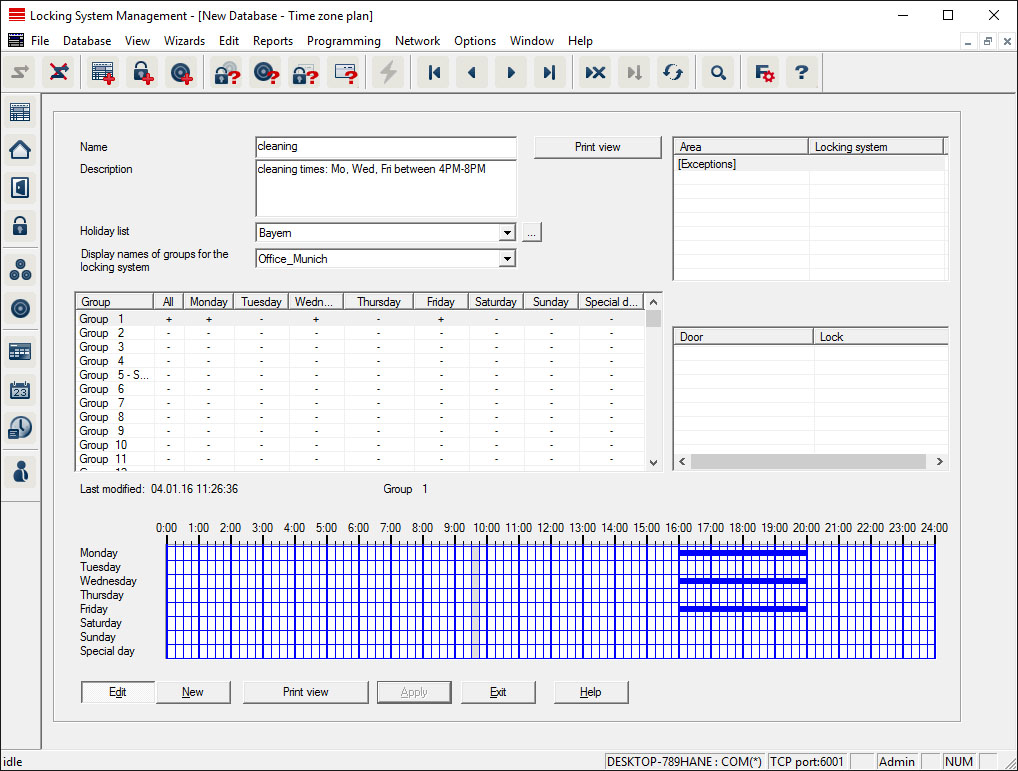
- Click on the "Apply" button.
- Click on the "Finish" button.
Assign the time zone plan to an area:
- Right-click on the area to which you wish to assign the time plan.
- Select "Properties".
- Select the corresponding time zone plan from the drop-down list in "Time zone".
- Click on the "Apply" button.
- Click on the "Finish" button.
It is also possible to assign the time zone plan to a locking device directly.
Assign a transponder group to the time group:
- Right-click on the transponder group which is to be assigned to the time group.
- Select "Properties".
- Select the corresponding time group from the drop-down list in "Time zone group".
- Click on the "Apply" button.
- Click on the "Finish" button.
It is also possible to assign the time group directly to a transponder.