Register LSM - LSM 3.6 SP1 Basic
LSM needs to be registered. A registration file is created for this purpose and sent to a designated email address. You will then automatically receive a reply which contains your personal licence file. You can use this licence file to register LSM with the modules that you ordered.
For more information on licensing, see: Information on licence use.
Procedure after initial login to unregistered database
- LSM installation is implemented.
- Delivery note with registration information is on hand.
- Email can be sent.
- Log on to the LSM database (see Initial login).
- The Registration window will open.
- Click the Edit button.

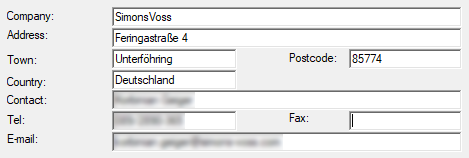
- The Edit registration window will open.
- Complete the form.
- Click the Apply button.
- The data record is saved.
NOTE

Automatic selection of edition and modules
In LSM 3.6 and higher, the edition and the activated modules (e.g. Smart.XChange) are detected automatically based on the registration information (order and commission number). If an edition or module is selected manually, this information is ignored. The registration information is decisive.
- You no longer need to select an edition or modules.
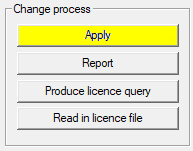
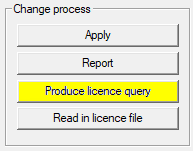
- Click the Produce licence query button.
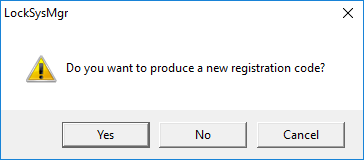
- Click the Yes button to accept the query prompt.
- Complete the form (LSM consignment number in LSM-xxxxxx format; order number in Axxxxxx format).
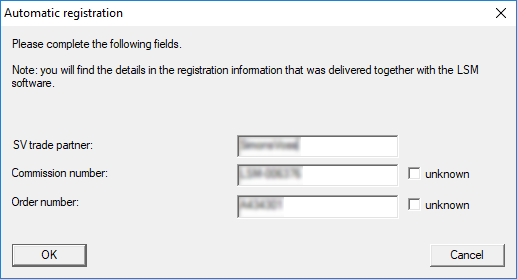
- Click on the OK button.
- The RGO file is created.
- The Explorer window will open.
- Save the RGO file to a directory of your choice.
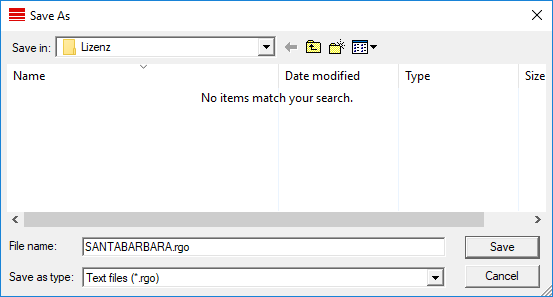
- Click on the OK button.
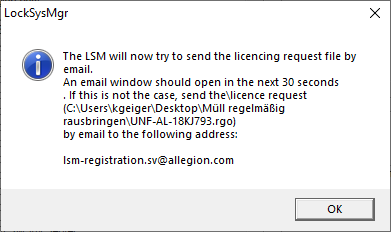
- The standard email client will open. An email is automatically generated with the RGO file attached.
- If the RGO file is not attached, then attach it manually.
- Send an email with the RGO file to lsm-registration.sv@allegion.com.
- Reply is automatically sent with the LIC file attached.
- Save the LIC file to a directory of your choice.
- Switch back to LSM.
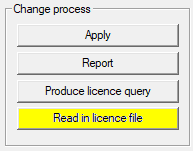
- Click the Read in licence file button.
- The Explorer window will open.
- Select the LIC file.
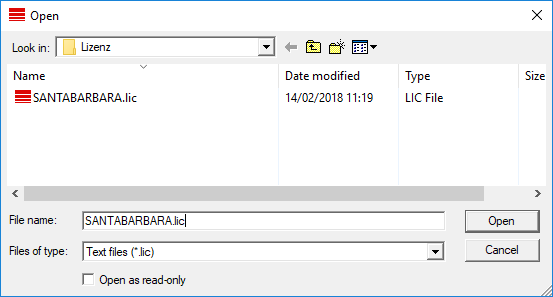
- Click the Open button.
- Click the OK button to accept the prompt.
- Restart LSM.
- Registration is implemented.
Reopening for changes to the registration
After registration, the registration window can be reopened and edited at any time:
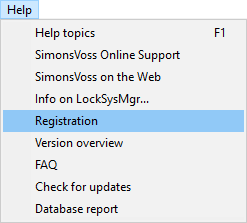
- Click the option in the Help tab.
- The Registration window will open.
- Click the Edit button.
- The Edit registration window will open.