Filter - LSM 3.6 SP1 Basic
The introduction of filters has made it easier to manage a locking system. You can select a wide variety of filter options and apply these filters to an extensive variety of persons or person groups. This not only allows you to access more information by displaying optional additional columns, but the filter function also enables you to ensure that your views are clearly arranged.
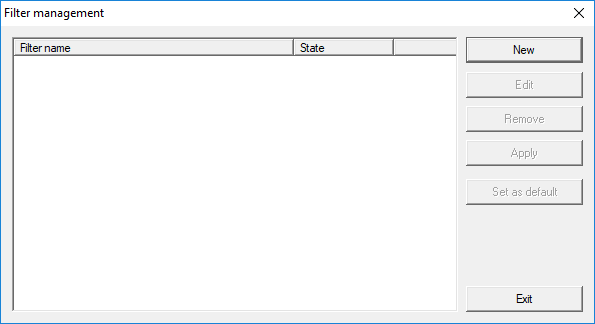
- New
- Creates a new filter
- Edit
- Edits a selected filter
- Remove
- Removes a selected filter
- Apply
- Applies the selected filter. The button changes to "Turn off" if a filter is applied.
- Set as default
- This filter will be used by default
- Finish
- Exits from filter management and returns to the matrix
NOTE

A filter only remains active until it is switched off again.
You can use the "New" button to create a new filter:
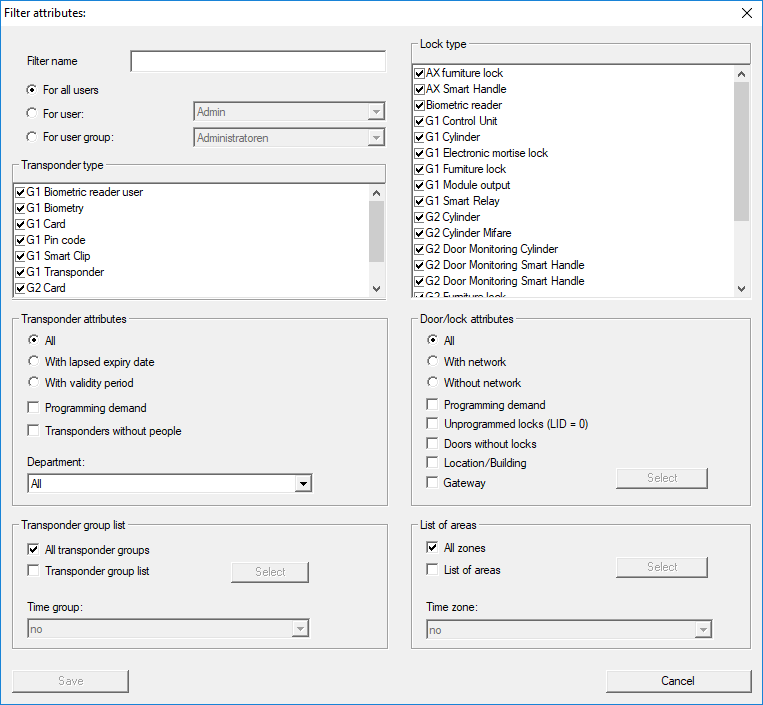
- Filter name
- Enter a meaningful name for the new filter.
- User restriction
- User or user group which can apply the filter.
- Transponder type
- Type of transponder which should be displayed.
- Transponder properties
- Restrictions which concern the properties of the transponder (e.g. validity period or programming requirement).
- Transponder group list
- Restrictions which concern the transponder's assignment to a group (e.g. "Executive management" transponder group).
- Locking device type
- Type of locking device which should be displayed.
- Doors/Locking system properties
- Restrictions which concern the properties of the locking device (e.g. with network or programming requirement).
- Areas list
- Restrictions which concern the locking device's assignment (e.g. "Reception" area).