Block transponder permanently and create replacement transponder - LSM 3.6 SP1 Basic
NOTE

For security reasons, the deleted transponder's authorisations must be removed from all locking devices.
- You can do this by reprogramming all locking devices.
Proceed as follows to replace an "old" transponder with a new, non-programmed transponder.
- Acquire a replacement transponder.
- Double-click on the defective transponder in the LSM software to find all details on the transponder in the "Features" tab.
- Right-click on the defective, lost or stolen transponder and select "Lost transponder".
- The transponder concerned is prepared for blocking.
- Indicate the reason why blocking is necessary. When you select "Transponder lost/stolen", you can then programme a new transponder with the same authorisations directly afterwards. With the G2 protocol, this transponder blocks the lost transponder each time an authorised locking device is activated. However, all locking devices concerned still need to be reprogrammed.
- Implement all the newly appeared programming requirements on all components.
Avoiding the need to reprogramme locking devices
Creating a new replacement transponder also entails a programming requirement for all locking devices. However, these special programming tasks can also be implemented directly with the new replacement transponder:
- The replacement transponder has been programmed correctly.
- Activate the new replacement transponder on each locking device.
- Programme the new replacement transponder again. Activate the checkbox "Read deactivation acknowledgement/Battery warnings" in the "Programme transponder" window.
- Update the matrix. The programming requirement has now disappeared.
With LSM 3.6 SP1 and higher, it is possible to "inform" any number of transponders one or two other transponder IDs which need to be deactivated.
Programme the TIDs to be disabled directly
The IDs to be disabled are saved on the transponder during the programming process.
- The transponder is physically available.
- The transponder's programming window is open.
- Click on the TIDs to deactivate button.
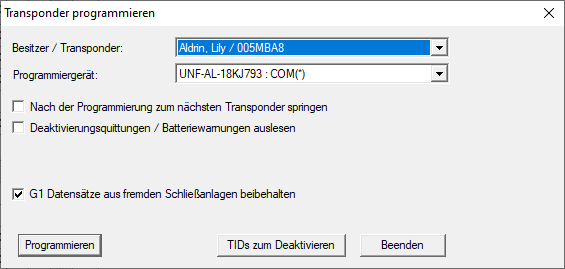
- The list will open.
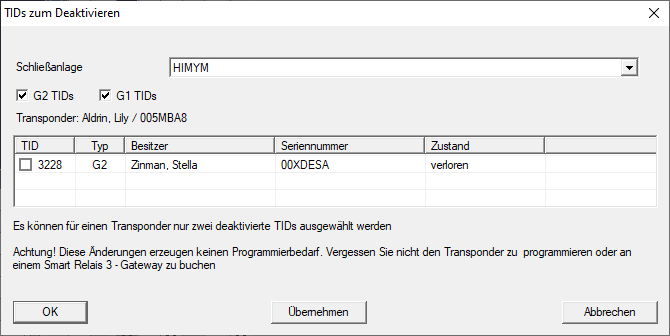
- Activate one or two check marks in the TID column to save the TIDs to be deleted on the transponder.
- Click on the OK button to confirm your input.
- Continue with the programming.
- The checked TIDs will be saved to the transponder as TIDs to delete. When the transponder is authenticated on one of the locking devices concerned, the TIDs to be deleted are deactivated at the locking device.
Add the TIDs to be blocked to the properties
The IDs to be deactivated are saved on the transponder either during the next programming process or the next booking on a gateway.
- The transponder's properties window is open.
- Change to the "Configuration" tab.
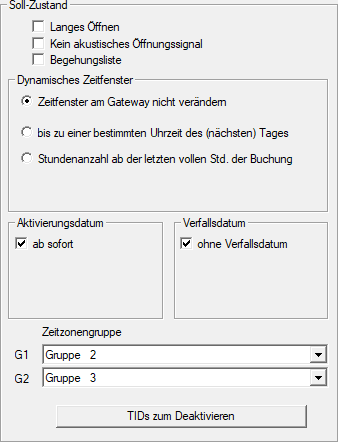
- Click on the TIDs to deactivate button.
- The list will open.
- Activate one or two check marks in the TID column to save the TIDs to be deleted on the transponder.
- Click on the OK button to confirm your input.
- The checked TIDs are saved on the transponder either during the next programming process or the next booking on a gateway.