Determine IP address with hostname - RouterNode 3
In some cases, for example, you may not know the address of your RouterNode 3:
- RouterNode 3 or whether it has received a dynamic IP address via DHCP.
- RouterNode 3 or whether it has received a fixed IP address via Auto-IP, but the address is no longer known.
Your RouterNode 3 has a hostname.
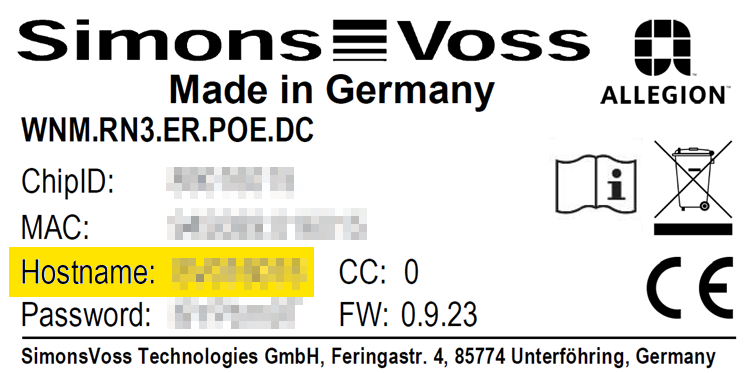
You can find the IP address using the hostname. For this, you must fulfil one of the following two requirements:
Initial configuration with DHCP | Initial configuration in advance without DHCP (Auto-IP) |
|---|---|
The active DHCP server assigns an IP address to your RouterNode 3. You can then change the configuration in a browser. |
IP auto-configuration assigns an IP address to your RouterNode 3. You can then change the configuration in a browser. Auto-IP is implemented according to RFC3927 and uses an IP address from the 169.254.1.0/24 range. Prerequisites: The network interface being used must be set to
|
 Obtain an IP address automatically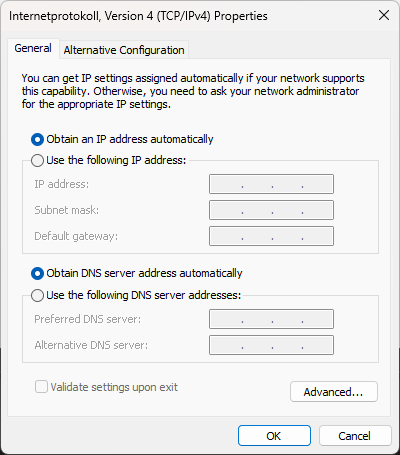
Then use the ping command.
- Open the command line (cmd).
- Use the
ping command and specify the hostname followed by .local as the destination (example: ping SV041FC4.local). 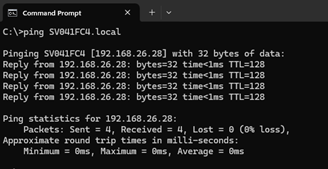
- The response is sent from the requested IP address.
The RouterNode 3 supports the mDNS and LLMNR protocols, so you can easily locate the RouterNode 3 on a LAN network using the hostname. These logs are enabled by default, but can also be disabled (see Port and protocol settings). The RouterNode 3 can then no longer be found via hostname.