Add locking devices - Step-by-Step SVCN
NOTE

Description of door management with SmartIntego Config Tool
The door management descriptions in this document refer to the SmartIntego Config Tool. Generally, your integrator has its own door management software, the operation of which may differ.
- Read the documentation for the integrator system used.
- Only use this chapter if your integrator absolutely needs the SmartIntego Config tool.
NOTE
Electronics for SI Digital Cylinder AX with reader on both sides
In the version with a reader on both sides, the SI Digital Cylinder AX is equipped with an electronic reader thumb-turn on the outside and an electronic reader thumb-turn on the inside. Both thumb-turns are independent of each other.
- Create and configure the two electronic reader thumb-turns separately.
- Program the two electronic reader thumb-turns separately.
You create new locking devices in the integrator system. The following points should be adjustable or at least visible:
- Hardware properties
- Authorisations
- Tasks
- Access lists
- Status:
- Programmed
- Pending
- Error
- Battery warning
- Deactivated
- ...
Make sure that your system documentation is consistent and update it if necessary (see Document system).
- Open the SmartIntego-ConfigTool.
- Via File select the entry .
- Assign a project name.
Create areas
- Integrator system open.
- Project created.
- Select the area in the navigation area and click on the
 button (green plus).
 - The window for creating areas opens.
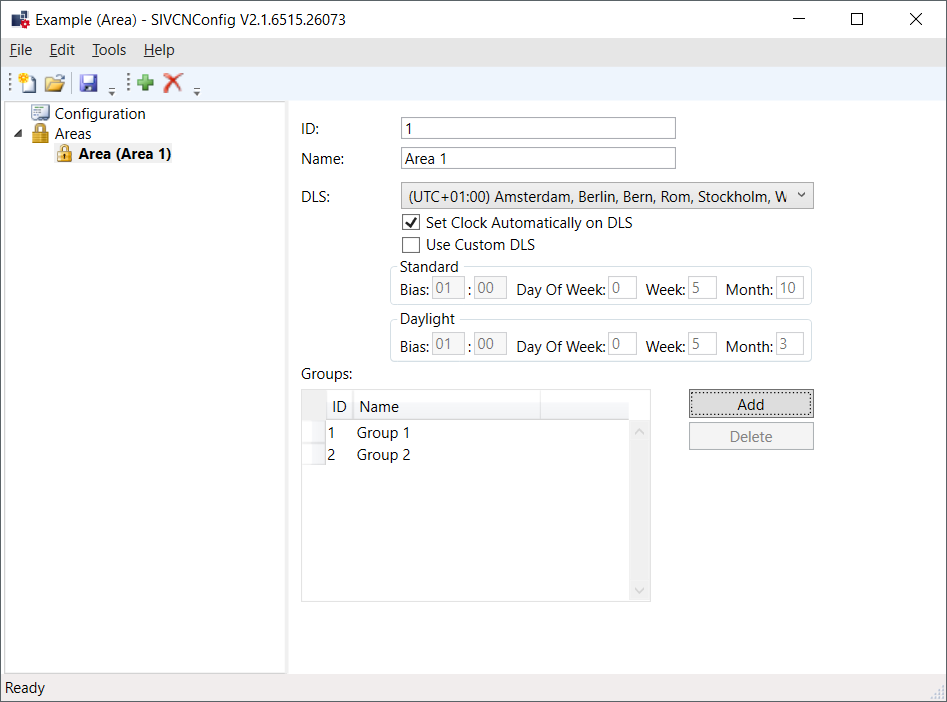
- Assign an area ID.
- Set your time zone and the daylight saving time in the (Daylight Saving) drop-down menu or set the time manually.
- If necessary, create groups.
Add locking devices
- Integrator system open.
- Project created.
- Area created.
- Select the area in the navigation area in which you want to create the locks.
- Click on the button (green plus).
- The window for creating locking devices opens.
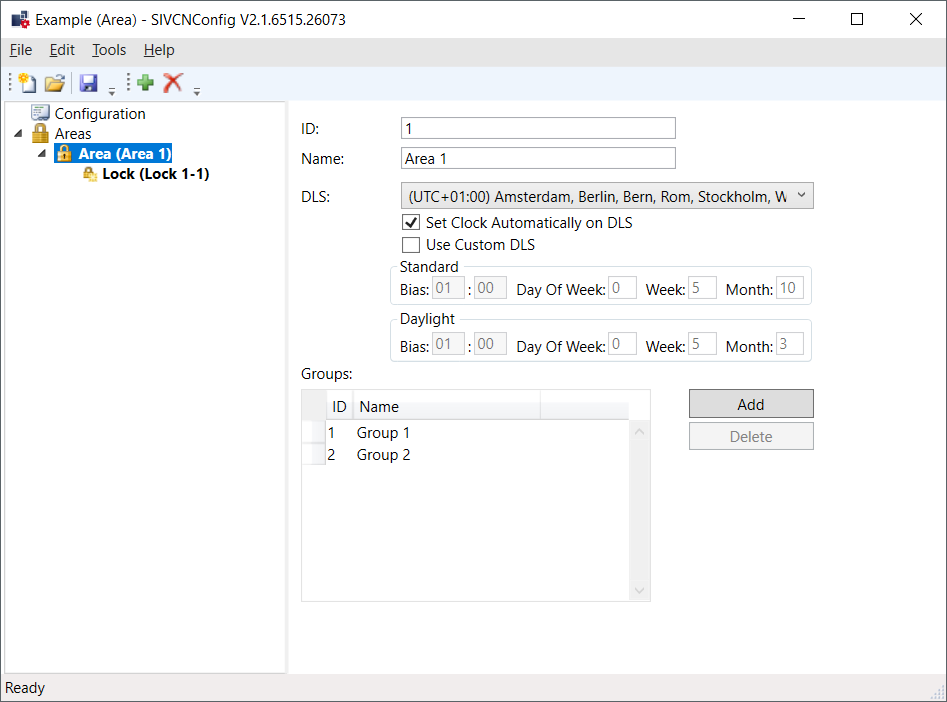
- Locking device created in the selected area.
Configuring locking devices
- Integrator system open.
- Project created.
- Area created.
- Locking device created.
- Select the locking device that you want to configure in the navigation area.
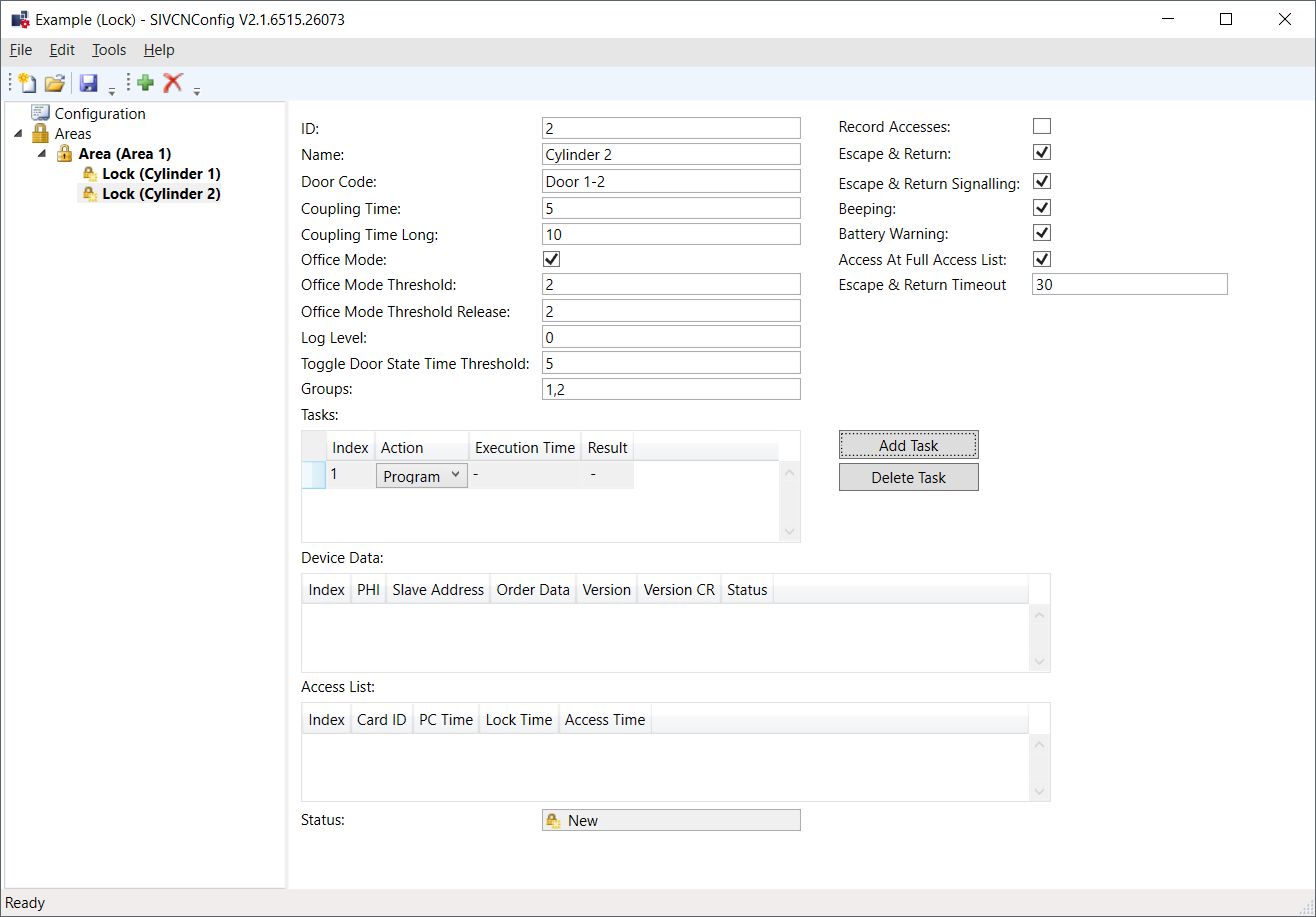
- The window for configuring locking devices opens.
- Assign a locking device name.
- If necessary, set the Office Mode.
- Create groups (separated by commas).
- If necessary, make further settings.
- With button Add task add the action SI_Tool: Task Program [offen].
- Programming task created.
- Save the XML file.
- The XML file is later imported into the SmartIntego tool (SVCN).