Electronic defect - Step-by-Step SVCN
Preparation
- Integrator system open.
- Select the faulty locking device.
- Mark the locking device as defective (e.g. in the name of the locking device, i.e. rename).
- Create an exchange lock.
- Configure the replacement lock.
- Create a task to program the replacement lock.
- Click the button Add task, to add the task to the task list.
- Save the XML file.
Programming replacement locking device
- SmartIntego Tool (SVCN) opened.
- Replacement lock available.
- Programming device (SI SmartStick AX / SI.SmartCD) is connected.
- Manually import the locking device configuration using File and the entry . If you have activated automatic import/export, import the XML file manually the first time you use it.
- Select the imported task for programming the replacement lock.
- Prepare a programming device (SI SmartStick AX: Touch the card reader of the AX lock, SI.SmartCD: Place its radio symbol on the card reader).
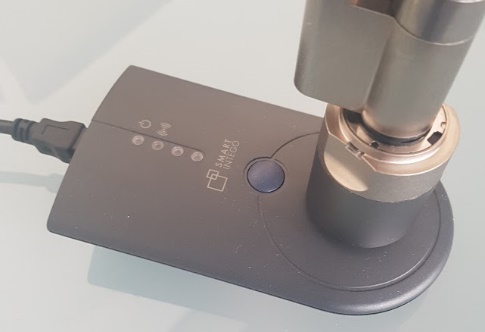
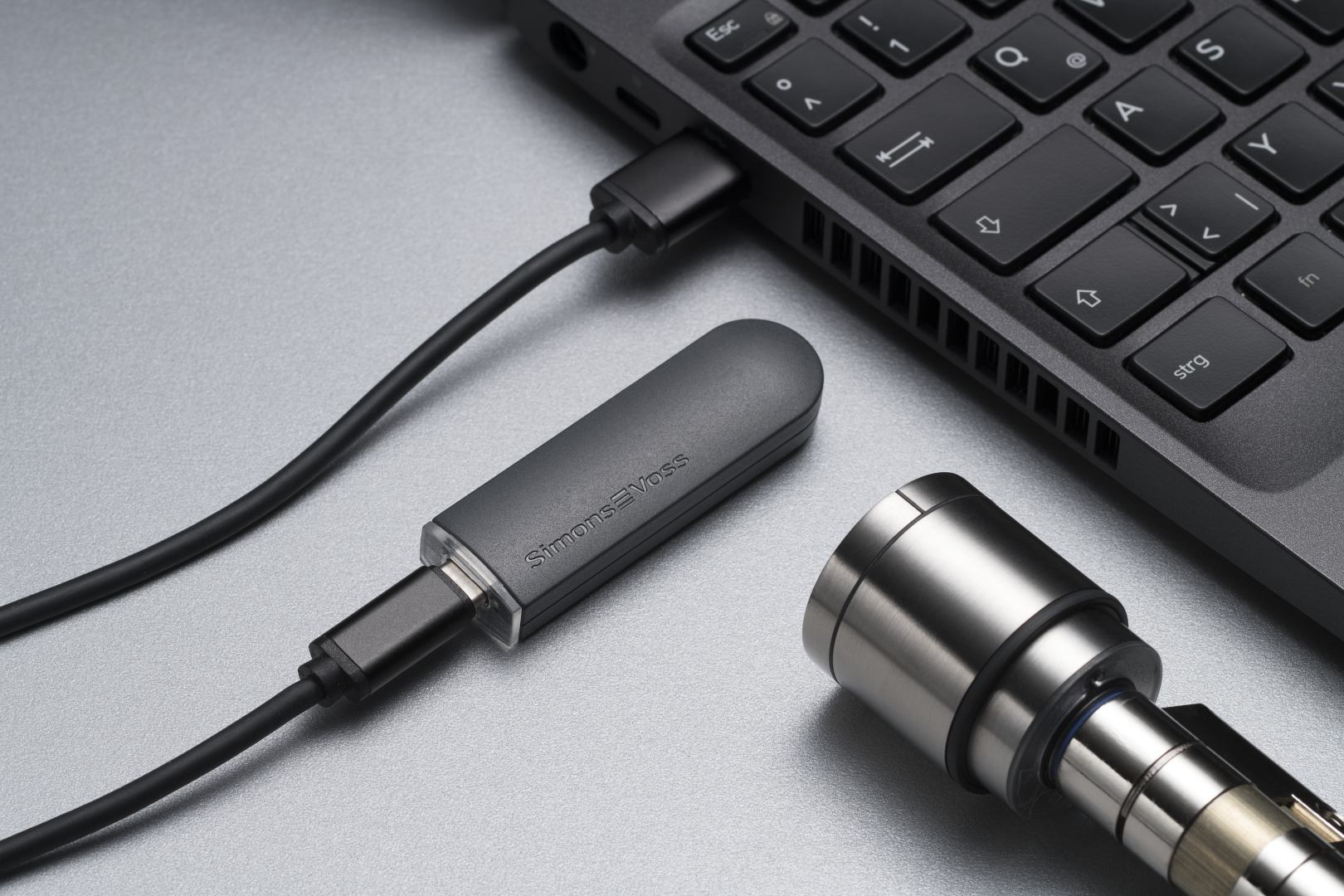
- Click on the button Execute task.
- Hold a blacklist card (contains all currently valid blacklist entries, comes from the integrator system) in front of the locking device (for locking devices that read on both sides: To both readers).
- Blacklist in locking device updated.
- If you have not activated automatic import/export (see ), select via and the entry .Automatically save and load XML file for transmission between SmartIntego tool (SVCN) and integrator systemFile
- Import the XML file into the integrator system.
- Locking device is displayed with new data.
Please also note:
- Authorisations/group memberships may still need to be set for the new locking device.
- If necessary, the cards must first be sent to the updater so that they are familiar with the new locking device.
- If the entry for the old locking device is no longer required, it can be deleted and the defective locking device disposed of properly.