Performing an emergency opening - Step-by-Step SVCN
You can also temporarily engage the locking device with an emergency opening using the SmartIntego tool (incl. the project file) and a programming device. This type of emergency opening requires less energy and can still function even if the card reader of the locking device no longer functions due to low batteries.
Perform an emergency opening with the programming device on such discharged locking devices and replace the batteries (see Battery change and battery replacement card).
Create an emergency opening task in the integrator system. Don't export this task for all locking devices because the export works like a master key.
Preparation
- Integrator system open.
- Select the locking device that you want to open.
- Create an emergency opening task for the defective locking device.
- Click the button Add task, to add the task to the task list.
- Save the XML file.
Performing an emergency opening
- SmartIntego Tool (SVCN) opened.
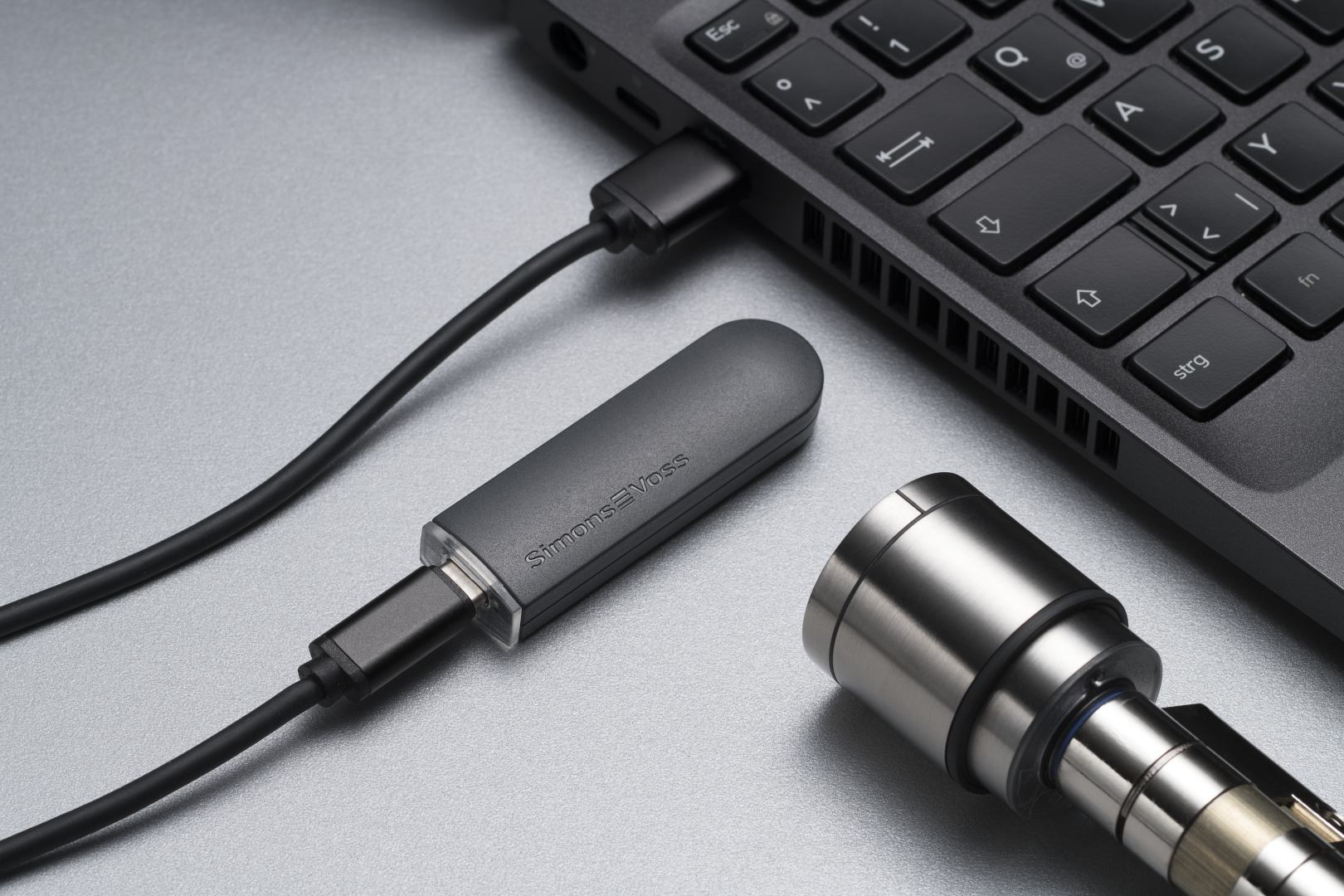
- Programming device (SI SmartStick AX / SI.SmartCD) is connected.
- Manually import the locking device configuration using File and the entry . If you have activated automatic import/export, import the XML file manually the first time you use it.
- Select the imported task to perform an emergency opening of the defective locking device.
- Prepare a programming device (SI SmartStick AX: Touch the card reader of the AX lock, SI.SmartCD: Place its radio symbol on the card reader).

- Click on the button Execute task.
- Emergency opening performed.
- If you have not activated automatic import/export (see ), select via and the entry .Automatically save and load XML file for transmission between SmartIntego tool (SVCN) and integrator systemFile
- Import the XML file into the integrator system.
- The locking device is displayed with new data.