Creating new persons with transponders - Smart.XChange
Persons tab
You use this tab to copy new persons into the LSM database from the source file. A person is uniquely identified using their personnel number (Personal Number field in the mapping viewer). The last name (Lastname field in the mapping viewer) is also required to display the LSM matrix. These details are therefore mandatory(*).
Assignment view: Settings
selection | Incorporated into the LSM database as |
|---|---|
Department | Department |
Address | Address |
Activation date | Activation date of the transponder |
End date | Leaving date |
Description | Note |
Startdate | Joining date |
Birth date | Date of Birth |
Cost Account | Cost centre |
*Lastname | Last name |
Job place | Location/building |
*Personal Number | Personnel number |
Locking system name | Name of the locking system to which the transponder, the person or both are assigned. (= the entry is created in this locking system) |
Phone | Phone number |
Job title | TITLE |
no | Not incorporated (column is ignored) |
Transponder group | Transponder group to which the transponder is assigned. |
Transponder type | Indication of the transponder type 0 = Undefined transponder type 1 = Normal G1 transponder 2 = G1 SmartClip 3 = G1 biometric transponder 4 = G1 PIN code transponder 5 = Biometric reader 6 = G1 card 257 = Normal G2 transponder 259 = G2 biometric transponder 260 = G2 PIN code terminal user 262 = G2 card 520 = AX2Go key (LSM 3.6 and higher) 521 = FORTLOX key (LSM 3.6 and higher)) |
Expiration date | Expiration date of the transponder |
Firstname | First name |
Time frame mode | Time slot mode (defines the dynamic time slot mode in the transponder Configuration tab) 0 = Do not change time window on gateway |
Time frame value | Time slot value (depends on Time frame mode)
|
G1 Time Group ID | G1 time zone group to which the transponder is assigned |
G2 Time Group ID | G2 time zone group to which the transponder is assigned |
Note on G1 Time Group ID/G2 Time Group ID and Transponder group
The mapping value G1 Time Group ID or G2 Time Group ID can only be assigned to one of the two database values:
- TransponderGroup.TimeGroupID or TransponderGroup.TimeGroupG2ID
- Transponder.TimeGroupG1ID or Transponder.TimeGroupG2ID
You can assign a group of transponders (TransponderGroup) to a time zone group (TimeGroup) in LSM in order to issue time-controlled authorisations to several persons at the same time (=TransponderGroup.TimeGroup). You can recognise transponders with group-controlled time budgets in LSM: in the Configuration tab in the Time zone group section, an addition is shown in square brackets in the or drop-down menu after the time zone group. This add-on specifies which transponder group with z time zone group defines the time zone group for this transponder. To do this, assign the G1 Time Group ID or G2 Time Group ID mapping value to the Transponder.TimeGroupG1ID or Transponder.TimeGroupG2ID database value.
If you want to assign different time authorisations to individual transponders from a transponder group with a time zone group, you can also assign a time zone group directly to these transponders (=Transponder.TimeGroup). This overwrites the time authorisation that results from the transponder belonging to a transponder group with time zone group (TransponderGroup.TimeGroup) (Transponder.TimeGroup > TransponderGroup.TimeGroup). To do this, assign the G1 Time Group ID or G2 Time Group ID mapping value to the TransponderGroup.TimeGroupID or TransponderGroup.TimeGroupG2ID database value.
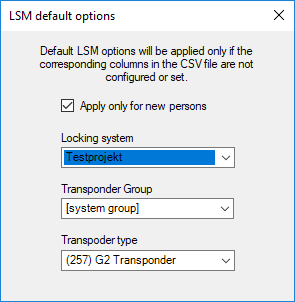
Task options
Setting | Function |
|---|---|
Locking system | If no column has been selected for Locking system name in the mapping or no locking system has been specified for an entry, the entry is created in the locking system selected here. |
Transponder group | If no column was selected for Transponder group in the mapping or no transponder group is specified for an entry, the entry is assigned to the transponder group selected here. |
Transponder type | If no column has been selected for Transponder type in the mapping or no transponder type has been specified for an entry, the entry is created as the transponder type selected here. |
Apply only for new persons | Entries which already existed when the last import was made are ignored. |
Remarks
- If a transponder type is indicated, but no transponder, a transponder is added and assigned to the person.
- A person may already have another type of transponder assigned which has not yet been programmed. In this case, this transponder's type will be replaced by the indicated type.
- If a transponder type is indicated, but the person has already been assigned a programmed transponder, this specification will not take effect.
- If a transponder group is indicated, then the locking system name needs to be specified.
- If no transponder group is indicated, but there is a name for the locking system, then the transponder group is the same as for the system group for the locking system.
- If a transponder group is indicated, then the transponder is assigned to this group. Exception: the transponder is already assigned to a transponder group in the locking system.
- If a transponder group is already indicated, then the transponder is moved to this group if it is already assigned to a transponder group.
Comment on AX2Go
An invitation must be sent for AX2Go keys (Transponder type = 520). An e-mail or an SMS can be used for this purpose, which is why an e-mail and/or an text message must be specified for AX2Go keys.
If both are available, LSM prefers an email and sends the invitation automatically. If neither an email nor text message are available, the entry is not imported.
NOTE

Import of AX2Go keys with LSM.AX2Go only
A fully configured, functioning LSM.AX2Go is required to use AX2Go keys (see LSM manual for initial operation).
If you try to import AX2Go keys without LSM.AX2Go being set up, errors will occur (e.g. invitations will not be sent).
- Before importing AX2Go keys, make sure that you have put LSM.AX2Go fully into operation and that it is running.