Basic procedure - Smart.XChange
- User logged on to the LSM database in Smart.XChange.
- Locking system added to LSM.
- Source files provided in CSV format.
- Source files not opened in another program.
CAUTION

Data loss if settings are incorrect
Smart.XChange overwrites the LSM database. Data is lost if incorrect settings are made by mistake.
- Create a backup before importing.
- Click on the ... button to open Explorer.
- The Explorer window will open.
- Navigate to the source file.
- Click on the Open button to confirm your selection.
- Source file is imported.
- Explorer window closes.
- Click on the Mapping-Viewer button to open the Set mapping window.
- Mapping-Viewer opens.
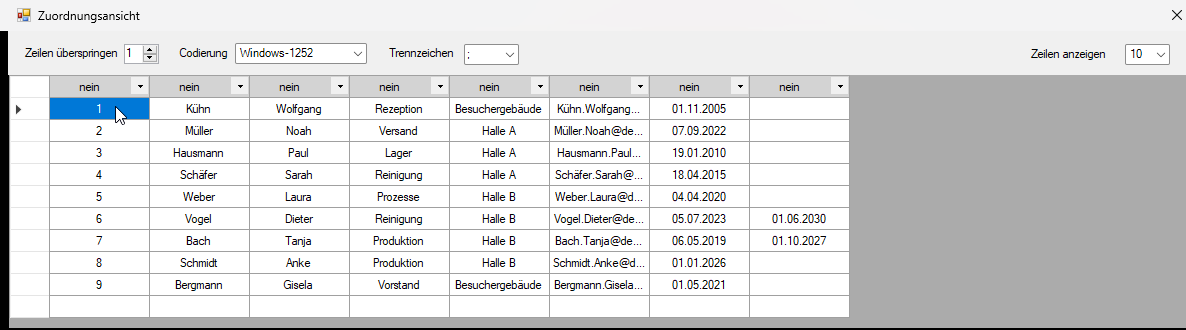
- Click on the arrow to fold down the drop-down menu from the top row.
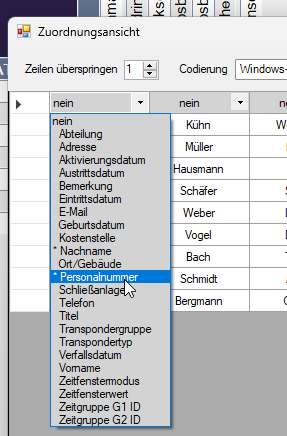
- Select the appropriate data types (see tables below from section Creating new persons with transponders onwards), but select mandatory assignment elements (marked with an asterisk) as a minimum.
- Use the same procedure on the other columns.
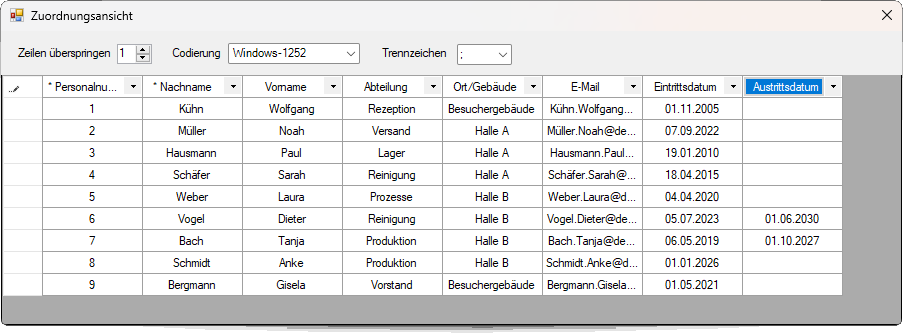
- Close the Mapping-Viewer window again.
- Selection is saved automatically.
- Use the cog wheel button to set options if you wish.
- The LSM default objects window will open.
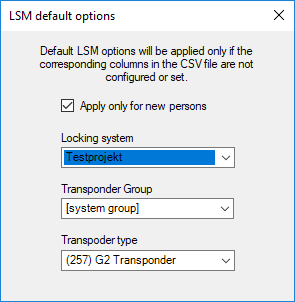
- Close the LSM default objects window again.
- Selection is saved automatically.
- Use the clock button to set the time schedule (Once, every five minutes, every hour, every day, every week or every month).
- The Task's schedule window will open.
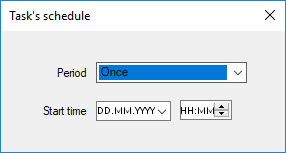
- Close the Task's schedule window again.
- Selection is saved automatically.
- Restart the service via the Activate.
- Service synchronizes databases based on time schedule and configured options.
You can also launch theRun now service using the button. The time schedule will be ignored in this case and the service launched immediately. The service is then executed as per the time schedule.
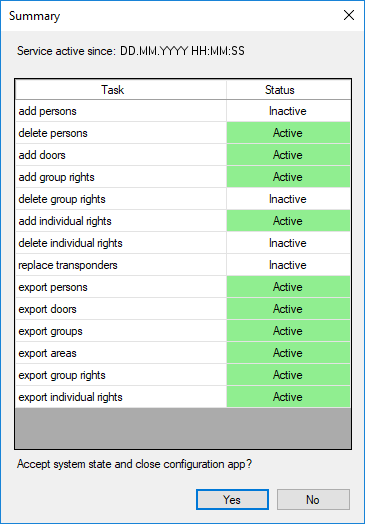
When you close the program, the Summary is displayed. This allows you to see the settings that the service is working with in the background after you have closed the window.