Programming - VdS shunt lock
For the sake of simplicity, program all components before installation. Consider the following points:
- Program activation units, deactivation units and the locking cylinders in the same locking plan.
- The overlay mode is not available.
Creating a block lock in the locking plan
Activation units
- Matrix screen open
- Click on the button
 .
. - Window New lock opens.
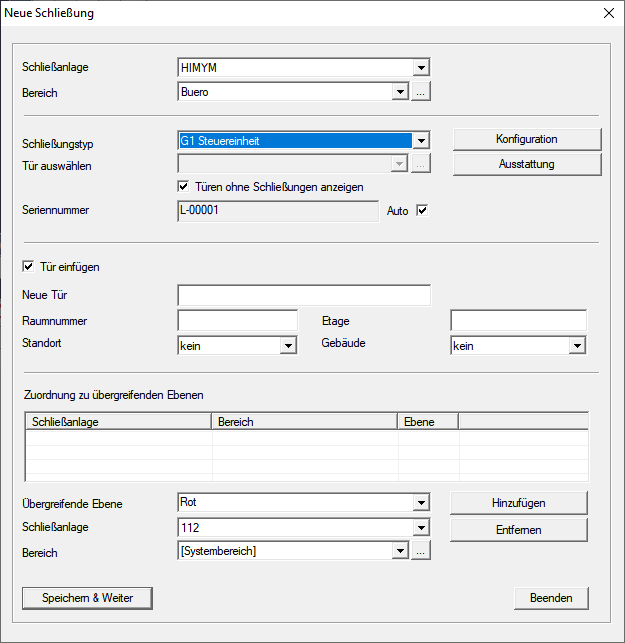
- In the dropdown menu select the entry G1 Control Unit.
- Fill in the remaining fields.
- Click on the button Save & next.
- The entry is created.
- Create all activation units as G1 Control Unit in this way.
- Assign the desired authorisations only to the activation units. (Deactivation units are created, but no transponders are authorised on them).
Deactivation units
- Matrix screen open
- Click on the button .
- Window New lock opens.
- In the dropdown menu select the entry G1 Control Unit.
- Give the deactivation unit a name similar to that of the associated cylinder to make the assignment easier to recognise.
- Fill in the remaining fields.
- Click on the button Save & next.
- The entry is created.
- Create all deactivation units in this way as G1 Control Unit.
Programming a block lock
NOTE

Auxiliary voltage for components
The components require a supply voltage during programming.
- Connect a power supply to the components (for example a 9 VDC block battery), see Connections of deactivation unit and Connections of the activation master or Connections of the activation slave).
- Do not connect components to each other with wires.
- Only connect the component that you are about to program to the power supply.
- Select the component in the locking plan.
- Click on the button
 .
. - Window Programming Lock opens.
- Click on the button Programming.
- Window Programming opens.
- The programming procedure is executed.
- The window Programming closes.
- After programming, via Programming select the entry .
- Window Read lock opens.
- Click on the button Read.
- Window Programming opens.
- Readout is performed.
- Result is displayed.
- If the component was read out successfully, it is programmed.
Repeat the programming for all other components.