Post-editing: Data reimport - LSM Mobile
The status in the database does not match the actual status in the locking devices until the data has been reimported. You thus need to import the data back into LSM once you have completed all tasks in LSM Mobile.
- LSM open.
- Tasks completed in LSM Mobile.
- LSM Mobile not open.
- Select the input → → from the top Programming toolbar.
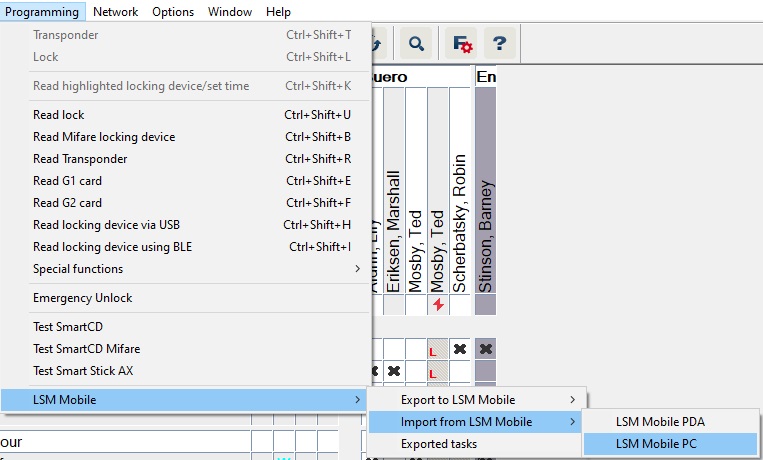
- The LSM Mobile: Data import window will open.
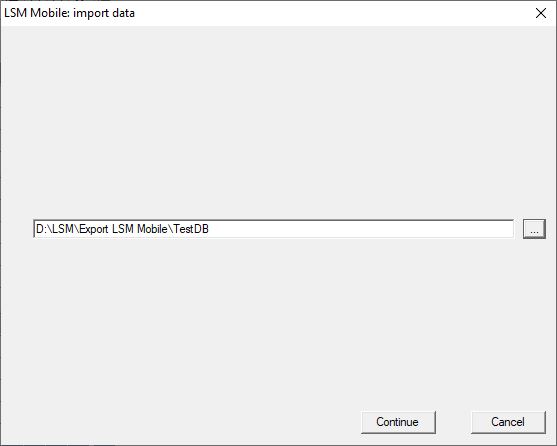
- If the file path does not lead to the LSM Mobile data folder: Click the ... button and navigate to the LSM Mobile data folder.
- Click on the Continue button.
- Data is imported into LSM.
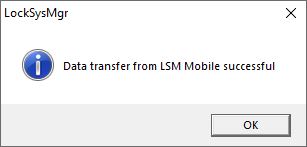
- Click on the OK button.
- The Import: Task List window will open.
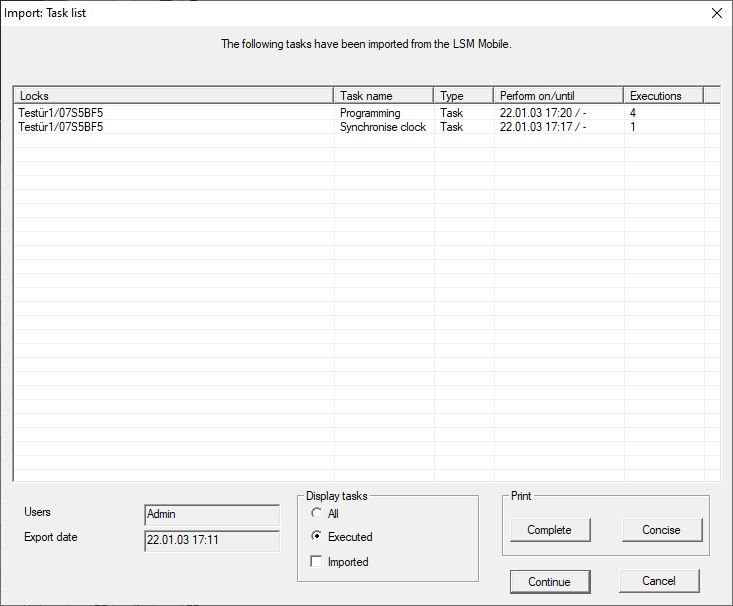
- Click on the Continue button.
- Import: Task List window closes.
- Data is synchronised with the LSM database.
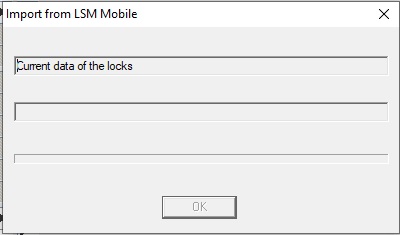
- Info window will open.
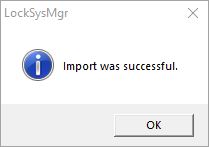
- Click on the OK button.
- Info window will close.
- Programming requirement disappears in LSM.